
Start here: a tour of the game panel
Logging in
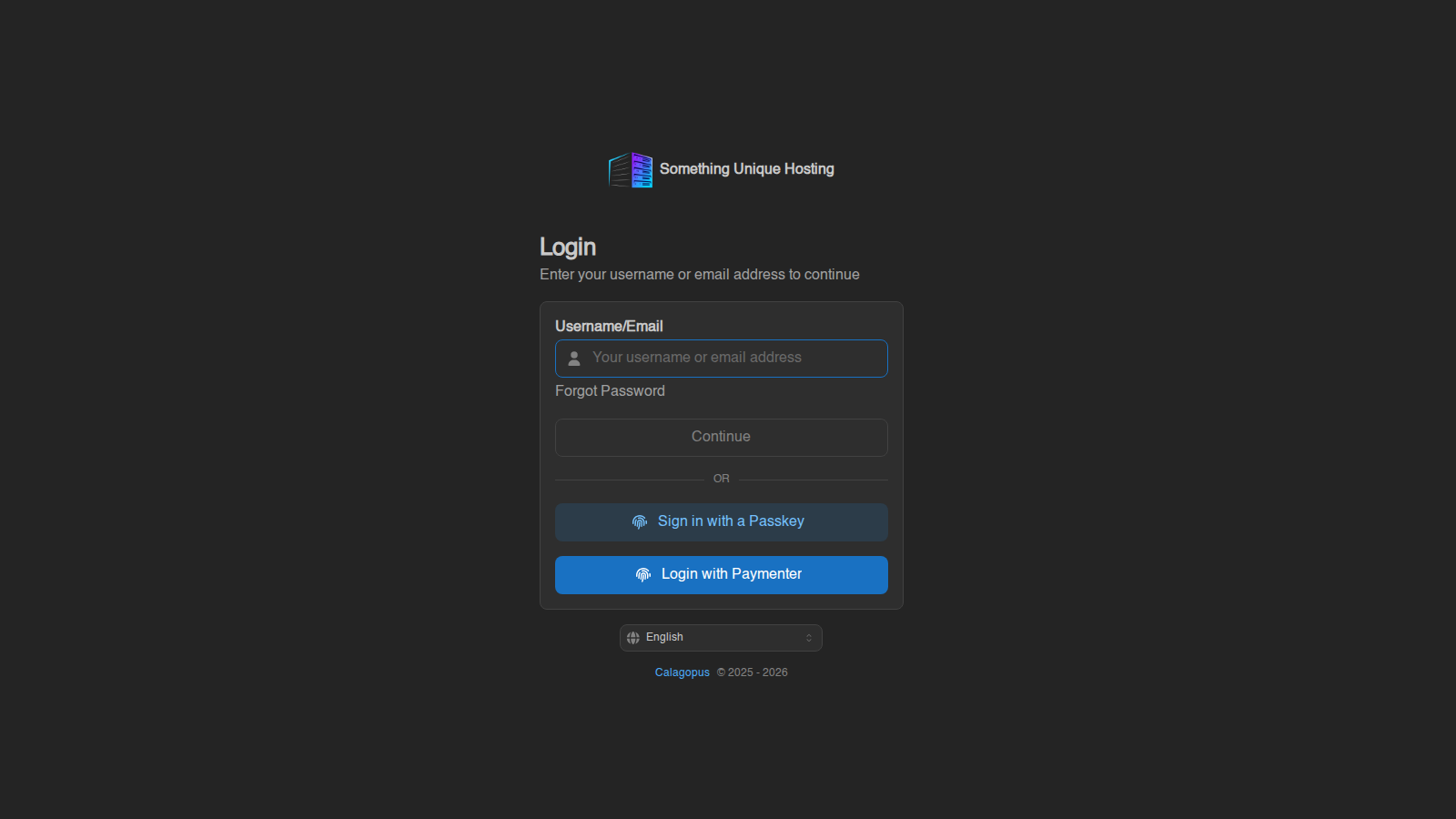
Go to panel.suhosting.net. You can sign in three ways:
- Login with Paymenter: uses the account you created when you ordered your server. This is the easiest option.
- Username or email, then your panel password.
- Sign in with a Passkey, if you've set one up. See Two-factor authentication and security keys.
Forgot your password? Click Forgot Password under the username box.
Your server list
After logging in you land on Servers. Each card shows the server's address (click it to copy), and its live CPU, memory and disk use. Click a card to open that server.
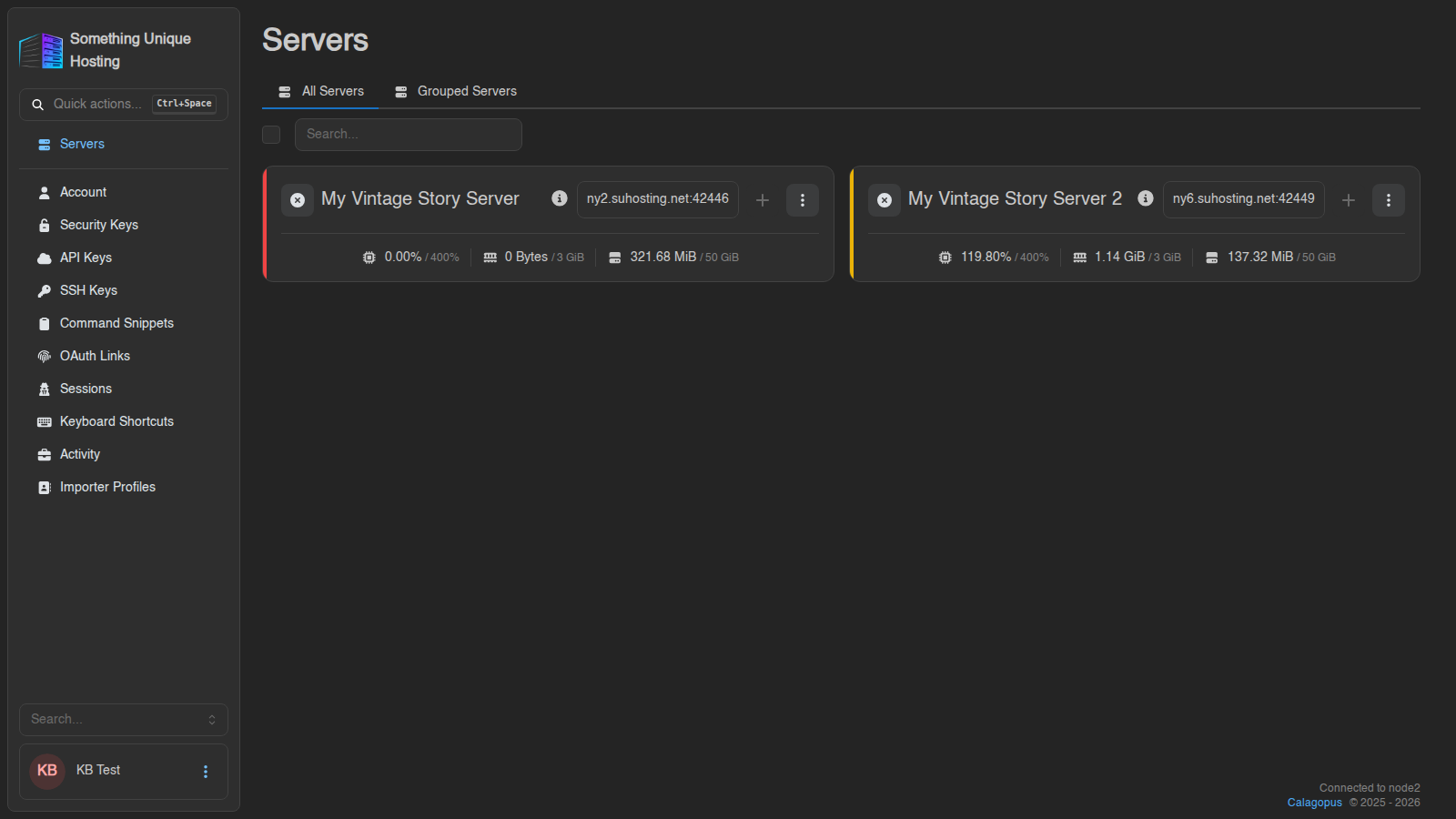
- Search finds a server by name. Press Enter to jump straight to it.
- Grouped Servers lets you sort servers into your own groups.
- A server shared with you by someone else (see subusers) shows a small "shared" icon.
Inside a server
| Tab | What it's for | Guide |
|---|---|---|
| Console | Start/stop the server, watch the live log, type commands | Console and power controls |
| Mod Browser | Install and update Vintage Story mods | Mod Browser |
| Files | Browse, edit, upload and download your server's files | File manager |
| Schedules | Automatic restarts, backups and more | Schedules |
| Subusers | Give friends access to your server | Subusers |
| Backups | Make and restore backups | Backups |
| Network | Your server's address and ports | Network and ports |
| Startup | Game version and startup options | Startup tab |
| Settings | Rename, timezone, reinstall, change game | Server settings |
| Activity | Who did what, and when | Activity log |
| VS Tools | Vintage Story server config, whitelist, bans, roles | VS Tools |
| World | Live world map, players and land claims | The World page |
| Metrics | Performance graphs for your server | Server metrics |
| Subdomains | A custom address like mytribe.suhosting.net |
Subdomains |
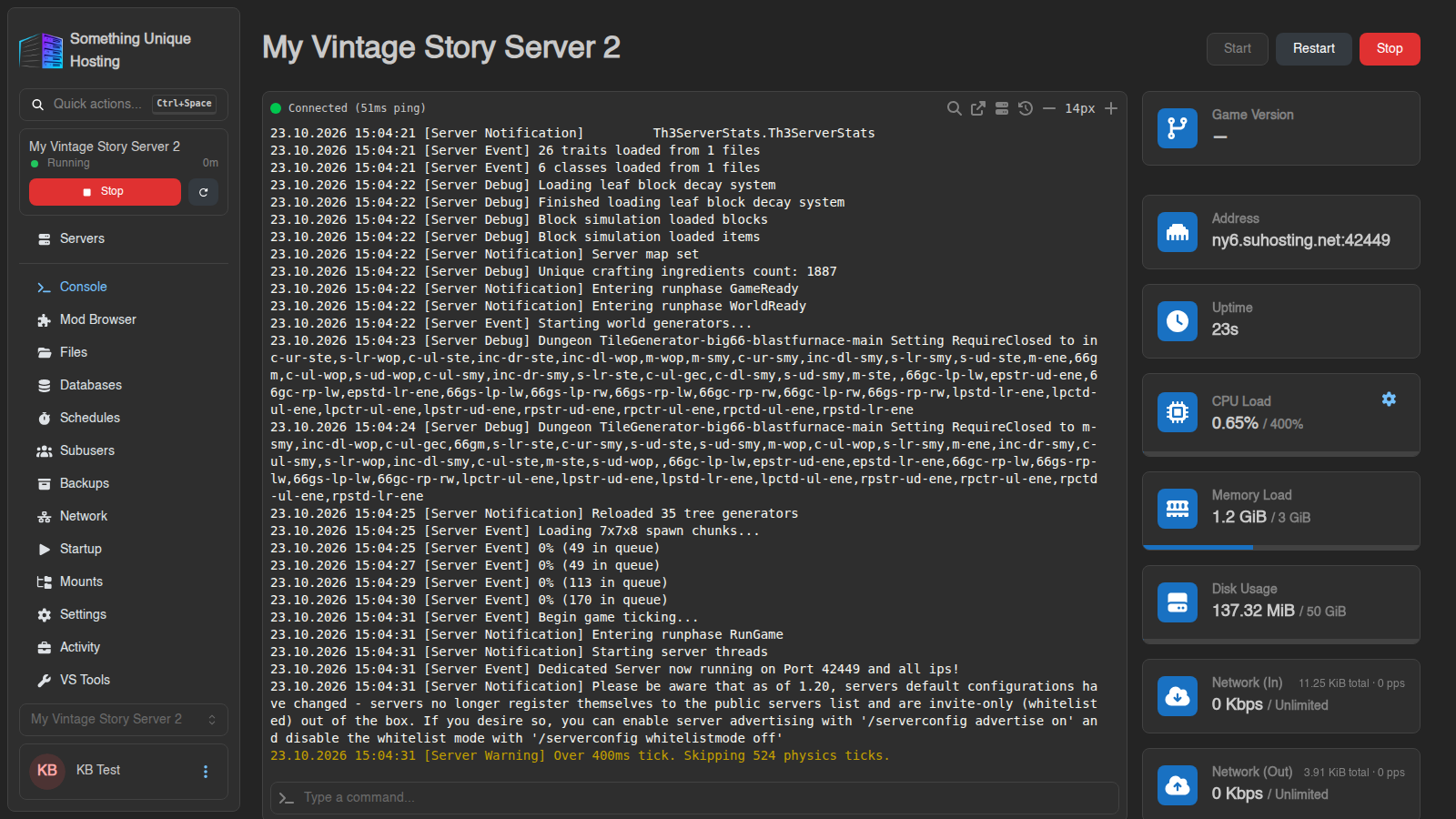
The box above the sidebar shows the current server, whether it's Running or Offline, and a quick Start/Stop button. Use the selector at the bottom of the sidebar to switch between your servers without going back to the list.
Handy shortcuts
- Quick actions (top of the sidebar, or Ctrl+Space): search for any page or action and jump to it.
- Click your name in the bottom-left corner for your account settings: password, two-factor, SSH keys and more. See Your account.
Common first steps
- Start your server from the Console and wait for it to finish loading.
- Copy the address from the Console or the server list, and connect from your game.
- Make a backup once your world is set up. See Backups.
- Set up a schedule for a nightly restart. See Schedules.
Something not working? See My server won't start or keeps crashing, or open a support ticket.