
Console and power controls
What this is about
The Console tab is your server's home page. From here you can start and stop the server, watch its live log, type commands, and keep an eye on how much CPU, memory and disk it's using.
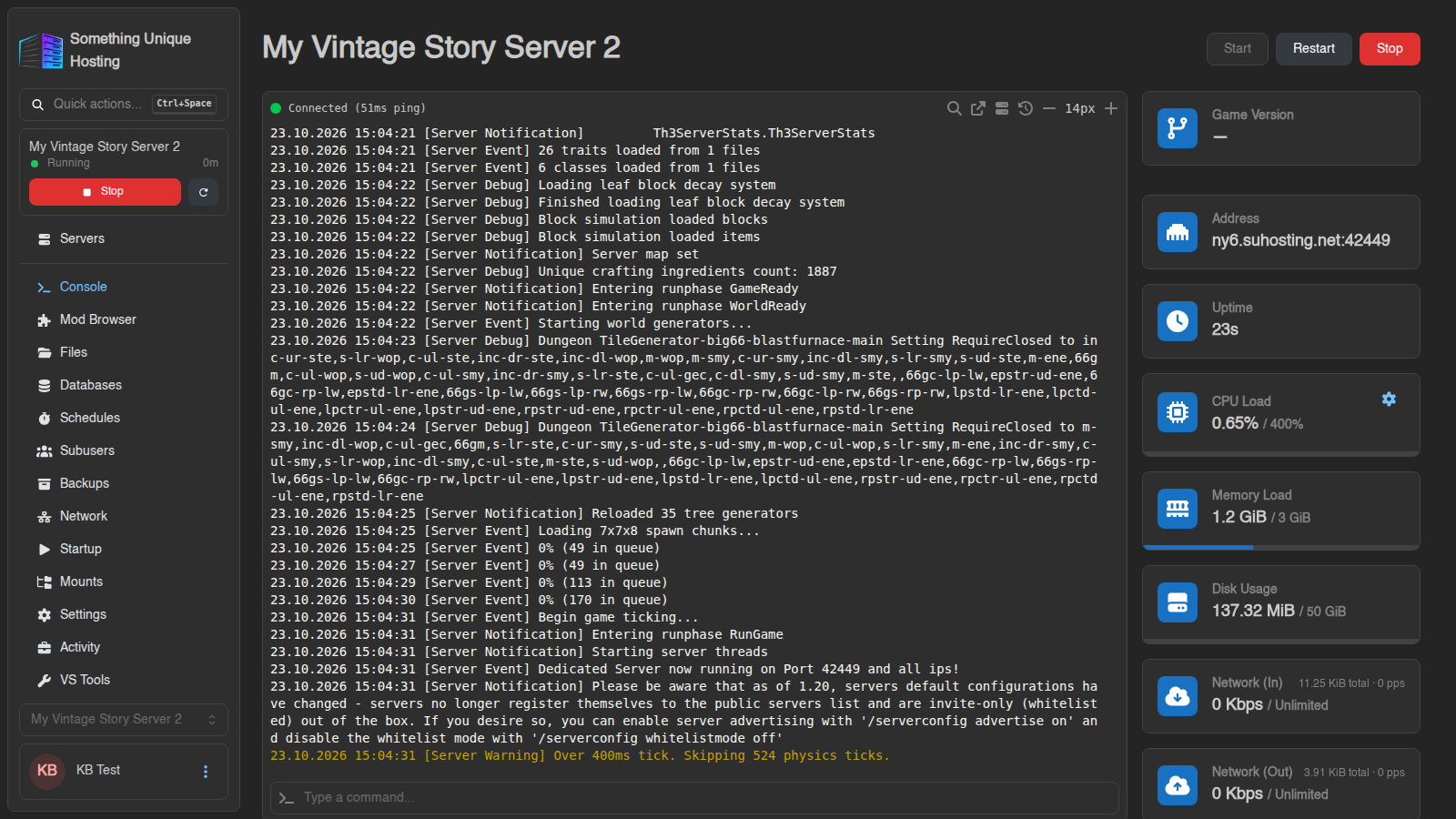
Power buttons
At the top right:
| Button | What it does |
|---|---|
| Start | Starts the server. Only available while it's offline. |
| Restart | Stops the server cleanly, then starts it again. |
| Stop | Asks the server to shut down cleanly and save. |
| Kill | Appears in place of Stop while the server is stopping. Ends the process immediately. |
Only use Kill if the server is stuck stopping. The panel warns: "Forcibly stopping a server can lead to data corruption." A clean Stop saves your world first; Kill does not.
Want a stuck server killed for you automatically? Turn on Auto-Kill in Server settings.
The live log
The big black area shows everything the server prints, live. Lines starting
with container@calagopus~ come from the panel itself (for example
"Server marked as Offline..."). Everything else comes from your game.
The toolbar above the log:
| Icon | What it does |
|---|---|
| 🔍 Search | Find text in the log. Enter jumps to the next match, Shift+Enter to the previous one. |
| ↗ Open in Separate Window | Pops the console out into its own window, handy on a second monitor. |
| 🖥 SSH Details | Connection details if you want to open the console from a terminal program. |
| 🕘 Command History | Every command sent to this server, including ones from schedules and other users. Click one to send it again. |
| − 14px + | Make the log text smaller or bigger. |
Sending commands
Type into Type a command... at the bottom and press Enter. Commands go straight to the game, as if you typed them into the server window.
- Up / Down arrows scroll through commands you've typed before.
- Type
!to pick from your saved command snippets, handy for long commands you use often. - The small terminal icon on the left of the box sets a Command Prefix that's added to everything you type. For example, set
/announceand everything you type is broadcast to players.
Vintage Story commands start with a slash: /time set day, /announce Hello, /genbackup.
Resource cards
On the right:
| Card | Shows |
|---|---|
| Address | The address players connect to. Click to copy. |
| Uptime | How long the server has been running. |
| CPU Load | CPU use against your plan. 100% equals one full CPU core, so a 4-core plan shows "/ 400%". The ⚙ toggle switches to a 0–100% scale. |
| Memory Load | RAM in use against your plan's limit. |
| Disk Usage | Space used against your limit. |
| Network (In/Out) | Current traffic. |
Below the log you'll find live graphs of CPU, memory and network.
On Vintage Story servers, the console also shows the Game Version and an Online Players box with everyone currently connected and their ping. It refreshes every 30 seconds.
Memory near the limit all the time? The server may be stopped with "Out of memory". See My server won't start or keeps crashing.
Messages you might see
- "Your Server is currently being installed. Please wait...": a reinstall or update is running. Watch the log for progress.
- "Your Server is currently suspended.": usually a billing issue. Check your billing panel or open a ticket.
- "Disconnected" next to the status dot: your browser lost its live connection. Refresh the page.
No comments to display
No comments to display