
Sessions, API keys and SSH keys
Sessions: where you're logged in
Account → Sessions lists every browser and device currently signed in to your account, with its IP address, browser and when it was last used. Your current one is marked under This Device?.
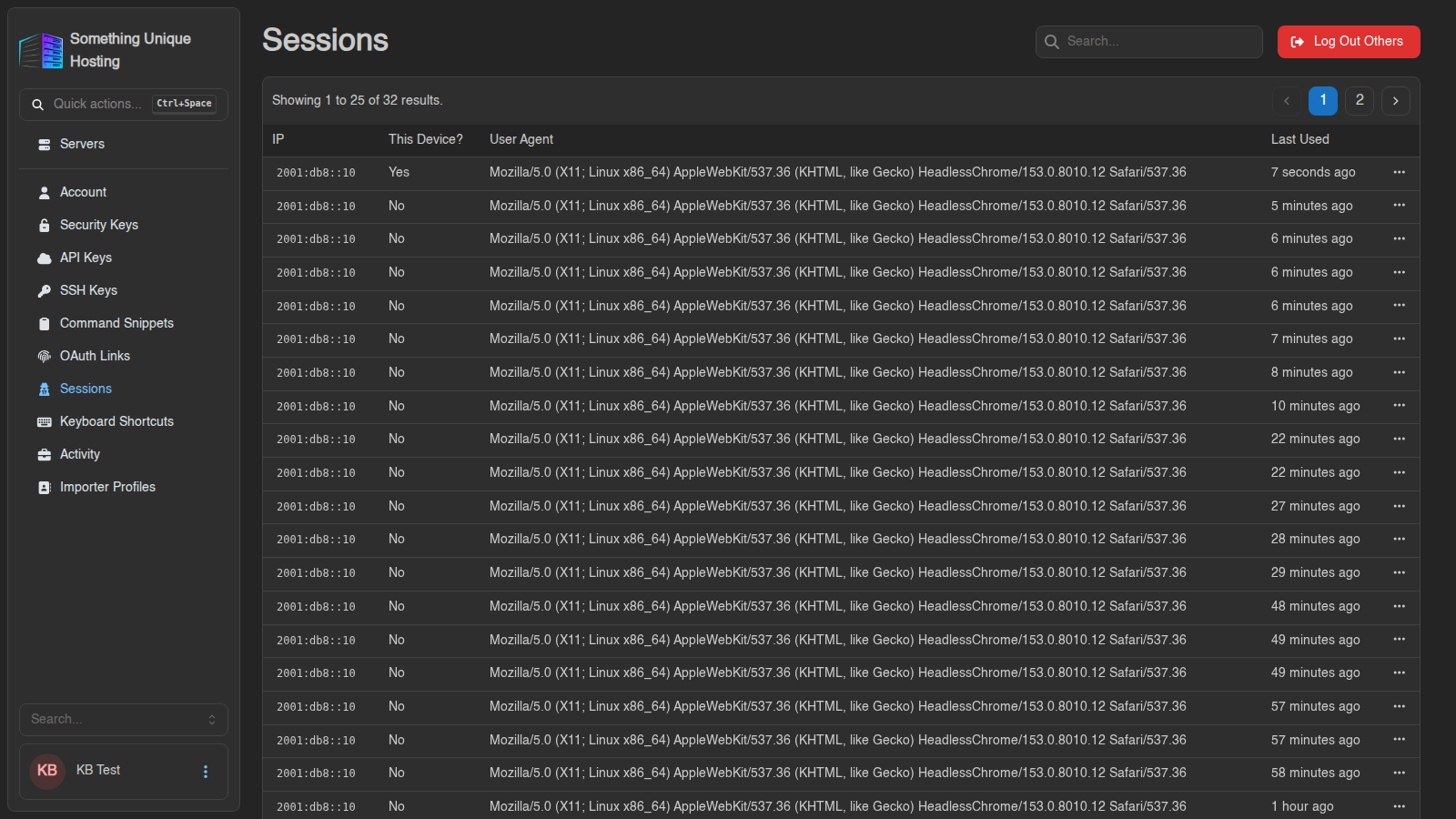
- Don't recognise one? Click ⋯ → Remove on it.
- Log Out Others signs out every device except the one you're using. Do this after changing your password, or if you've logged in on a shared computer.
See a session you don't recognise? Change your password, click Log Out Others, and turn on two-factor authentication.
API keys: letting apps control your server
An API key lets a script, bot or app (for example a Discord bot that restarts your server) use the panel on your behalf. Most people never need one.
- Go to Account → API Keys and click Create.
- Give it a Name, and optionally an Expires date.
- Under Server Permissions, tick only what the app needs, e.g. just power controls.
- Optionally restrict Allowed IPs to the address the app runs from.
- Click Save.
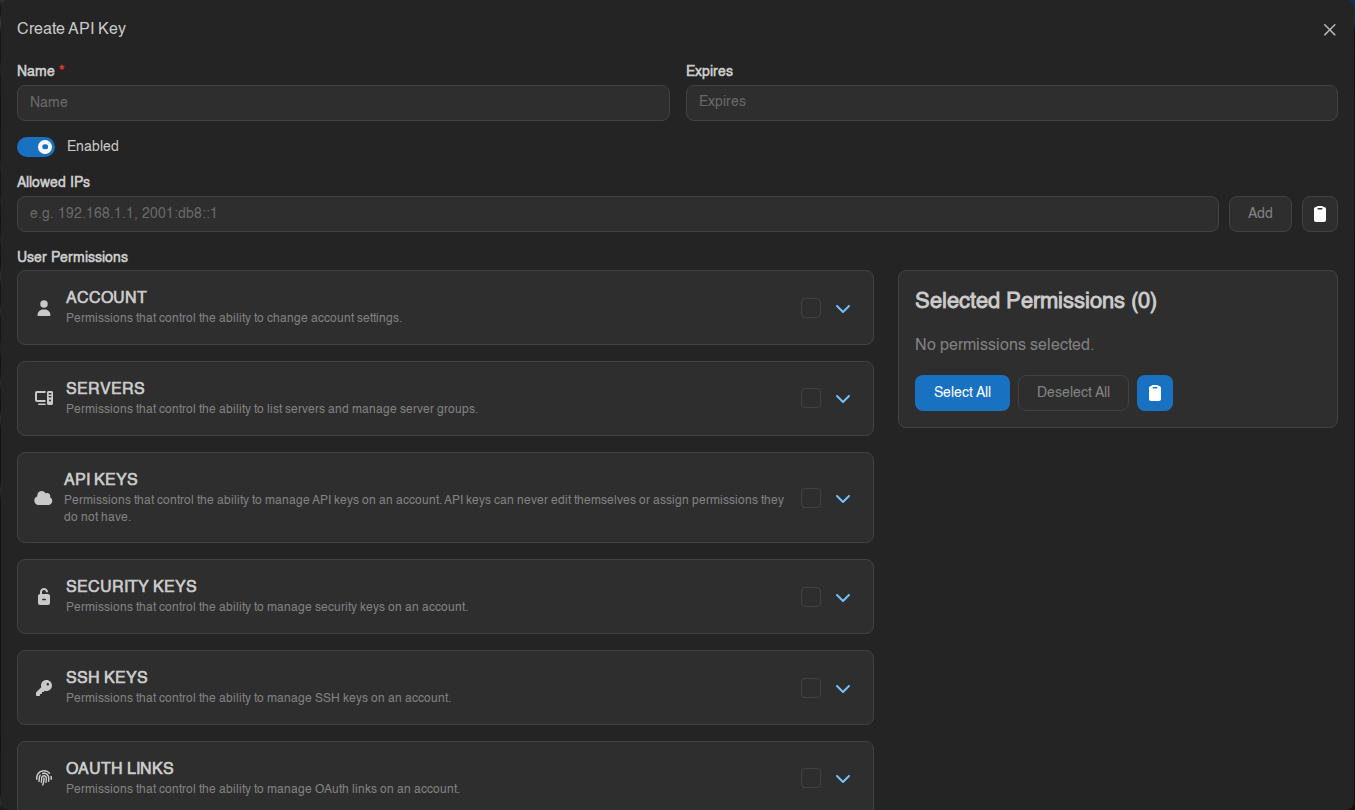
The key is shown only once. Copy it straight away. Anyone with the key can do whatever you allowed it to, so treat it like a password and never share it publicly.
SSH keys: logging in to SFTP without a password
An SSH key lets your SFTP program log in without typing your password.
- Go to Account → SSH Keys and click Create.
- Give it a name and paste your public key (the
.pubfile), or click Upload Key File. - Point your SFTP program at the matching private key.
Step-by-step for WinSCP and FileZilla: Connecting to your server with SFTP.
No comments to display
No comments to display