See a session you don't recognise? Change your password, click Log Out Others, and turn on two-factor authentication.
## API keys: letting apps control your server An **API key** lets a script, bot or app (for example a Discord bot that restarts your server) use the panel on your behalf. Most people never need one. 1. Go to **Account → API Keys** and click **Create**. 2. Give it a **Name**, and optionally an **Expires** date. 3. Under **Server Permissions**, tick **only** what the app needs, e.g. just power controls. 4. Optionally restrict **Allowed IPs** to the address the app runs from. 5. Click **Save**. [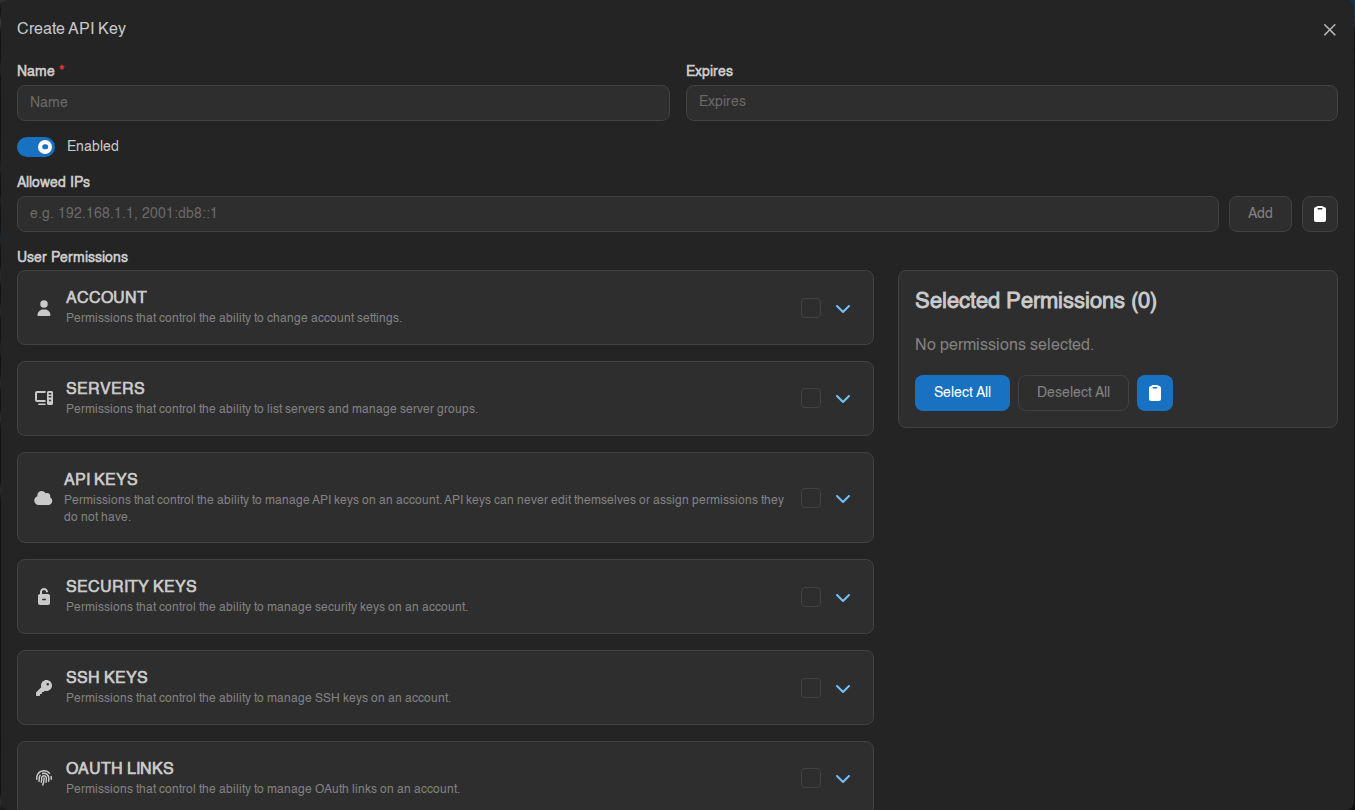](https://knowledgebase.suhosting.net/uploads/images/gallery/2026-10/acct-apikey-create.png)The key is shown only once. Copy it straight away. Anyone with the key can do whatever you allowed it to, so treat it like a password and never share it publicly.
From a key's **⋯** menu you can **Disable** it, **Recreate** it (which makes a new key and stops the old one working), or **Remove** it. The **API Documentation** button explains how apps use the key. ## SSH keys: logging in to SFTP without a password An **SSH key** lets your SFTP program log in without typing your password. 1. Go to **Account → SSH Keys** and click **Create**. 2. Give it a name and paste your **public** key (the `.pub` file), or click **Upload Key File**. 3. Point your SFTP program at the matching **private** key. Step-by-step for WinSCP and FileZilla: [Connecting to your server with SFTP](https://knowledgebase.suhosting.net/books/game-panel/page/connecting-to-your-server-with-sftp).