
Connecting to your server with SFTP
What this is about
SFTP lets you manage your server's files from a program on your own computer instead of the browser. The panel's Files tab handles uploads of any size, so you don't need SFTP, but it's handy when you want to:
- move lots of files at once, like a whole world folder or a modpack
- keep folders on your computer and your server in sync
- make a quick local copy of your server before a big change
You'll need an SFTP program. We recommend WinSCP (Windows) or FileZilla (Windows, macOS, Linux).
Finding your connection details
- Open the game panel and go to your server.
- Click the Files tab.
- Click the Connect button at the top of the file list, then choose via SFTP.
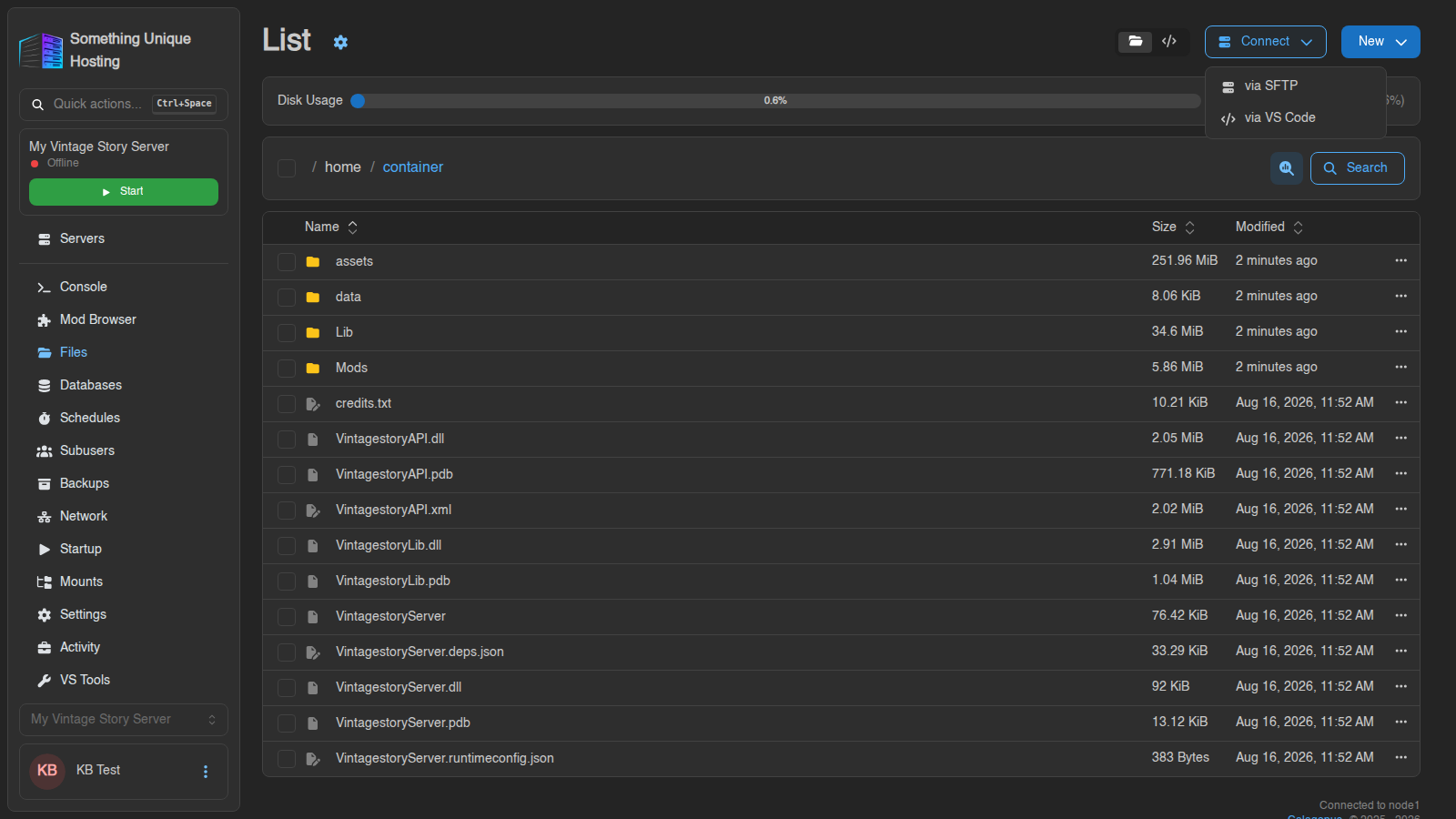
A window opens with everything you need. Click any field to copy it.
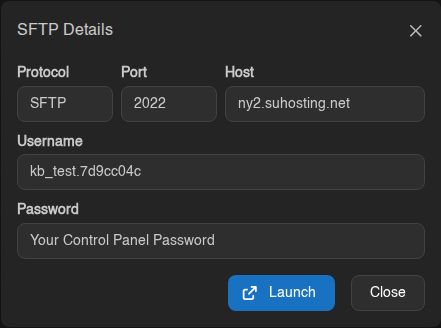
| Field | What to enter in your SFTP program |
|---|---|
| Protocol | SFTP (not FTP, not FTPS) |
| Host | Your node's address, e.g. ny2.suhosting.net |
| Port | 2022 (not 21 or 22) |
| Username | Your panel username, a dot, then a short server ID, like yourname.7d9cc04c. The part after the dot identifies the server, so each server has its own SFTP username |
| Password | Your game panel password |
The username is different for every server on your account. If you have more than one server, make sure you copy it from the right one.
Option 1: Launch your SFTP program automatically
If WinSCP or FileZilla is installed, click Launch in the SFTP details window. Your browser will ask to open the program. Allow it, and the connection details are filled in for you.
The first time you connect, your program may warn that it doesn't recognise the server's host key. That's normal for a first connection, so accept it.
Enter your game panel password when asked, and you're in.
Option 2: Enter the details manually
WinSCP
- Open WinSCP. The Login window appears.
- Set File protocol to SFTP.
- Fill in Host name, Port number, User name and Password from the details window.
- Click Save if you want to keep it for next time, then Login.
FileZilla
- Open FileZilla and go to File → Site Manager.
- Click New site.
- Set Protocol to SFTP - SSH File Transfer Protocol.
- Fill in Host, Port, User and Password.
- Click Connect.
Don't use FileZilla's Quickconnect bar without typing sftp:// in front of the host. Without it, FileZilla tries plain FTP and the connection fails.
Password not working?
Your SFTP password is the same password you use to log in to the game panel, the one you created when your account was set up.
- Forgot it? Log out, click Forgot Password on the login page, and follow the email.
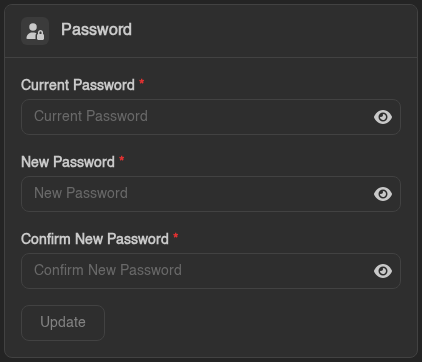
- Want to change it? Click your name in the bottom-left corner of the panel to open Account, and use the Password card. The new password works for SFTP straight away.
If you've turned off Password Login on your account (so only security keys can sign you in), your password won't work for SFTP either. Use an SSH key instead (see below).
Prefer an SSH key?
Instead of typing your password each time, you can log in with an SSH key:
- Go to Account → SSH Keys, click Create, and paste your public key (the
.pubfile) or upload the key file. - Point your SFTP program at the matching private key:
- WinSCP: Advanced → SSH → Authentication → Private key file (WinSCP will offer to convert an OpenSSH key to
.ppk). - FileZilla: Edit → Settings → Connection → SFTP → Add key file.
- WinSCP: Advanced → SSH → Authentication → Private key file (WinSCP will offer to convert an OpenSSH key to
Working with files
Once connected, the right-hand side is your server and the left-hand side is your computer. Drag files between them to upload or download.
A few tips:
- Stop your server before replacing world or save files. Uploading over a world while the server is running can corrupt it, or the server may overwrite your upload when it next saves.
- Large uploads can take a while. If the connection drops, just reconnect and upload again; most programs can resume or overwrite.
- If you get "Permission denied" on a file, check you're logged in to the right server (the username) and, if you're a subuser, that the server owner gave you the SFTP permission.
Bonus: Open your files in VS Code
- In VS Code, open Extensions (
Ctrl+Shift+X), search for Calagopus, and install the extension published bycalagopus. Using VSCodium or Cursor? It's on Open VSX too. - Back in the panel, click Connect → via VS Code.
- The first time, your browser asks you to approve the sign-in. After that it connects straight away.
No SFTP password or key is needed for this. It signs in through the panel.
Still stuck?
If you can't connect, open a support ticket and include:
- the Host and Port you're connecting to
- the SFTP program you're using
- the exact error message (a screenshot is perfect)
Never send us your password.
No comments to display
No comments to display