
Browsing SQLite databases and comparing file versions in the file manager
What this is about
The Files tab has two views that are easy to miss because they only appear for certain files:
- The SQLite browser opens database files. Instead of a wall of unreadable
characters in the editor, you get a list of tables you can page through,
sort, filter and (carefully) query. For Vintage Story players the important
example is the world save:
data/Saves/<world name>.vcdbsis an SQLite database. - The diff view shows what changed between two versions of a text file: a saved revision from File History against the current file, or against the revision before it.
The basics of the Files tab (uploading, editing, archives, the Trash) are in Using the file manager.
Stop your server before you open a world save, and never change one while the game is running. Vintage Story keeps the world in memory and writes it back to the .vcdbs file on its own schedule. Anything you change underneath it is either lost on the next save or, worse, leaves you with a corrupted world. Looking is safe once the server is stopped; editing is for emergencies only, and only after a backup.
Opening a database file
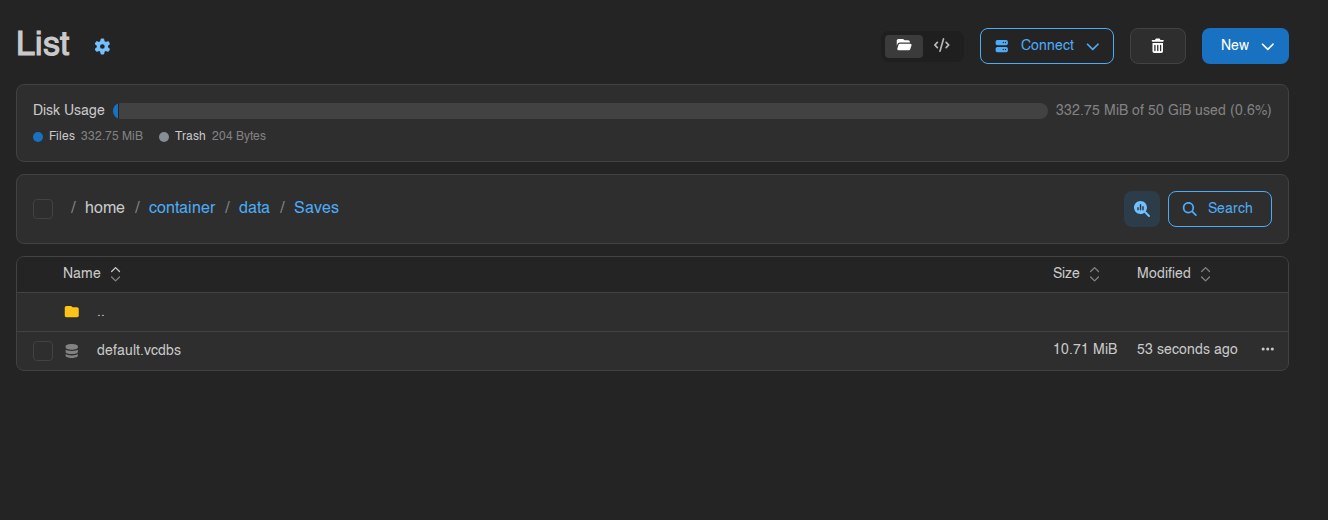
- Go to the Files tab and browse to the file. For a Vintage Story world that is data → Saves.
- Database files show a database icon instead of the usual page icon. The panel recognises them by their contents, so a
.vcdbssave counts, as do files named.db,.db3,.sqliteor.sqlite3. - Click the file (or ⋯ → Open). It opens in the SQLite browser rather than the text editor. The usual "file too large to open" limit does not apply here, so a multi-gigabyte world save opens fine.
The browser only works on files in your server's own folders. Files you are looking at inside a backup (Browse on the Backups tab) or on a mount cannot be opened this way; copy the file into your server first.
If you get "the database changed while the query was running" or "database is locked", the game (or something else) was writing to the file at that moment. Stop the server and try again.
Finding your way around
The page title is the file name with an SQLite badge next to it.
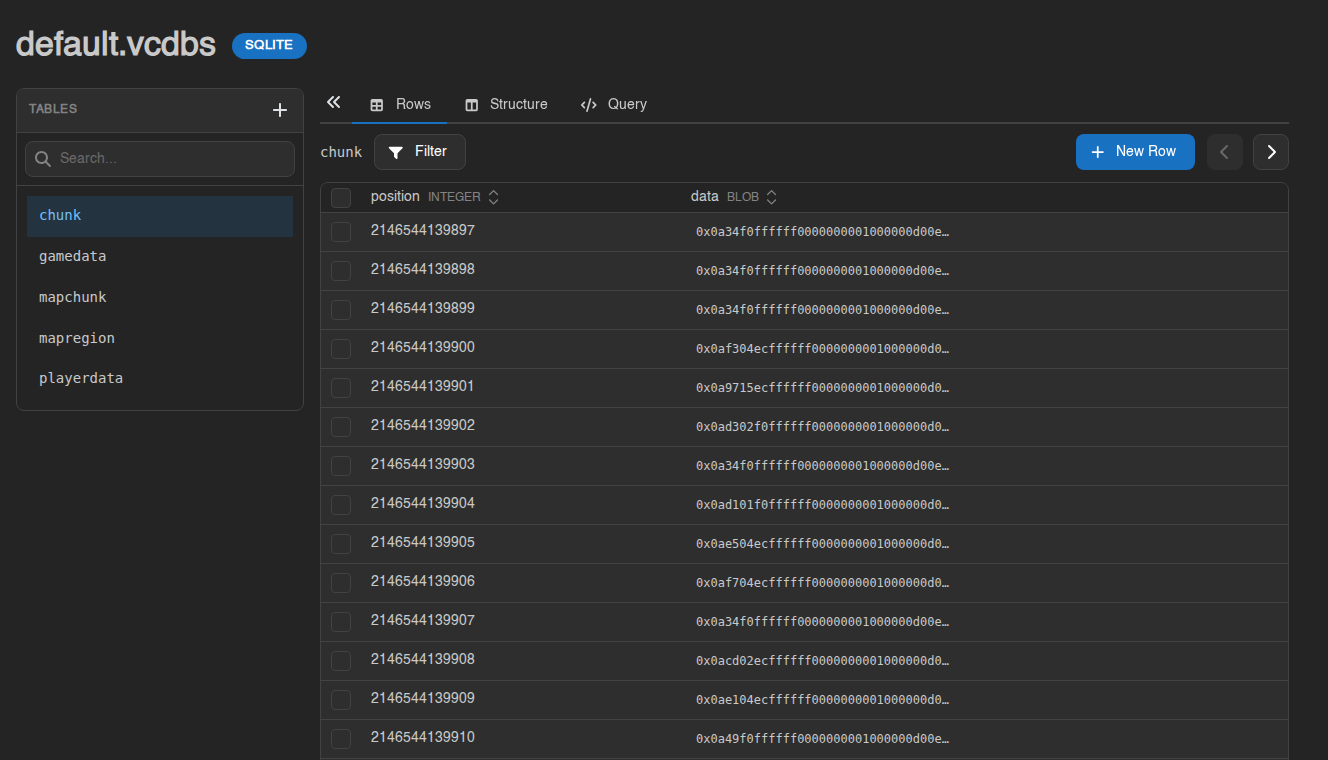
- Tables (left) lists every table in the file, with a search box. Views are marked View. Click a table to load it. The « button above the tabs hides the list to give the rows more room; » brings it back.
- Rows shows the table's contents, 50 rows at a time. Use the ‹ › buttons to page, click a column heading to sort (click again for descending), and Filter to show only matching rows: pick a column, an operator (equals, contains, starts with, greater than, is null, and so on) and a value, then Apply.
- Structure lists the columns: name, type, whether it may be empty (Nullable), the Key (the primary key is marked Primary) and the Default value.
- Query is for typing SQL yourself. See the next section.
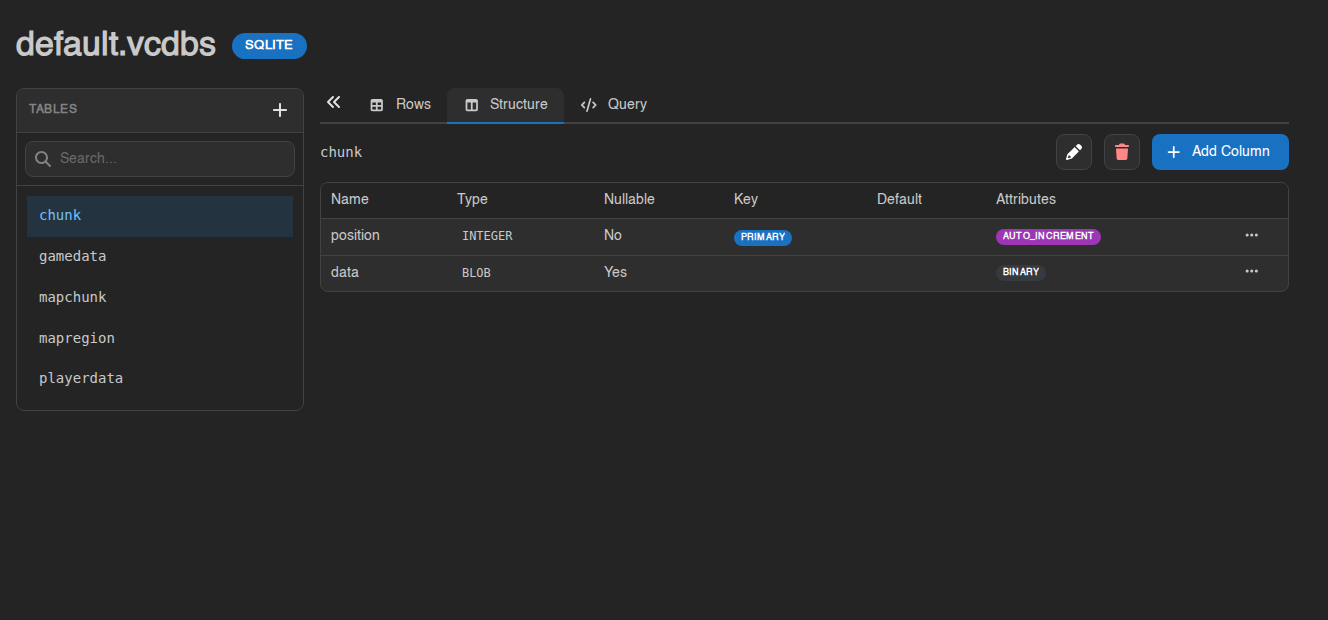
Cells with no value show NULL. Binary data (most of a Vintage Story save, for example the chunk data) is shown as hexadecimal and marked Binary. Very large values are cut off at about 256 KB and marked as "too large to load in full"; you can look, but not edit them.
Running your own queries
- Open the Query tab.
- Type one or more SQL statements in the box (separate several with
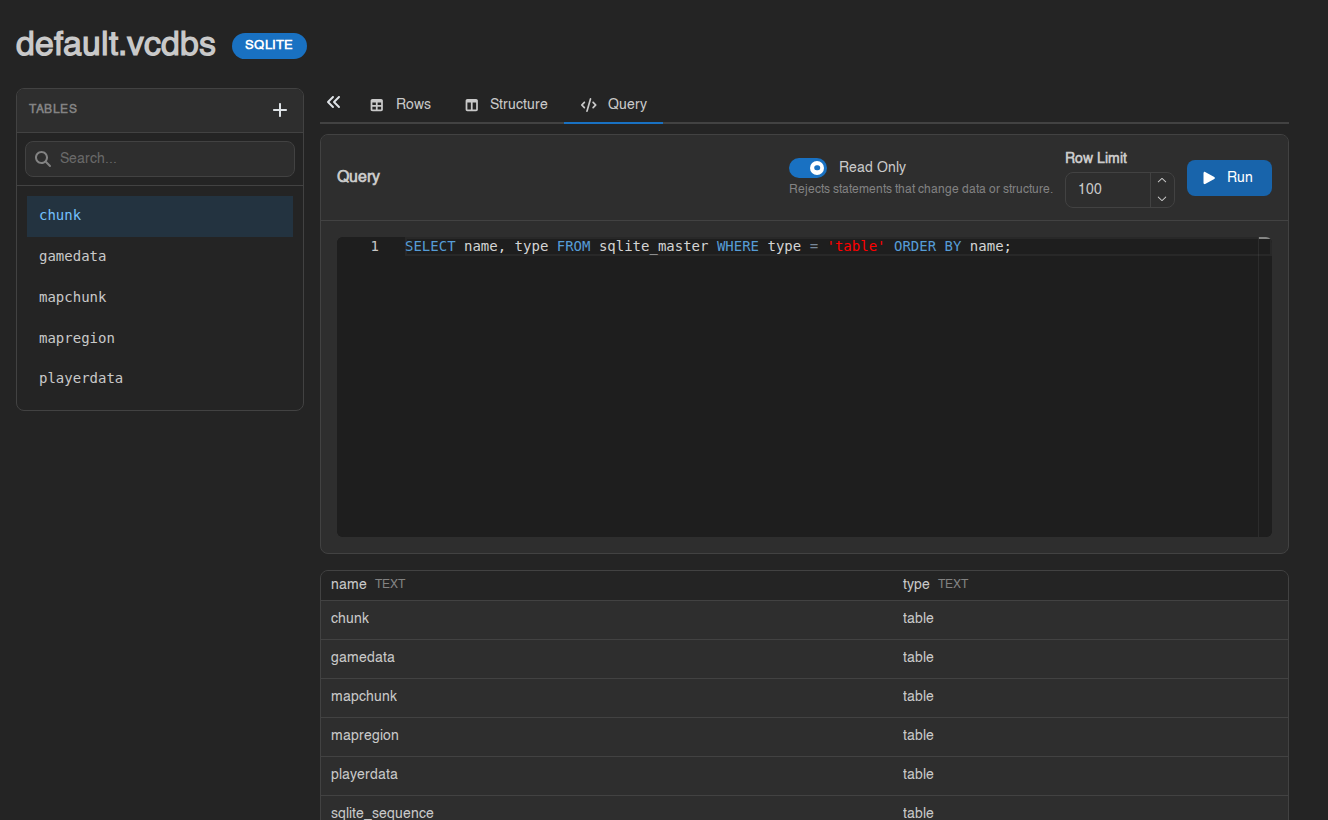
;). - Leave Read Only switched on. It makes the panel open the file read-only, so anything that would change data or structure is refused. Row Limit (100 by default, 1000 at most) caps how many rows each statement returns.
- Click Run or press Ctrl+Enter. Results appear below, one result set per statement.
For a Vintage Story world, a useful first query is:
SELECT name FROM sqlite_master WHERE type = 'table' ORDER BY name;
Things to know:
- A query is stopped after 15 seconds and reported as "query exceeded the time limit". Narrow it down (add
WHEREorLIMIT). - A result set is cut off at the row limit or at about 4 MB, whichever comes first, with a note that it was truncated.
- Only two queries per server can run at the same time.
- You cannot
ATTACHother files, and a fewPRAGMAsettings are blocked. - Every query you run is written to your server's Activity tab, including the first part of the SQL. Useful to see what a sub-user did.
Changing data (please read the warning first)
The browser can also edit, and it does so immediately and without an undo. Unlike the text editor, there is no File History for database files.
- Rows: tables with a primary key can be edited in place. Click a cell, type the new value and press Enter (Shift+Enter for a new line). Changed cells turn yellow until you click Save … changes; Discard throws them away. New Row adds a row; tick rows and click Delete … rows to remove them (you are asked to confirm). Tables without a primary key are read-only here.
- Structure: Add Column, rename or delete columns, Rename Table and Delete Table. New Table is in the Tables panel.
- Query: switch Read Only off to run
INSERT,UPDATE,DELETEand so on.
Make a backup first and stop the server. Deleting a table or a column destroys its data for good. A world save that a game is still writing to can be corrupted by a single edit. If you are only looking, leave Read Only on and stay out of the editing buttons.
Comparing versions of a text file
Each time you click Save in the panel's editor, or write a file over SFTP, a revision of the file is kept in File History. (Files uploaded through the browser or rewritten by the game itself do not get revisions, and history is only kept for text files up to about 1 MB.) The diff view lets you see exactly what changed.
-
Open the file in the editor and click the File History button (the clock, next to Connect and Save).
-
Each revision shows its number, who saved it, when, and its size. Revisions marked Full Snapshot are complete copies; the others store only the changes. The oldest entry may be listed as System: that is the file as it was before the first tracked change.

-
Pick what to compare, using the small buttons on the revision:
- View diff against current file (the compare icon) shows the revision on the left and the file as it is now on the right.
- Compare to previous revision (the arrows icon) shows that revision against the one before it. Handy to see what one particular save changed.
- Restore this revision into the editor loads the old text into the editor without saving it.
-
Changed lines are highlighted side by side. Lines that were removed are marked on the left, added lines on the right.



When you are comparing against the current file, the right-hand side is editable: fix what you need and click Save (or press Ctrl+S). The Restore button next to it opens the editor with the old revision's text, which you then save as usual. The ← arrow takes you back to the editor with File History still open.
You can also reach the diff from the Activity tab: every file write entry made from the editor has a View Diff link.
Old revisions are cleaned up automatically when a file's history grows large, so File History is a convenience, not a backup. For anything you cannot afford to lose, make a backup.
No comments to display
No comments to display