
Start here: your billing account
Two accounts, one login
We use two websites:
| Site | What it's for |
|---|---|
| suhosting.net, the billing site ("Client Dashboard") | Ordering servers, paying invoices, upgrades, cancelling, support tickets |
| panel.suhosting.net, the game panel | Running your server: console, files, mods, backups |
Your billing account is the main one. When you order a server, we create your game panel account automatically, and you can sign in to the panel with Login with Paymenter using your billing login. For the game panel, see Start here: a tour of the game panel.
Creating an account
- Go to suhosting.net/register.
- Enter your first name, last name, email and a password (at least 8 characters, with letters and numbers).
- Click Sign up.
- Check your email and click the verification link. Until you do, the dashboard asks you to "Verify your email address". No email? Click Resend verification email and check your spam folder.
You can also create an account at checkout: add a server to your cart first, and you'll be asked to sign in or register when you check out.
Signing in
Go to suhosting.net/login and enter your email and password, or click Discord.
Discord login only works for an existing account with the same email as your Discord account. It doesn't create a new account. If you see "You are not registered on this site.", register first with your Discord email address, then Discord login will work.
Forgot your password?
Click Forgot your password? on the login page, enter your email, and follow the link we send you.
Your dashboard
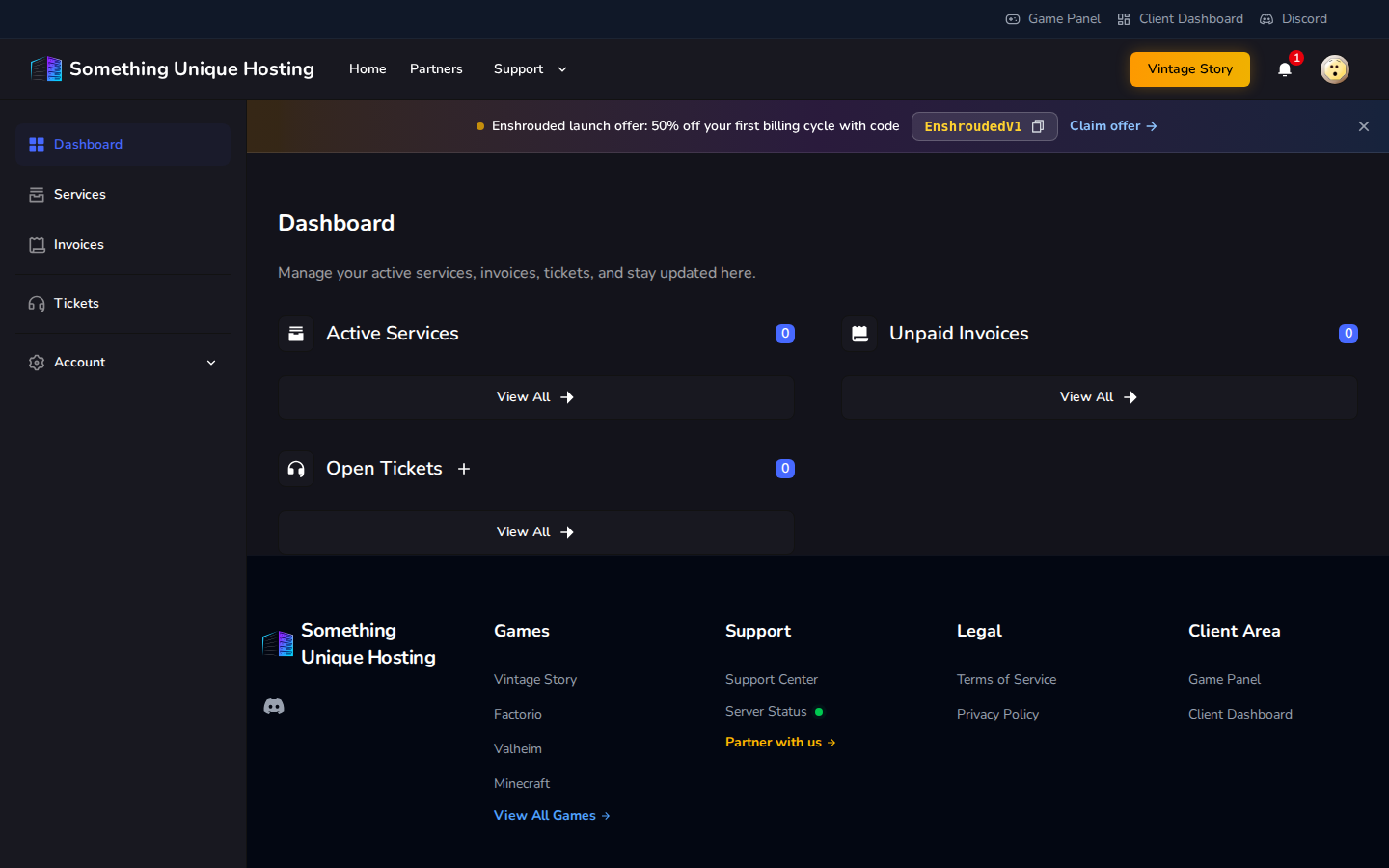
After signing in you'll see Active Services, Unpaid Invoices and Open Tickets at a glance. The menu on the left takes you to:
| Menu | What's there |
|---|---|
| Services | Your servers: upgrade, change game, renew, cancel. See Managing your service. |
| Invoices | Bills and payments. See Paying invoices. |
| Tickets | Support. See Getting help: support tickets. |
| Account | Personal details, security, credit, payment methods, notifications, partner program, privacy |
Keeping your account secure
Under Account → Security you can:
- Change password. This also logs out your other devices.
- See your Sessions (every browser signed in) and log any of them out.
- Enable two-factor authentication: scan the QR code with an app like Google Authenticator or Authy, then enter the 6-digit code.
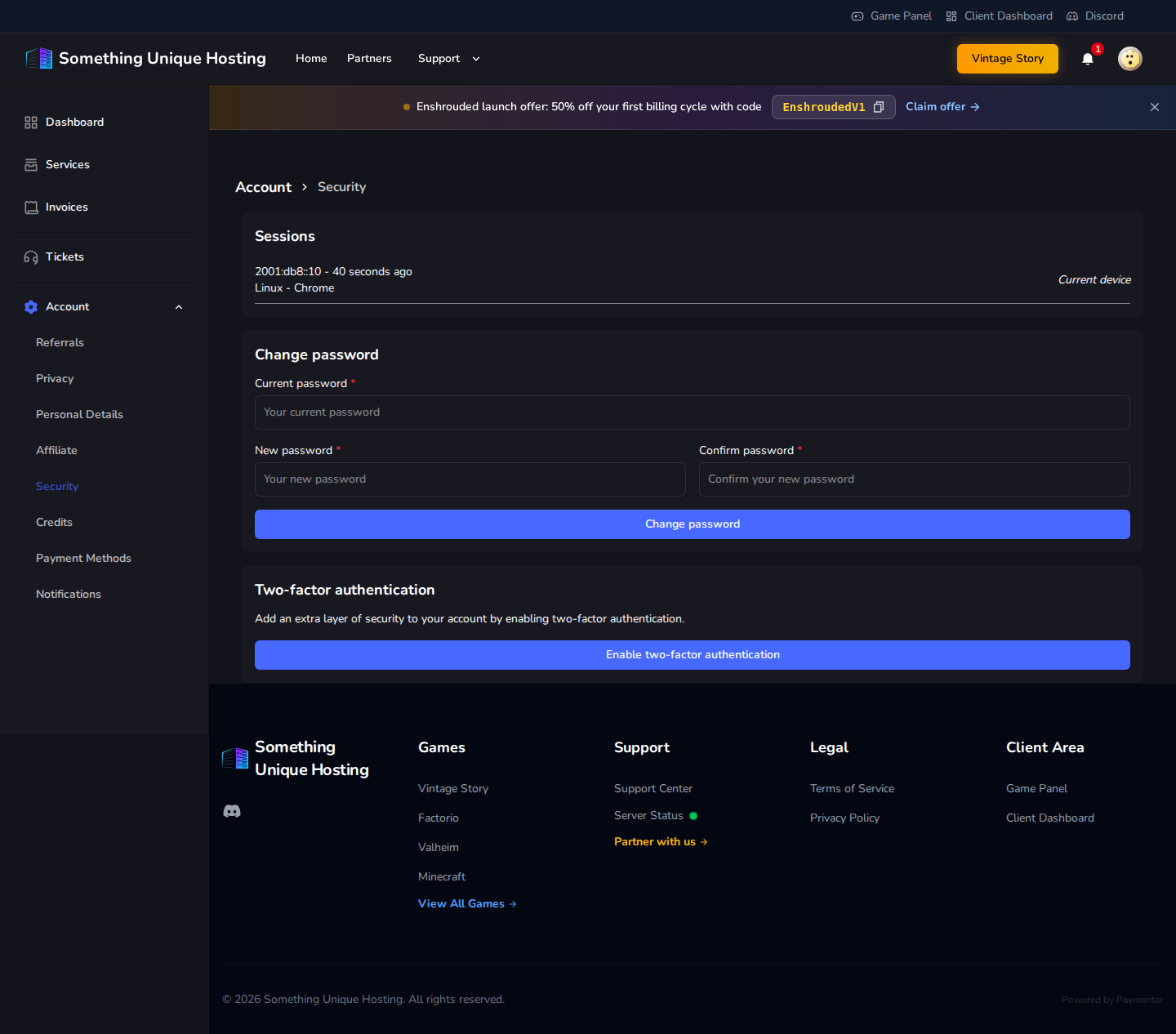
The billing site doesn't give you recovery codes for two-factor. If you lose your phone, you'll need to contact support to get back in, so keep your authenticator app backed up.
Personal Details is where you change your name or email. Changing your email sends a new verification link. Notifications controls which emails and in-app alerts you get.
No comments to display
No comments to display