You can also create an account at checkout: add a server to your cart first, and you'll be asked to sign in or register when you check out.
## Signing in Go to [suhosting.net/login](https://suhosting.net/login) and enter your email and password, or click **Discord**.Discord login only works for an existing account with the same email as your Discord account. It doesn't create a new account. If you see "You are not registered on this site.", register first with your Discord email address, then Discord login will work.
## Forgot your password? Click **Forgot your password?** on the login page, enter your email, and follow the link we send you. ## Your dashboard After signing in you'll see **Active Services**, **Unpaid Invoices** and **Open Tickets** at a glance. The menu on the left takes you to: | Menu | What's there | |---|---| | **Services** | Your servers: upgrade, change game, renew, cancel. See [Managing your service](https://knowledgebase.suhosting.net/books/billing/page/managing-your-service). | | **Invoices** | Bills and payments. See [Paying invoices](https://knowledgebase.suhosting.net/books/billing/page/paying-invoices). | | **Tickets** | Support. See [Getting help: support tickets](https://knowledgebase.suhosting.net/books/billing/page/getting-help-support-tickets). | | **Account** | Personal details, security, credit, payment methods, notifications, partner program, privacy | ## Keeping your account secure Under **Account → Security** you can: - **Change password**. This also logs out your other devices. - See your **Sessions** (every browser signed in) and log any of them out. - **Enable two-factor authentication**: scan the QR code with an app like Google Authenticator or Authy, then enter the 6-digit code. [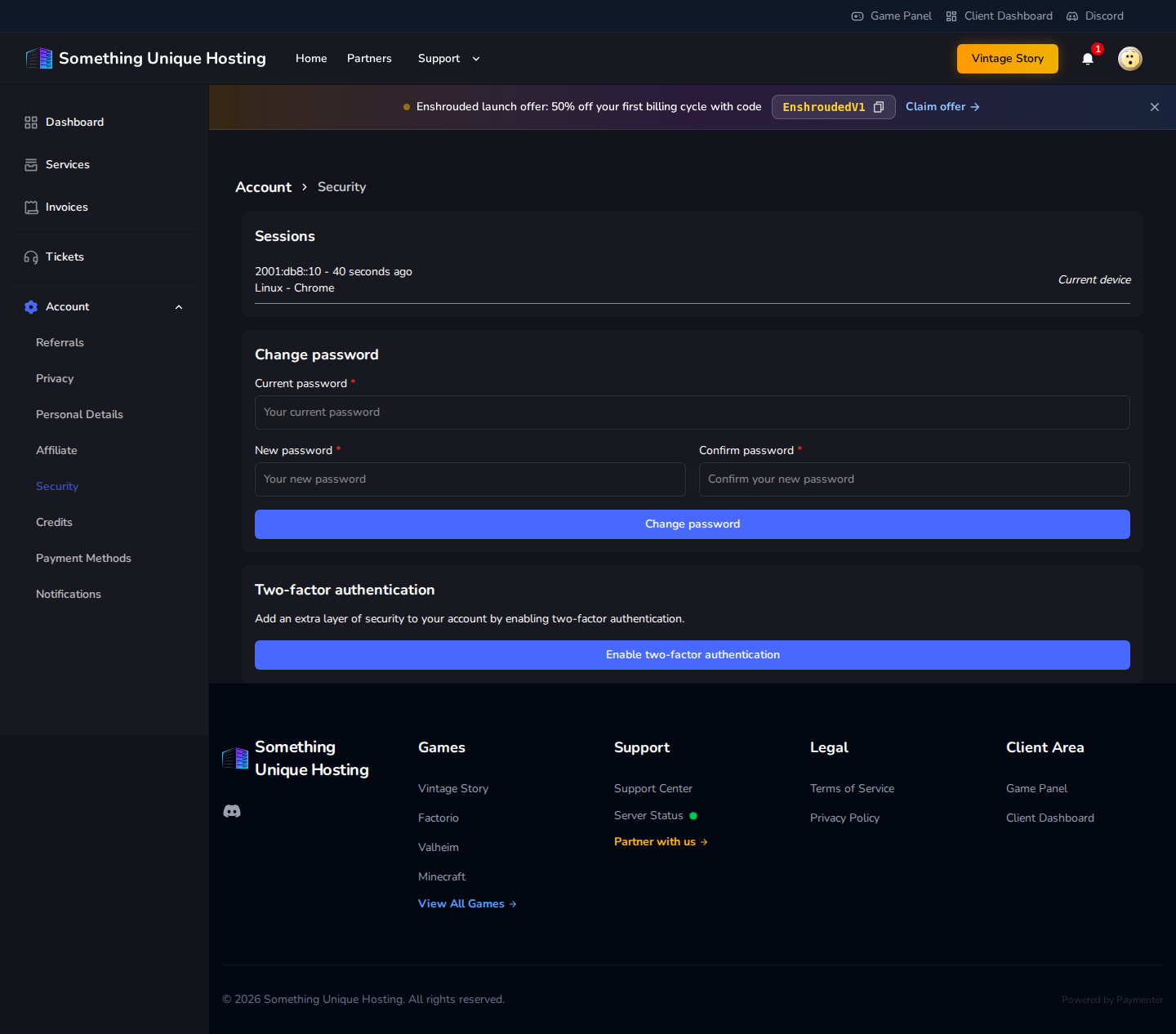](https://knowledgebase.suhosting.net/uploads/images/gallery/2026-10/bil-in-security.png)The billing site doesn't give you recovery codes for two-factor. If you lose your phone, you'll need to contact support to get back in, so keep your authenticator app backed up.
**Personal Details** is where you change your name or email. Changing your email sends a new verification link. **Notifications** controls which emails and in-app alerts you get.