
Your account: password, email and preferences
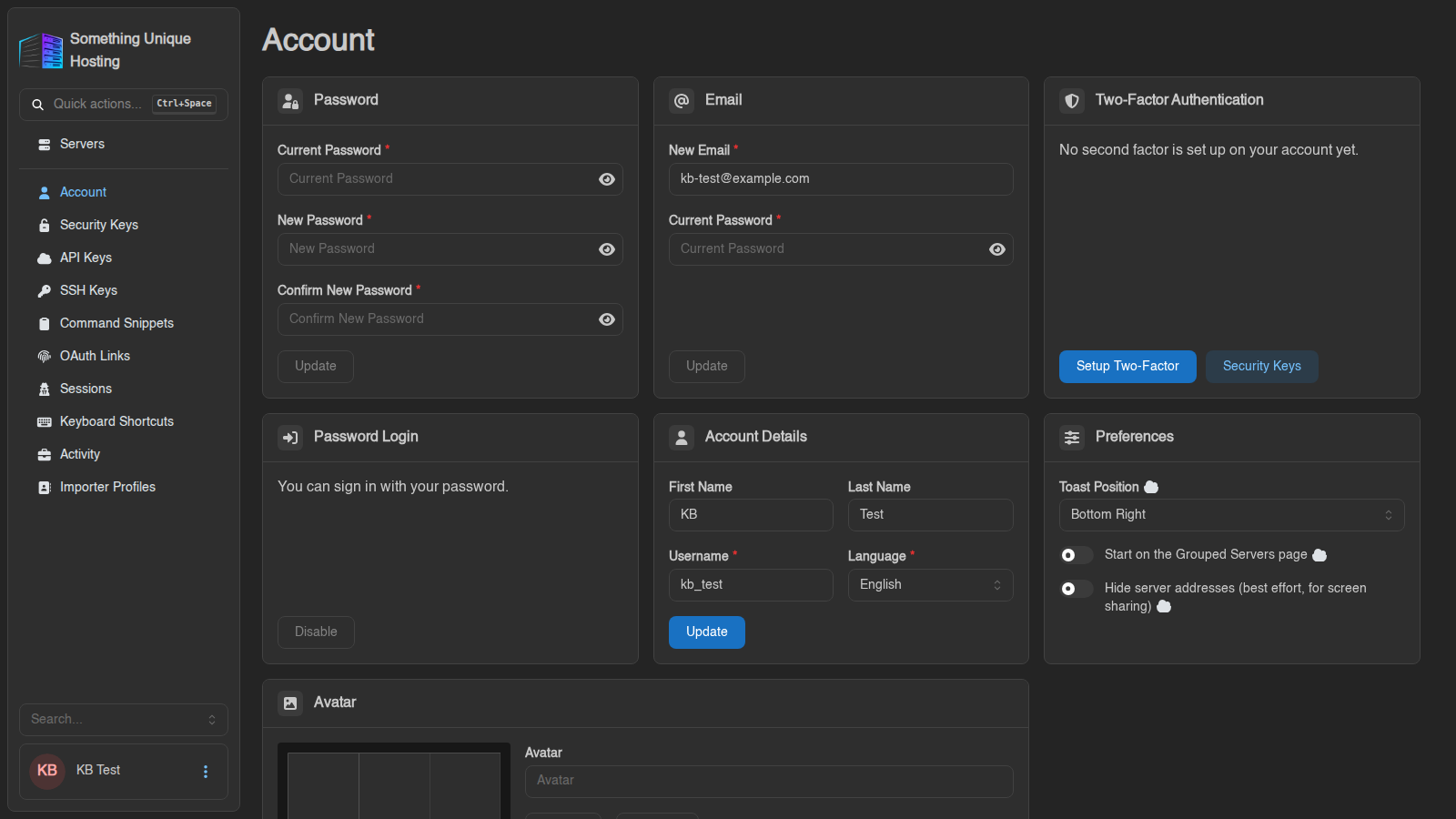
Getting to your account settings
ComingClick soon.your name in the bottom-left corner of the panel. The Account
page opens, with the other account pages listed in the sidebar (Security Keys,
API Keys, SSH Keys and so on).
Signing in
Your game panel account is created automatically when you order a server. You can sign in with:
Changing your password
In the Password card, enter your Current Password, then the New Password twice (at least 8 characters), and click Update.
The panel then asks whether to log out every other session. Say yes if you changed your password because you think someone else knows it.
Your panel password is also your SFTP password, so update your SFTP program too.
Forgot your password?
No email? Check your spam folder, and make sure you used the address on your account. Still stuck? Open a ticket.
Changing your email
In the Email card, enter the New Email and your Current Password, then click Update. If a confirmation is needed, the panel says "Confirmation link sent to …". Your address changes once you click the link in that email.
Account details
First Name, Last Name, Username and Language. Click Update to save.
Changing your Username also changes your SFTP username (username.serverid), so update your SFTP program afterwards.
Preferences
Avatar
Upload a picture in the Avatar card and click Update, or Remove to go back to your initials.