
Using the file manager
What this is about
ComingThe soon.Files tab lets you work with your server's files right in the browser:
edit configs, upload worlds and mods, unzip archives, and download anything to
your computer. You don't need any extra software.
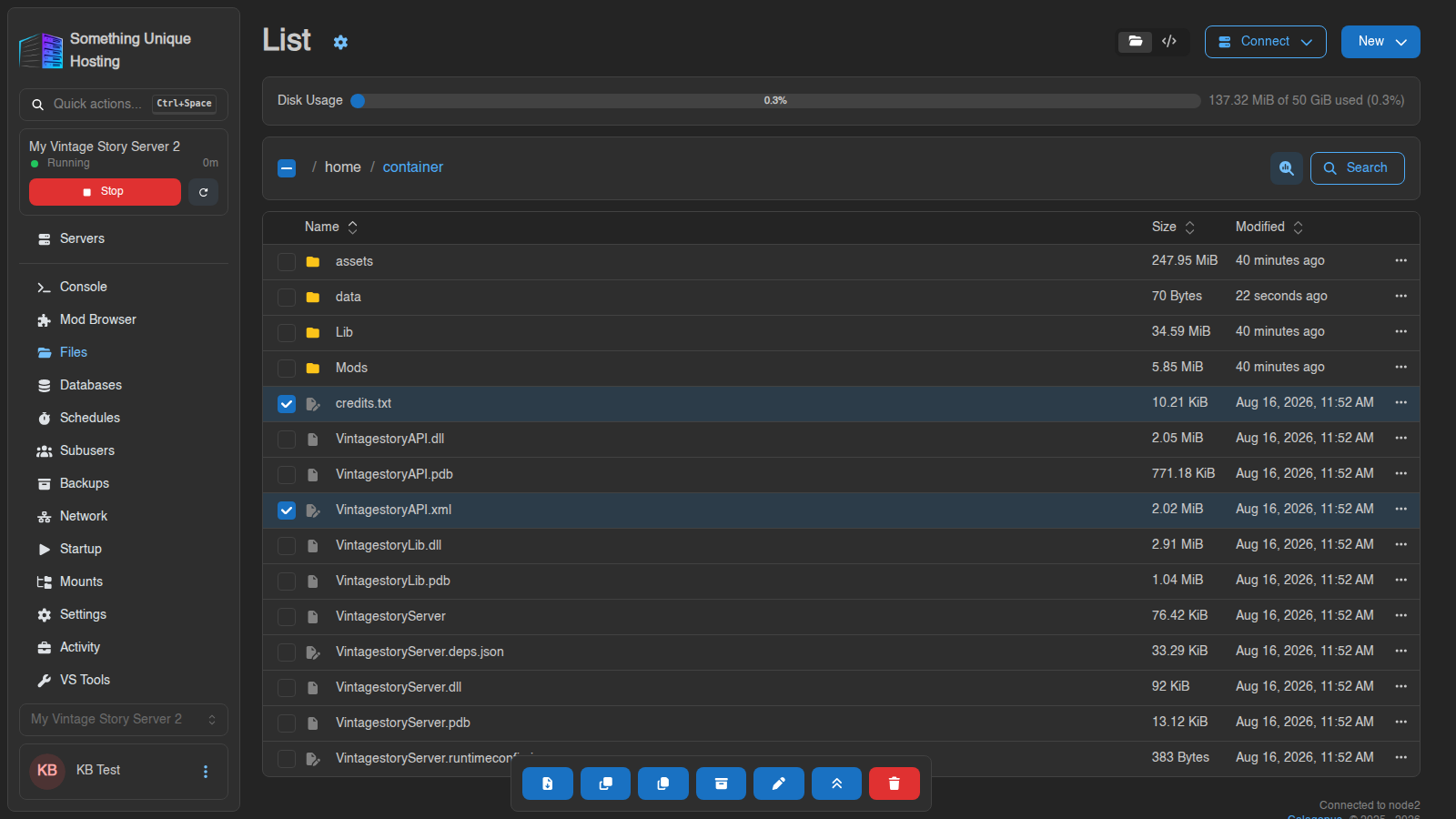
The bar at the top shows Disk Usage against your plan. The path
(home / container / …) shows where you are. Click any part of it to jump back up.
Opening and editing files
Click a file to open it in the editor. Make your changes, then click Save (or press Ctrl+S).
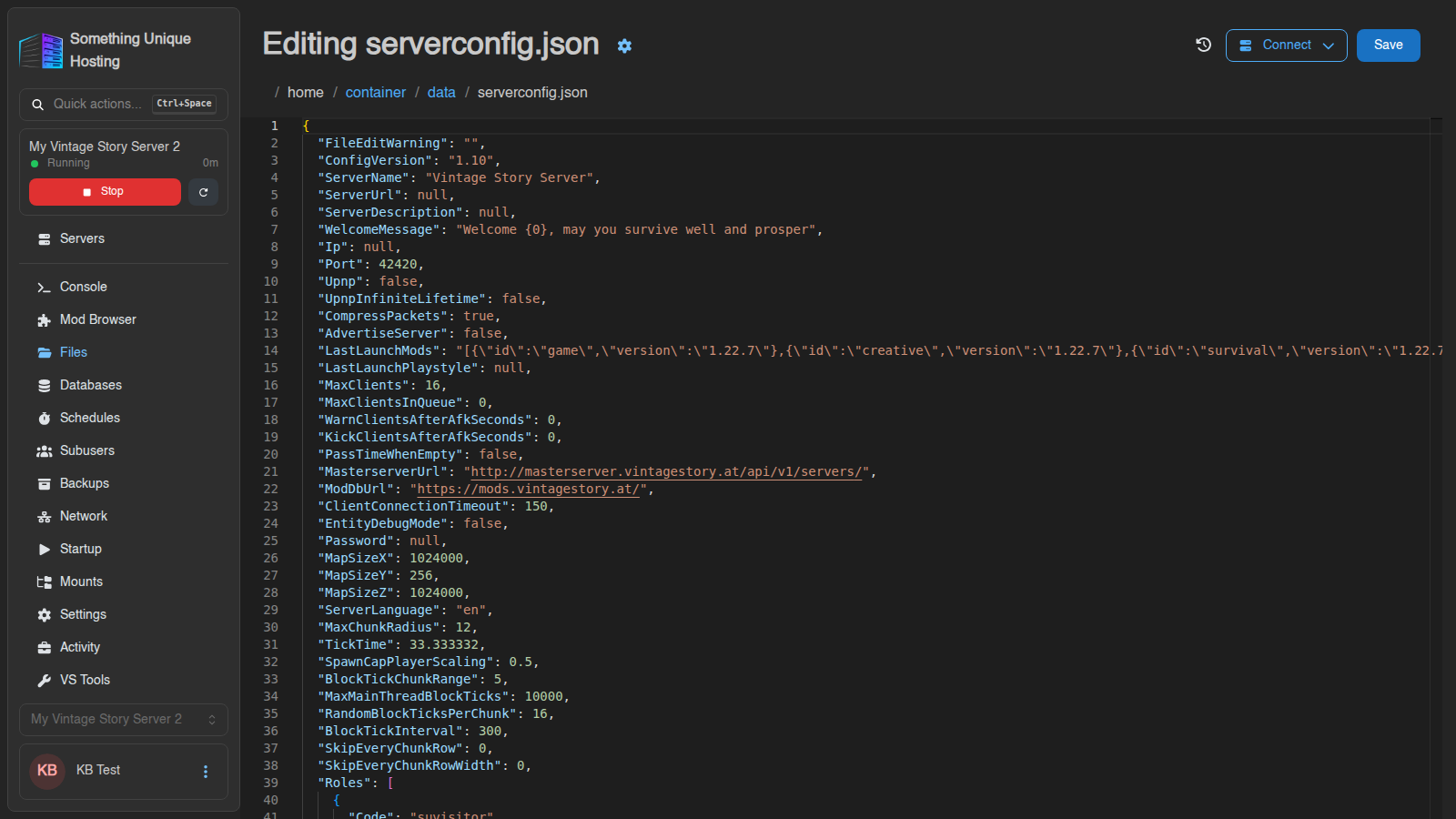
Stop the server before editing its config if the game rewrites the file when it shuts down. Vintage Story does this with serverconfig.json, so edits made while it's running are lost.
Uploading
There's no size limit for uploads in the browser. Big uploads can be paused and resumed from the file's ⋯ menu. If you reload the page mid-upload, use Re-select file to resume to carry on where it left off.
If a file with the same name already exists, you'll be asked to Skip, Overwrite or Rename.
See a banner saying "Some uploads to this server never finished"? A partial file was left behind. Click Review Uploads to resume or delete it.
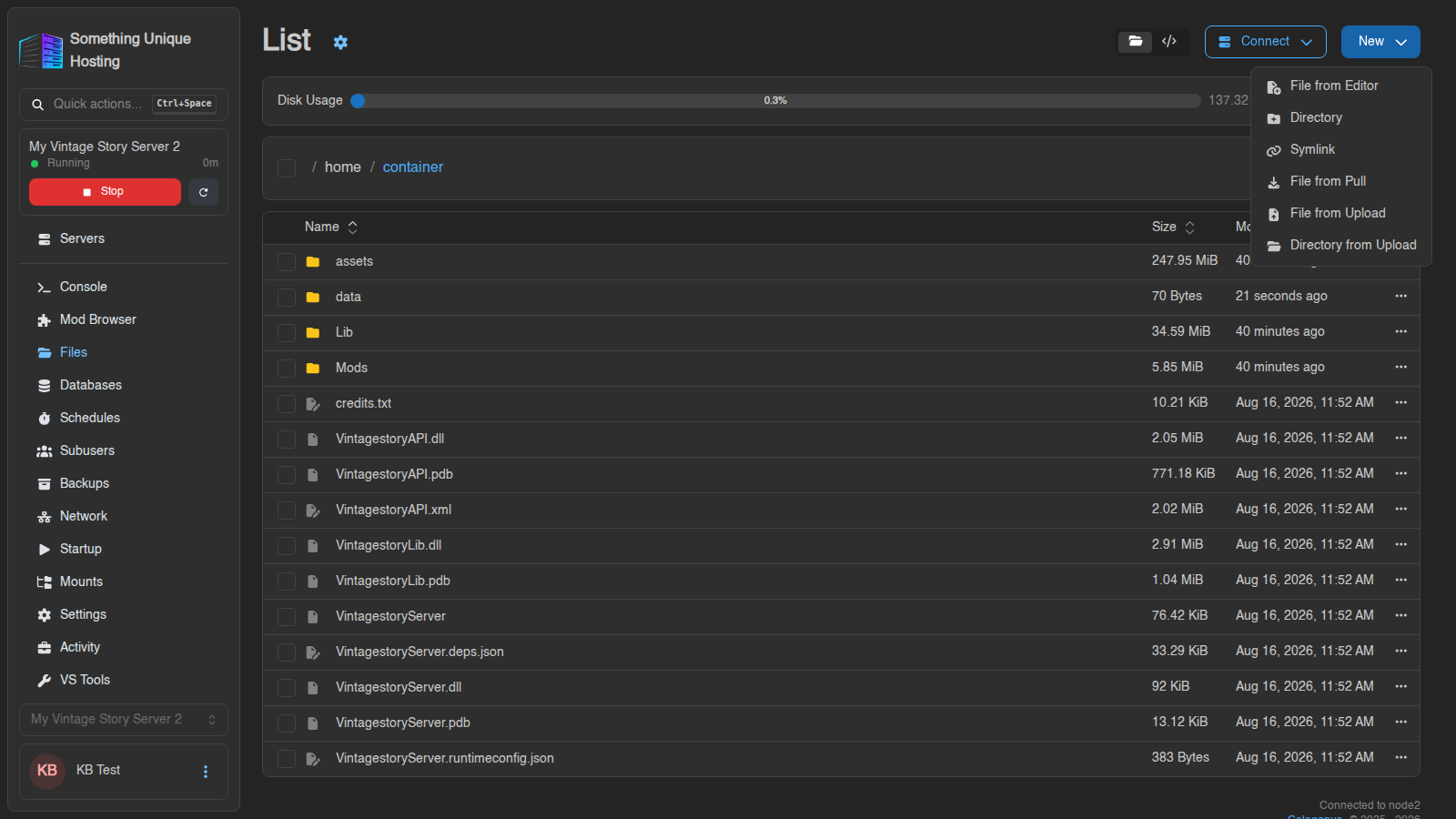
The New menu
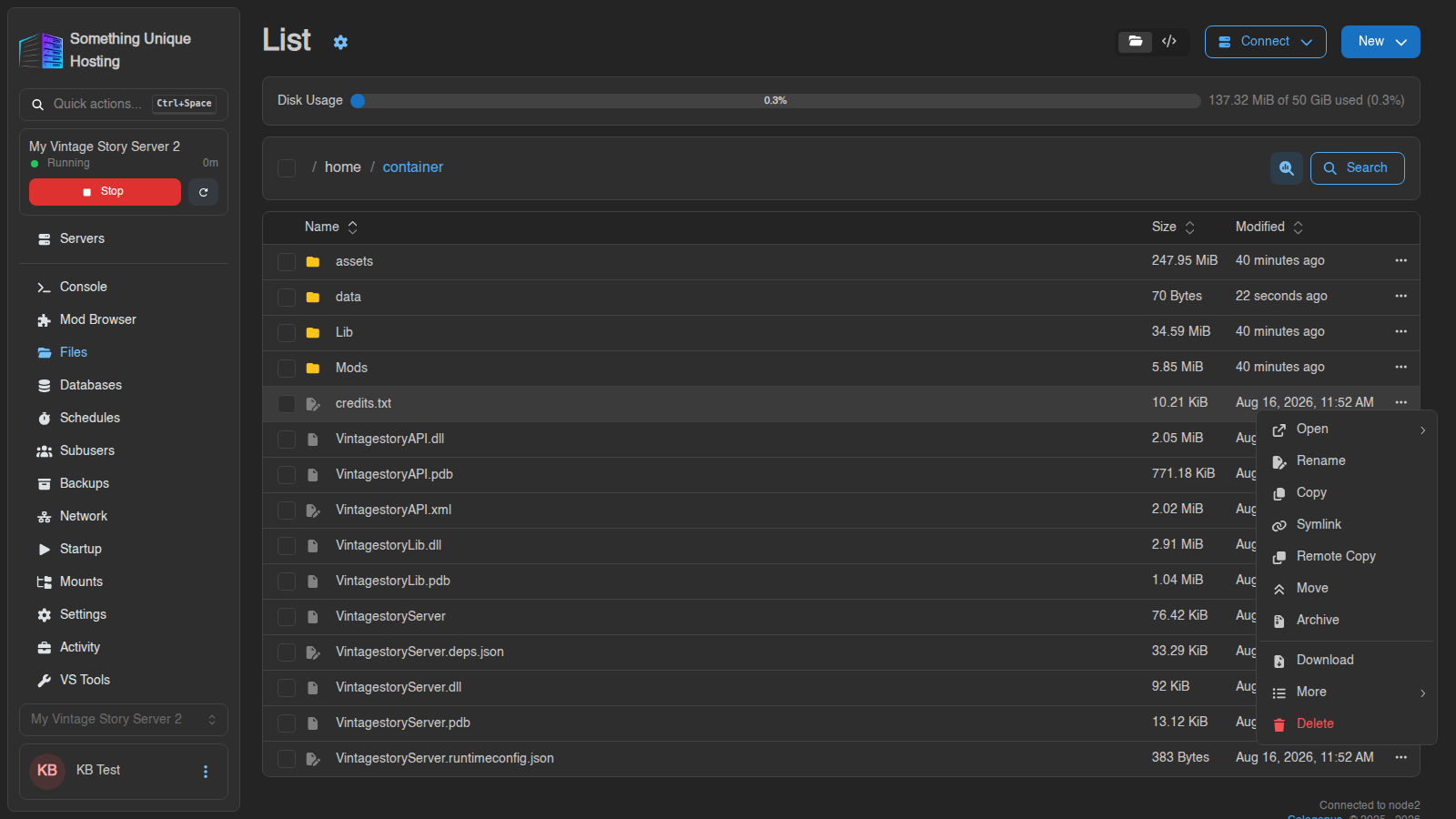
The ⋯ menu on each file
Click ⋯ at the end of a row, or right-click it.
Working with many files at once
Tick the boxes on the left (or the top box to select everything). A toolbar appears at the bottom with Download, Remote Copy, Copy, Archive, Rename, Move and Delete.
Deleted files can't be recovered from the file manager. Make a backup before big clean-ups.
Zips and other archives
.zip is the most compatible, .tar.gz is common on Linux), then click Create.
Extract: open the ⋯ menu on an archive and choose Extract, then pick the destination folder. Works with zip, 7z, rar, tar, gz and more.
Both run in the background. Watch the progress indicator at the top.
Searching
Click Search in the path bar. You can search by name, or open
Advanced Filters to search inside files, filter by size, or include and
exclude paths (e.g. *.json, or skip Cache/**).