
Two-factor authentication and security keys
What this is about
Your panel account controls your servers, worlds and backups, so it's worth protecting with more than a password. Two options are available:
- Two-factor authentication (2FA): after your password, you enter a 6-digit code from an app on your phone.
- Security keys / passkeys: sign in with your fingerprint, face, phone or a hardware key, with no password needed.
You can use either one, or both.
Setting up two-factor authentication
You'll need an authenticator app on your phone, such as Google Authenticator, Microsoft Authenticator, Authy or 2FAS.
- Click your name (bottom-left) to open Account.
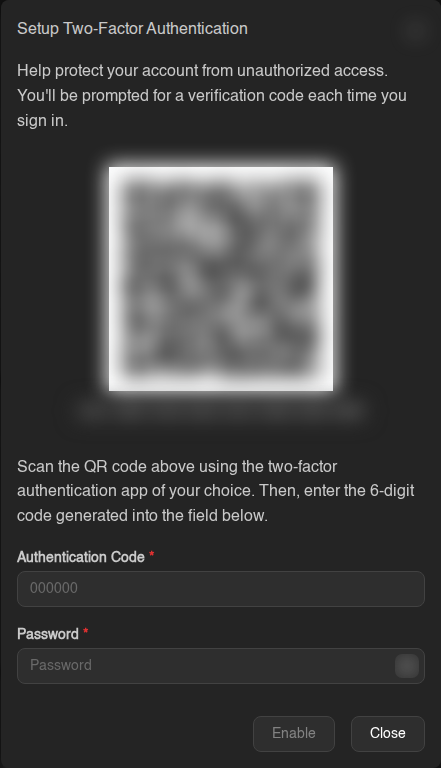
- In the Two-Factor Authentication card, click Setup Two-Factor.
- Scan the QR code with your app (or type in the code shown under it).
- Enter the 6-digit code from your app and your password, then click Enable.
Save your recovery codes!
You'll now be shown 10 recovery codes. Copy them and keep them somewhere safe: a password manager, or printed out. Each code works once and lets you in if you lose your phone.
You will only see these codes once. If you lose your phone and your recovery codes, you'll need to contact support to get back in.
Signing in with 2FA
After your password, enter the 6-digit code from your app and click Verify Code. Lost your phone? Click Use Recovery Code and enter one of your saved codes.
"Invalid code"? Codes depend on your phone's clock. Make sure its time is set automatically. The panel also warns you if your computer's clock is off.
Turning 2FA off (or moving to a new phone)
Click Disable Two-Factor, enter a code from your app (or a recovery code) and your password, then click Disable. To move to a new phone, disable it and set it up again on the new one.
Security keys and passkeys
A passkey lets you sign in with your device's fingerprint reader, face unlock, PIN, or a hardware key like a YubiKey. You don't type a password, and it can't be phished.
Adding one
- Go to Account → Security Keys and click Create.
- Give it a Name (e.g. "My laptop") and enter your password.
- Leave Allow signing in without a username on, so you can sign in with one click.
- Click Create and follow your browser or phone's prompt.
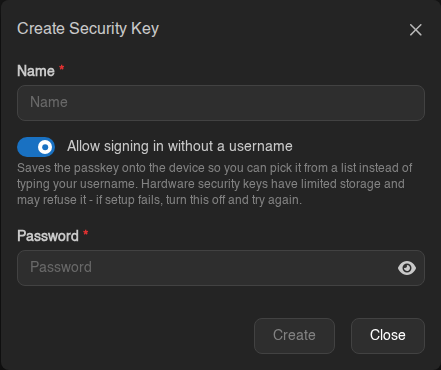
Using an older hardware key and setup fails? Turn Allow signing in without a username off and try again. Some keys have limited storage.
Signing in with a passkey
On the login page, click Sign in with a Passkey and follow the prompt. Or type your username and choose Use Passkey.
Turning off password login (optional)
Once you have a passkey, you can stop your password working entirely: in the Password Login card on the Account page, click Disable.
This also stops your password working for SFTP, so you'd need an SSH key for that. Make sure your passkey works before turning this off.
Lost access?
- Lost your 2FA phone: sign in with a recovery code, then set up 2FA again.
- No phone and no recovery codes: open a support ticket from your billing account. We'll verify it's you before removing 2FA.