
Connecting to your server with SFTP
What this is about
DraftSFTP lets you manage your server's files from a program on your own computer
instead of the browser. It's the best way to:
You'll need an SFTP program. We recommend WinSCP (Windows) or FileZilla (Windows, macOS, Linux).
Finding your connection details
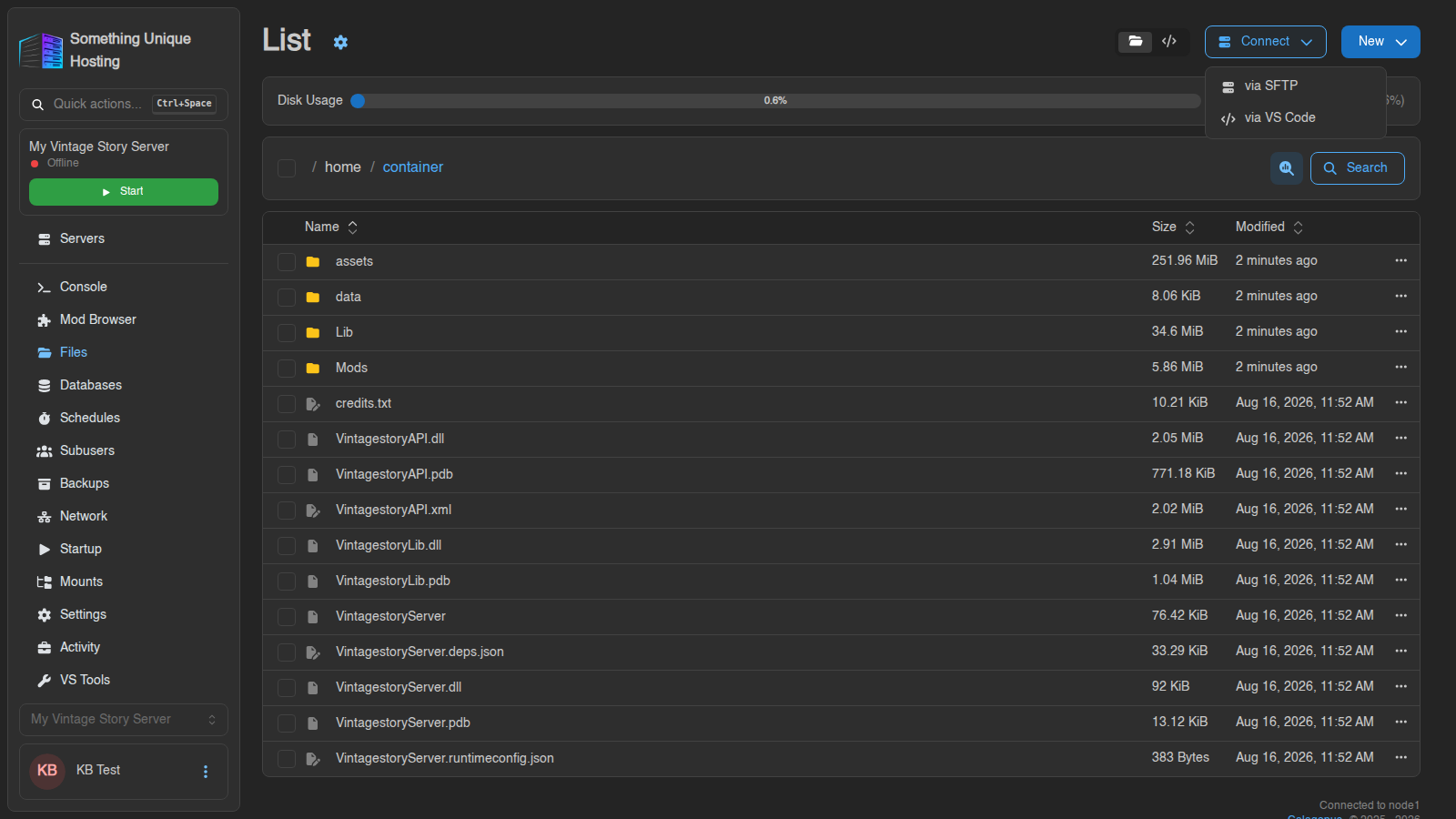
A window opens with everything you need. Click any field to copy it.
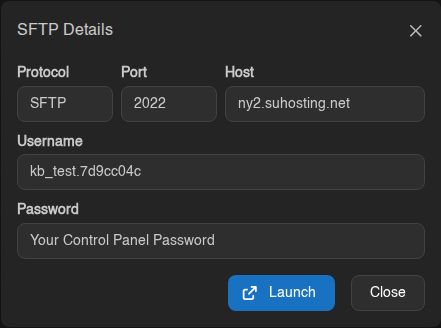
ny2.suhosting.net
Port
2022 (not 21 or 22)
Username
Your panel username, a dot, then a short server ID, like yourname.7d9cc04c. The part after the dot identifies the server, so each server has its own SFTP username
Password
Your game panel password
The username is different for every server on your account. If you have more than one server, make sure you copy it from the right one.
Option 1: Launch your SFTP program automatically
If WinSCP or FileZilla is installed, click Launch in the SFTP details window. Your browser will ask to open the program. Allow it, and the connection details are filled in for you.
The first time you connect, your program may warn that it doesn't recognise the server's host key. That's normal for a first connection, so accept it.
Enter your game panel password when asked, and you're in.
Option 2: Enter the details manually
WinSCP
FileZilla
Don't use FileZilla's Quickconnect bar without typing sftp:// in front of the host. Without it, FileZilla tries plain FTP and the connection fails.
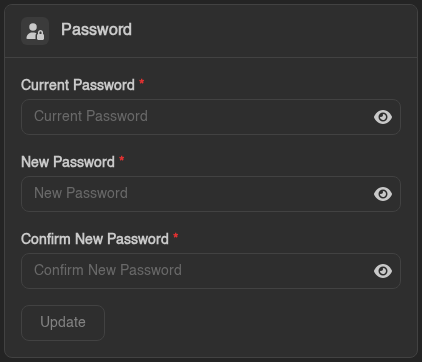
Signed up with Discord, Google or a passkey?
If you've never set a password on the panel, or you turned off password login for your account, the SFTP details window shows a yellow warning instead of a password:
Your password will not work for this connection. Use an SSH key instead, you can add one on the SSH Keys page of your account.
You have two options:
.pub file) or upload the key file. Then point your SFTP program at the matching private key.
.ppk).
FileZilla: Edit → Settings → Connection → SFTP → Add key file.
Working with files
Once connected, the right-hand side is your server and the left-hand side is your computer. Drag files between them to upload or download.
A few tips:
Bonus: Open your files in VS Code
Ctrl+Shift+X), search for Calagopus, and install the extension published by calagopus.
Using VSCodium or Cursor? It's on Open VSX too.
Back in the panel, click Connect → via VS Code.
The first time, your browser asks you to approve the sign-in. After that it connects straight away.
No SFTP password or key is needed for this. It signs in through the panel.
Still stuck?
If you can't connect, open a support ticket and include:
Never send us your password.