
Installing and updating mods with the Mod Browser
What this is about
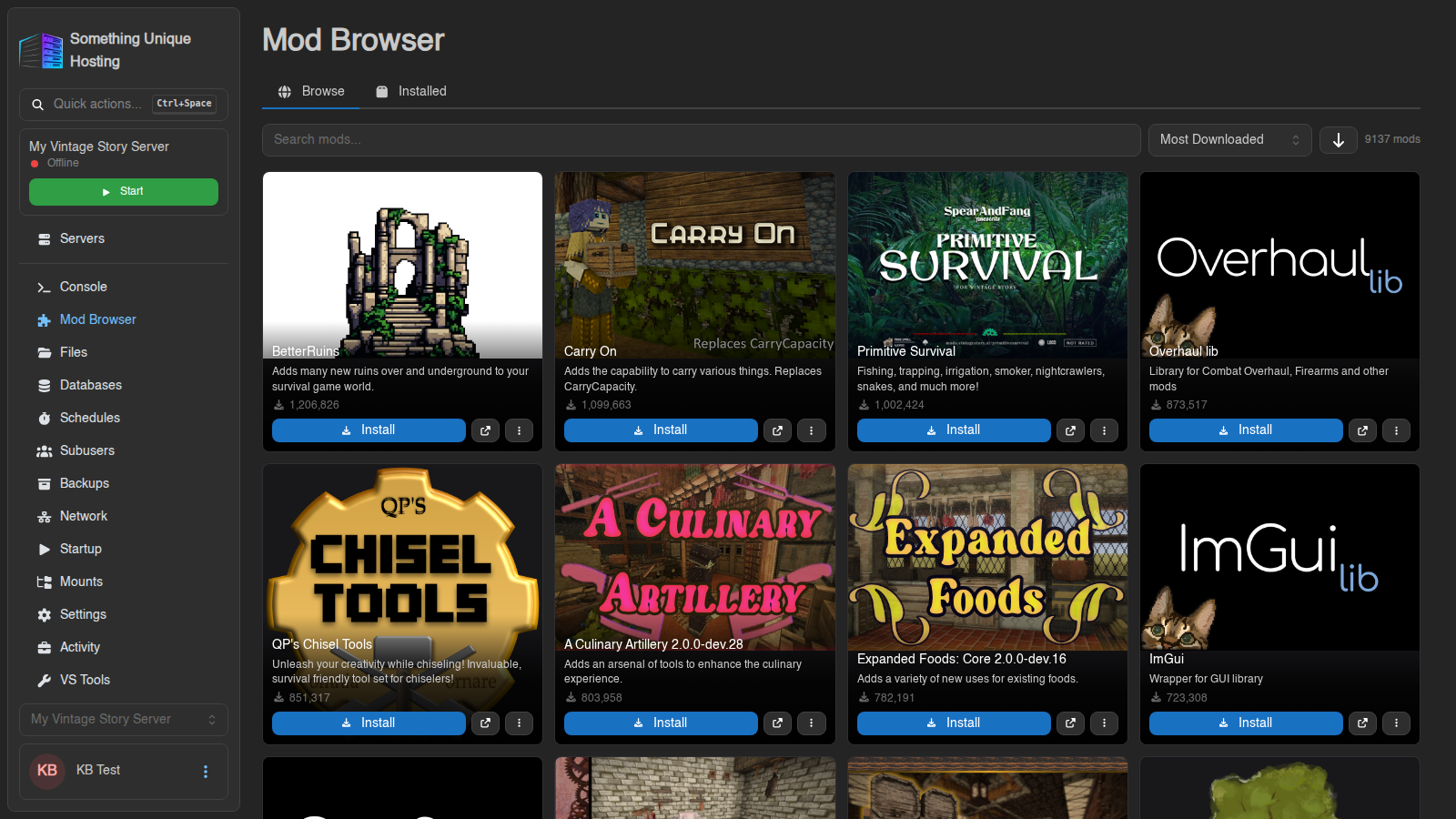
DraftEvery uploadVintage Story server has a Mod Browser tab that connects straight to
the official Vintage Story ModDB. You can
search, install, update and remove mods in progress.a couple of clicks, with no
downloading zip files or uploading over SFTP.
Installing a mod
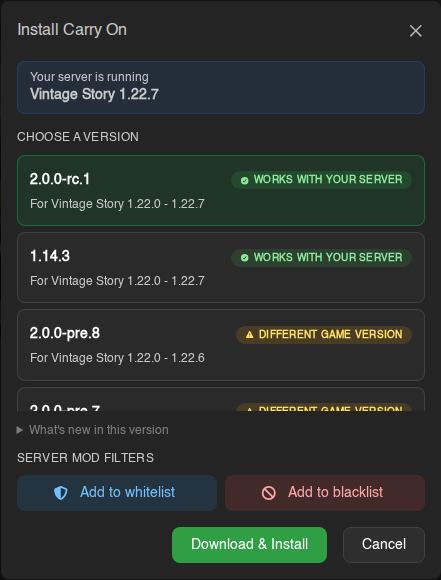
If you see "May not work with your server", that release was made for a different game version. It might load fine, or it might crash the server. Pick a release that matches your version when there is one.
Dependencies
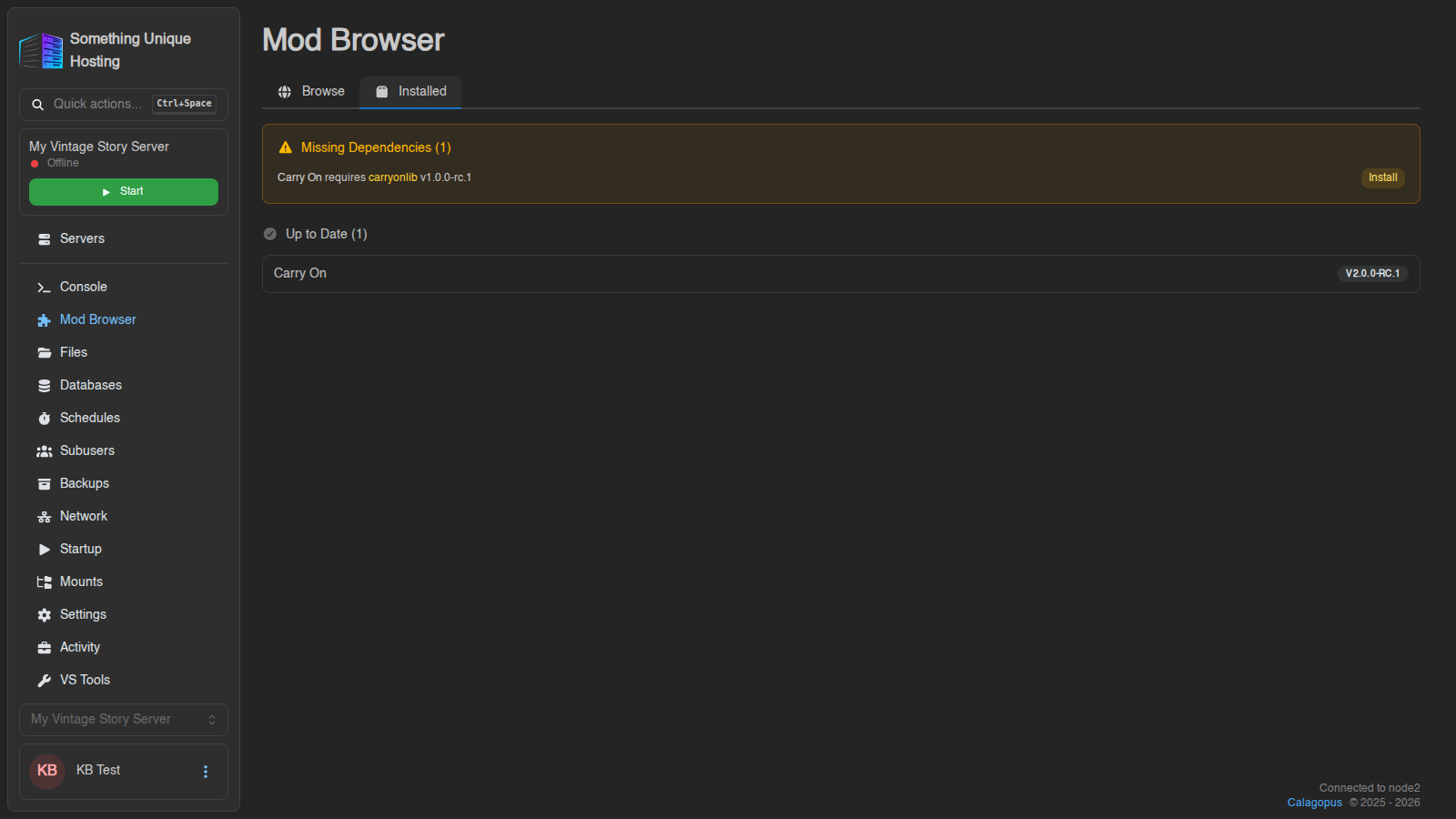
Some mods need other mods to work. As soon as you install one, the Installed tab shows a Missing Dependencies box that lists what's missing (e.g. "Carry On requires carryonlib v1.0.0-rc.1") with an Install button for each. Install them before restarting. The same warning also appears on the Console tab.
Seeing what's installed
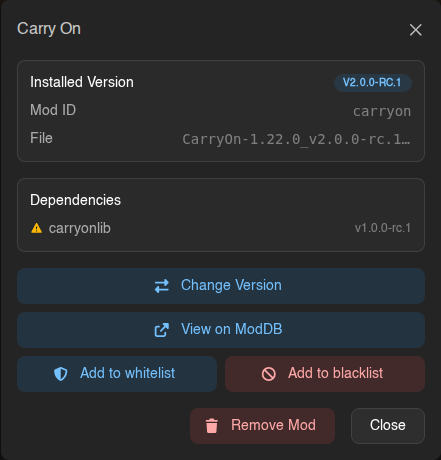
The Installed tab lists every mod in your server's Mods folder, with its version. Click a mod to see:
Mods you uploaded yourself that aren't on the ModDB are marked Not on ModDB. They work fine, but the panel can't update them for you.
Updating mods
When updates are available:
A banner appears at the top of the Console tab. The Installed tab lists mods with updates first, showing current version → new version.To update:
Then restart the server.
Take a backup before big updates, especially on a world you care about. Some mod updates change world data and can't be rolled back without one. See Backing Up Vintage Story Safely.
Skipping an update
Not ready for a new version, maybe because it breaks something or your players haven't updated? Click the small Ignore this update button next to the new version number, and the panel stops nagging you about that version. To undo it, click the mod and choose Restore update.
Removing a mod
Removing a mod that adds blocks, items or creatures can leave gaps in your world (missing blocks turn into placeholders, and items vanish from chests). Back up first so you can undo it.
Do my players need the mods too?
Usually not. When a player joins a modded server, Vintage Story offers to download the server's mods for them. Players only need to do anything if a mod is client-only (e.g. a minimap they want for themselves) or if the automatic download fails.
Controlling which client mods players can use
In an installed mod's details, Add to whitelist and Add to blacklist put it on your server's mod whitelist (only listed mods allowed) or blacklist (listed mods blocked). The install window has the same options under Server mod filters. This is useful for keeping certain client-side mods off your server. Restart the server to apply.
The VS Tools tab lets you manage the full lists, along with your server
whitelist, banlist, player roles and serverconfig.json.
Troubleshooting
data/Mods folder (Files tab → data → Mods), as the .zip file you downloaded. Don't unzip it, and don't put it in a sub-folder.
The Mod Browser won't load. The ModDB itself is occasionally slow or down. Wait a few minutes and click Retry.