
System backups: backups the host takes for you
What this is about
System backups are backups that the host takes for you, on a timetable we set, without you having to do anything. They sit next to the backups you make yourself, but they are kept separate, and you can't change or delete them.
This is a small page. If you want to make, restore or lock your own backups, read Backups: create, restore and download.
Where to find them
Open your server's Backups tab. If the host has taken at least one system backup of your server, two sub-tabs appear at the top: Backups (yours) and System Backups (ours). Click System Backups.
If there are no system backups yet, the sub-tabs are hidden and the Backups
tab looks like it always did. You can still open the page directly at
/server/<your server id>/backups/system; it will just say No items found.
SCREENSHOT_SYSTEM_BACKUPS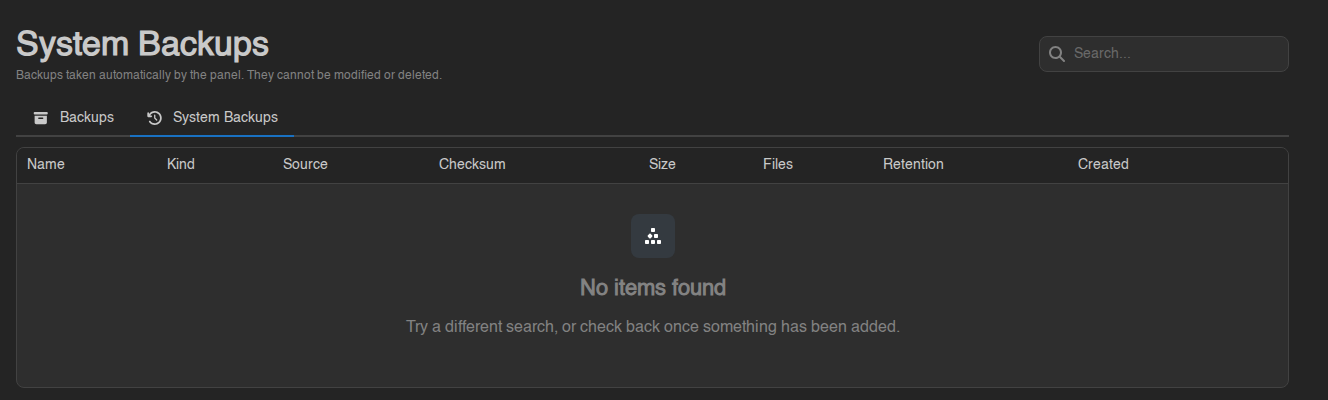
Not every server gets system backups. Which servers we back up, how often, and for how long is decided by the host, not by anything you set in the panel. The Backups tab only shows the sub-tab once there is something to show.
How they differ from your own backups
| Your backups | System backups | |
|---|---|---|
| Who makes them | You, or a schedule you set up | The host, automatically |
| Count against your backup limit | Yes | No |
| Rename, lock or delete | Yes | No |
| Restore | Yes | Yes |
| Download | Yes | Yes |
| Browse single files (ZFS nodes) | Yes | Yes |
| Export to Files | Yes | Yes |
| Kept for | Until you delete them, or retention removes them | Until our retention rules remove them (see the Retention column) |
System backups don't use up your plan's backup slots, so the "x of y maximum backups created" line on the Backups tab ignores them.
The Retention column tells you how long we plan to keep each one. For example Keep daily: 7 with a Deleted … date under it means it is one of the last seven daily backups and is expected to go on that date. Hover the badge for the full rule. The deletion time is an estimate.
Using a system backup
Click the ⋯ at the end of the row (or right-click it). The menu is the same as for your own backups, minus Edit, Lock and Delete:
- Restore puts the backup's files back on your server. The same options and warnings apply as for your own backups: you can wipe the server first for an exact copy, and you can also restore the startup command and game version. The server is stopped while this runs.
- Download saves the backup to your computer.
- Browse (shown on ZFS nodes) opens the backup read-only in the file manager so you can copy out a single file.
- Export to Files saves the backup as an archive inside your server's files.
All of these are explained step by step in Backups: create, restore and download.
Want to keep a system backup for good? You can't lock it. Download it, or restore it and then create your own backup, which you can lock.
Is this the same as ZFS backups?
No. ZFS is about how a backup is taken on some nodes (an instant snapshot, safe while the server runs). System backups are about who takes it and when. The two are independent: a server can have system backups on any kind of node. See ZFS Backups.