
Server Splitter: running several servers from one plan
What this is about
Server Splitter lets you divide one server's resources into several smaller servers, called splits. You keep your main server, and carve a part of its CPU, memory and disk off into a second (or third) server that runs on its own: its own files, console, backups, schedules and address.
People use it to run things like:
- a second Vintage Story world (survival on one, creative on the other),
- a test server to try mods or a new game version before updating the real one,
- a different game next to your main one, all from the same plan.
Everything you give a split is taken away from the main server. Your plan's total doesn't grow; it's shared out between the servers in your "family".
Is it included in my plan?
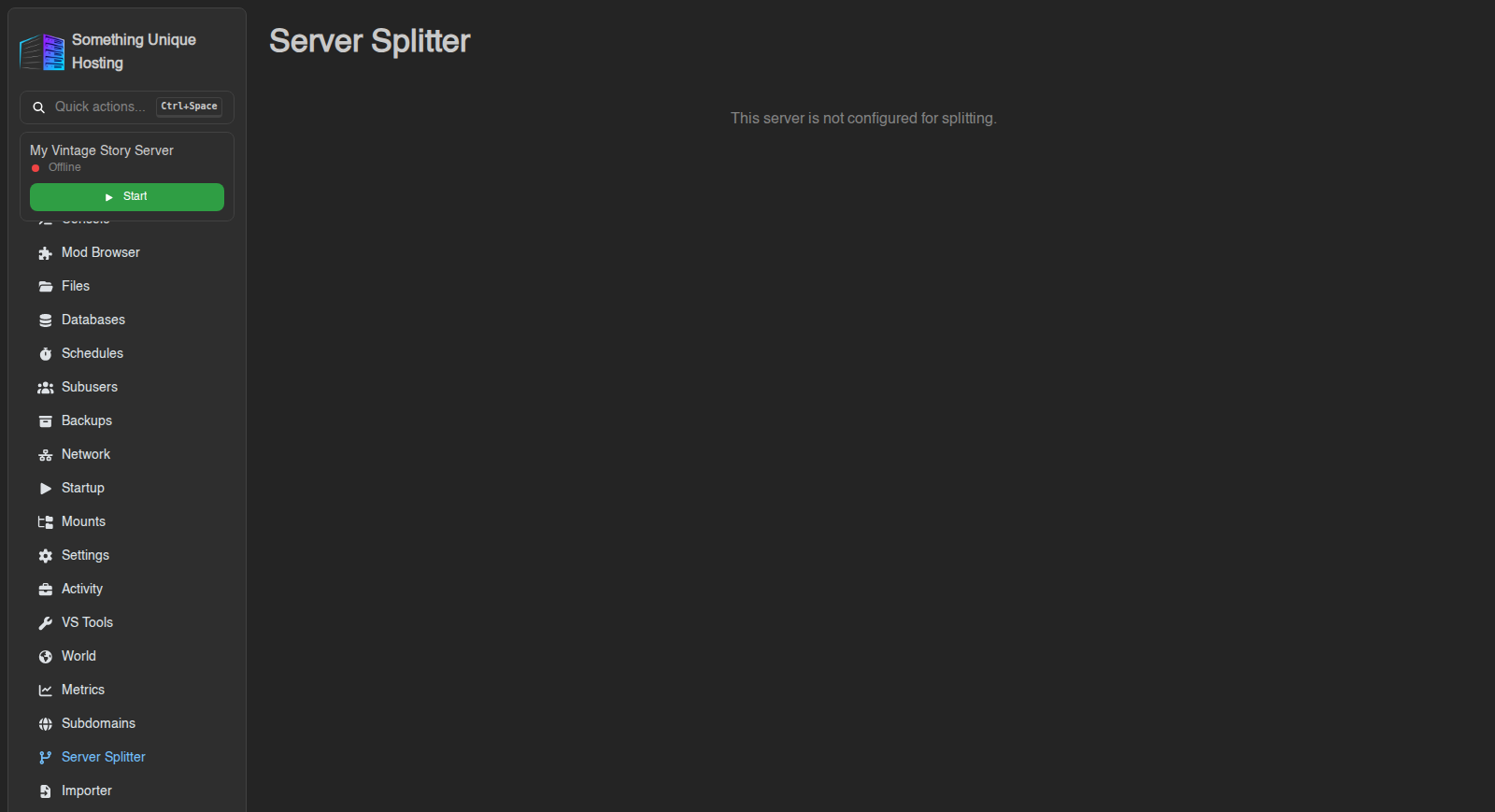
The Server Splitter entry is in the sidebar of every server, but splitting only works on plans that include it. If your plan doesn't, the page just says "This server is not configured for splitting." and there is nothing to click.
ToSplitting getis splitting,switched changeon toby request. Open a plansupport that includes itticket
on the billing site.site, Seesay which server and what you'd like to run on the Billingsplit,
book,and orwe'll openenable ait ticketfor if you're not sure which plan to pick.you.
On a plan that supports splitting, the top of the page reads something like
"1 of 2 maximum splits created." That second number is your splits
limit: how many extra servers you may carve off this one. When you reach it,
the Create button is greyed out with the note "This server is limited to 2
split servers." Delete a split, or upgradeask yourfor plan,a higher limit in a ticket, to make room.
Reading the Resources card
The Resources card shows three boxes: CPU, Memory and Disk. Each one reads used / total, with a Reserved amount in brackets.
| Part | Meaning |
|---|---|
| total | What your plan gives the whole family (main server plus all splits). |
| used | How much of that has already been handed to splits. |
| Reserved | A share the main server always keeps for itself, so a split can never starve it. |
What's left for a new split is total − used − Reserved. The Create window shows that number next to every field as "… available".
Below the card you see your main server, and under it, connected by a branch line, every split you've created. Each split also appears on your dashboard as a server of its own.
Creating a split
- Open your main server and click Server Splitter in the sidebar.
- Click Create (top right). The Create Split Server window opens.
- Give it a Name (and an optional Description). This is only the label in the panel.
- Choose an Egg: the game or server type the split will run. The list only contains what your plan allows.
- Under Limits, set how much the split gets:
- CPU (%), Memory and Disk: each field shows "X available, Y minimum". You can't go under the minimum or over what's available.
- Swap: extra memory on disk. Leave it at 0 unless you know you need it.
- Under Feature Limits, decide how many Allocations (ports), Databases, Backups and Schedules the split gets. These are taken from your main server's limits too, so if your main server has 3 backups and you give the split 1, the main server keeps 2.
- Sync Subusers: turn this on if the people who share your main server should get the same access to the split.
- Click Create. You'll see "Split server created." and the split appears under your main server.
The split installs like a brand-new server, so it starts out empty. If you want your world or mods on it, make a backup of the main server and upload the files to the split, or copy them over SFTP.
Creating or editing a split changes the main server's limits, so the panel restarts or stops the main server if it's running at that moment. Do it while nobody's playing, or stop the server first.
The new split needs its own port. If the split shows no address on its Network tab after a minute, open a ticket and we'll assign one.
Changing a split later
Click the cog next to a split to open Edit Split Server. You can rename it, move resources between it and the main server (the limits show "… available" including what the split already has), and change its feature limits. Sync Subusers copies the main server's subusers to the split again. Click Save.
As with creating, changing limits restarts both servers if they're running.
Removing a split
- Click the bin icon next to the split.
- Read the warning: "Are you sure you want to delete name? This action cannot be undone."
- Confirm.
The split's CPU, memory, disk and feature limits go straight back to the main server. You'll see "Split server deleted."
Deleting a split deletes all of its files and all of its backups. Download anything you want to keep first.
Good to know
- A split can't be split again. Manage all splits from the main server's Server Splitter page.
- Splits share the main server's network bandwidth.
- Only one split change can run at a time. If you see "another split operation is in progress for this server, try again", wait a moment and retry.
- If your main server is suspended (for example an unpaid invoice), all its splits are suspended with it. If the main server is deleted, its splits and their backups are deleted too.
- Subusers only see the Server Splitter page if you give them the Splitter permissions (Read, Create, Update, Delete) on the Subusers tab.
- Changed your plan? See Upgrading or downgrading. Resources added by an upgrade land on the main server; edit a split to pass some on.