
Schedules: automating your server
What this is about
The Schedules tab lets your server do things on its own: restart every night, take a backup before a restart, warn players before shutting down, or send you a Discord message when it crashes.
Every schedule is made of three parts:
| Part | Question it answers | Example |
|---|---|---|
| Triggers | When should it run? | Every day at 4:00 AM |
| Conditions | Should it run right now? (optional) | Only if the server is running |
| Actions | What should it do? | Warn players, wait, restart |
Looking for the simple "start at noon, stop at 3pm" walkthrough? See Creating a time based schedule. This article goes further.
Before you start: set your server's timezone
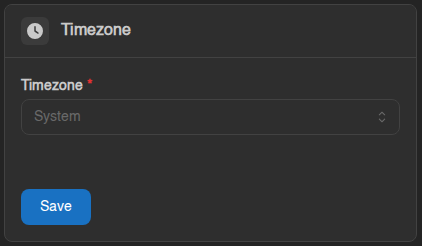
Time-based triggers use your server's timezone, not your computer's. New servers are set to System, which follows the clock of the machine your server runs on. Set it to your own timezone so "4:00 AM" means 4:00 AM for you: go to Settings → Timezone, pick your timezone (the list is searchable) and click Save.
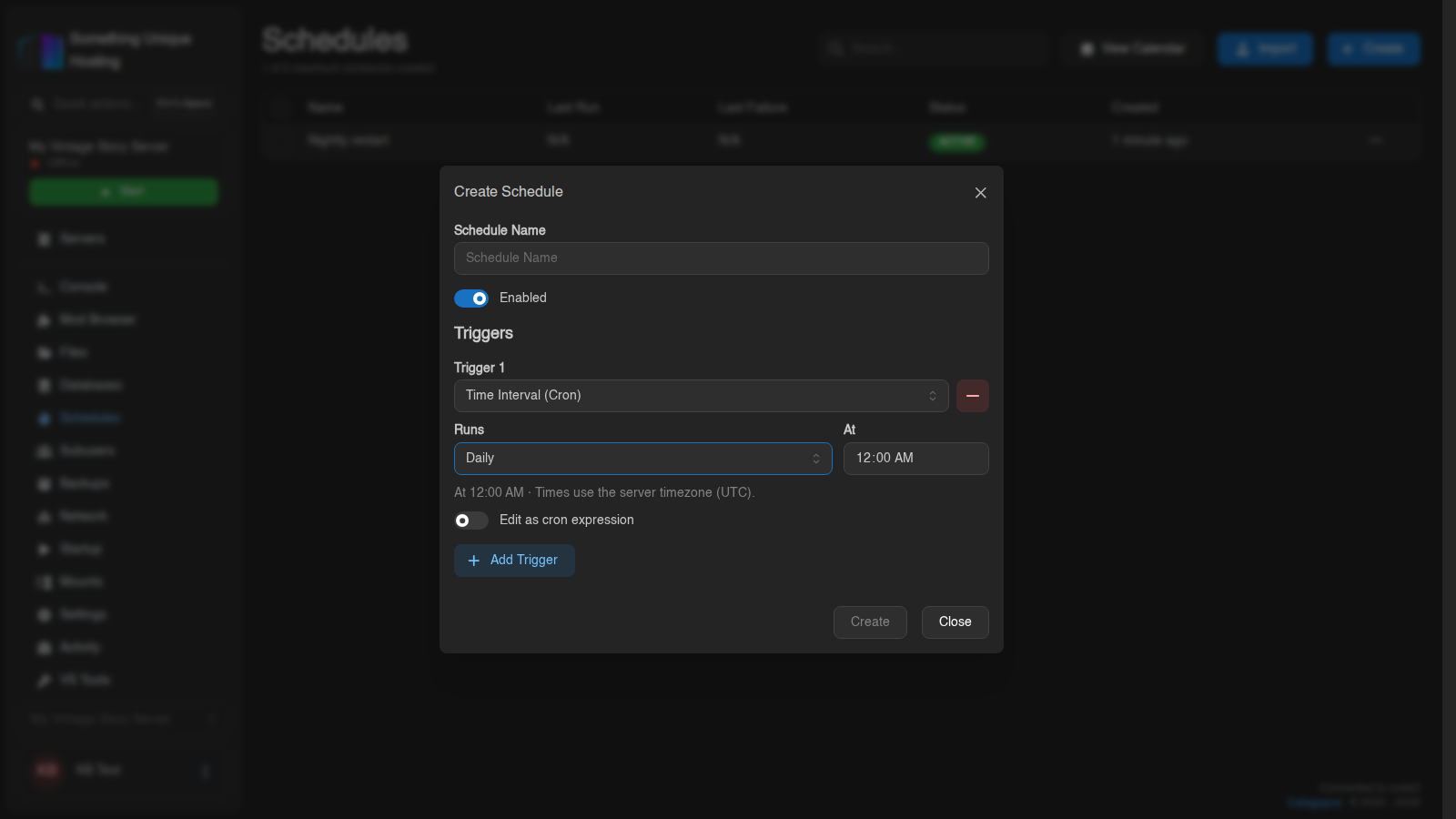
The trigger editor reminds you which timezone it's using: "Times use the server timezone (…)".
Creating a schedule
- Go to the Schedules tab and click Create.
- Give it a Schedule Name (e.g. Nightly restart).
- Under Triggers, pick a trigger type (see below), e.g. Time Interval (Cron) with Runs: Daily At: 4:00 AM. Click Add Trigger if you want more than one. Then click Create.
- Click the new schedule to open it. You'll see three tabs: Actions, Conditions and Triggers.
- On Actions, click Create First Step and build your steps.
Each step saves when you click Create or Save in its window. On the Conditions tab, click Update to save. The panel warns you if you try to leave with unsaved changes. To change the name or triggers later, click Edit at the top. Use Run Now at the top to test a schedule straight away instead of waiting for its trigger.
Triggers: when it runs
| Trigger | Runs when… |
|---|---|
| Time Interval (Cron) | A time or interval you pick is reached (every few minutes, hours, daily, weekly, monthly) |
| Crash | The server crashes |
| Server State | The server becomes Running, Offline, Starting or Stopping |
| Power Action | Someone presses Start, Stop, Restart or Kill |
| Console Line | A line in the console contains some text you choose |
| Resource Usage | CPU, memory or disk usage stays above/below a value for a number of seconds |
| Backup Status | A backup starts, completes or fails |
| Schedule Completion | Another schedule finishes (successfully or not) |
A schedule can have several triggers. It runs when any of them fires.
Time triggers
Pick how often it Runs (Every few minutes, Every few hours, Daily, Weekly, Monthly) and fill in the time. Click View Calendar to see the upcoming runs and check it's doing what you expect.
Need something the picker can't do? Tick Edit as cron expression. The panel uses six fields with seconds first:
second minute hour day-of-month month day-of-week
| Cron | Means |
|---|---|
0 0 4 * * * |
Every day at 4:00 AM |
0 0 */6 * * * |
Every 6 hours, on the hour |
0 30 3 * * 1 |
Mondays at 3:30 AM |
0 0 4,16 * * * |
Every day at 4:00 AM and 4:00 PM |
Always set the seconds field to 0. A * there means "every second" and the schedule will run over and over.
Conditions: should it run?
Conditions are checked before any actions run. If they're not met, the schedule skips that run. Useful ones:
- Server State: e.g. only restart if the server is actually Running.
- Resource Usage: e.g. only run if CPU is below 50%.
- Uptime: e.g. only restart if the server has been up for more than an hour.
- File Exists: e.g. only run if a certain file is there.
Combine several with AND (All must be true), OR (Any must be true) or NOT (Must not be true).
If you click Run Now, you can choose Run now (check conditions first) or Run now (ignore conditions).
Actions: what it does
Steps run top to bottom, one at a time. Drag them to reorder. The most useful ones:
| Step | What it does |
|---|---|
| Send Command | Types a command into the console (e.g. say Restarting in 5 minutes) |
| Send Power Signal | Start, Restart, Stop or Kill the server |
| Sleep | Waits. The duration is in milliseconds: 60000 = 1 minute |
| Wait for Server State | Waits until the server is e.g. Offline before continuing |
| Wait for Console Line | Waits until the console prints something (e.g. Server started) |
| Create Backup | Takes a backup of the server files |
| Delete Backup | Deletes the oldest/latest/a named backup |
| HTTP Request | Calls a URL, e.g. a Discord webhook |
| If / Else If / Else / End If | Only runs some steps when a condition is true |
| Ensure | Stops the schedule here unless a condition is true |
| Exit | Stops the schedule here |
There are also file steps (Write File, Copy File, Delete Files, Rename Files, Compress Files, Decompress File, Pull File) and startup steps (Update Startup Variable, Update Docker Image).
Each step has an Ignore Failure switch. Turn it on if the schedule should carry on even when that step fails, e.g. a Send Command while the server happens to be offline.
Milliseconds catch everyone out. 5 seconds = 5000, 1 minute = 60000, 5 minutes = 300000.
Recipes
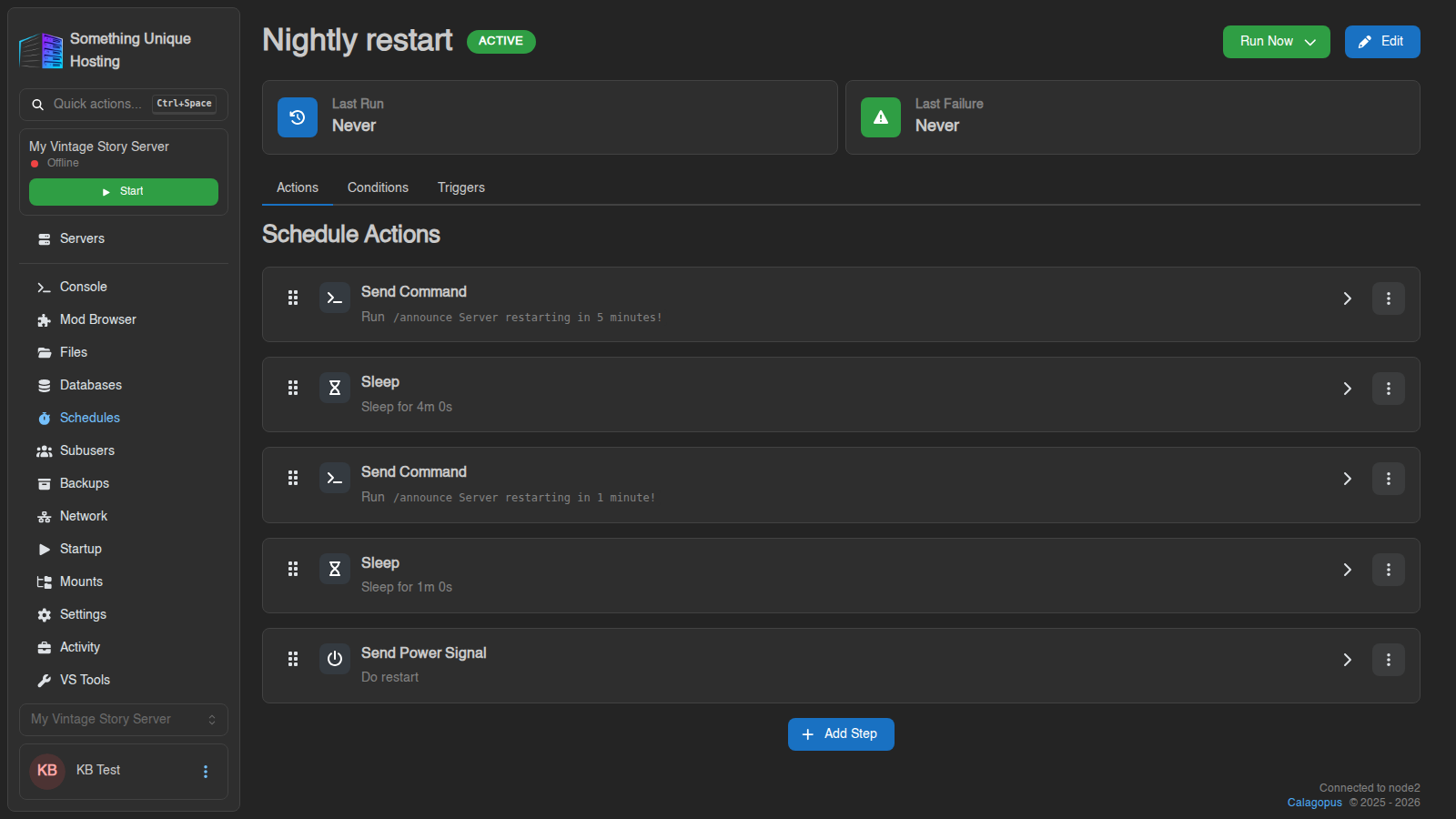
1. Nightly restart with warnings
Trigger: Time Interval, Daily at 04:00 Condition: Server State is Running Actions:
- Send Command:
say Server restarting in 5 minutes! - Sleep:
240000(4 minutes) - Send Command:
say Server restarting in 1 minute! - Sleep:
60000 - Send Power Signal: Restart
The say command differs between games. Vintage Story uses /announce <message>.
Minecraft uses say <message>. Check your game's admin commands.
2. Daily backup
Trigger: Time Interval, Daily at 05:00 Actions:
- Create Backup: leave the name empty for an automatic name
That's all you need. Your server has a backup limit (shown at the top of the Backups tab, e.g. "3 of 3 maximum backups created"). When a scheduled backup runs and you're already at the limit, the panel automatically deletes your oldest unlocked backup to make room. You always keep your most recent backups, and the schedule never fails because you're full.
Locked backups are never deleted this way, so lock any you want to keep for good. Want more control, like one backup per day for a week plus one per week for a month? Use a backup group with retention. See Backups.
This only applies to backups made by a schedule. If you click Create Backup yourself while you're at the limit, the panel refuses with "maximum number of backups reached" rather than deleting anything.
Vintage Story on a non-ZFS node? Back up only while the server is stopped, or run /genbackup first. See Backing Up Vintage Story Safely. A safe version of this recipe: Stop → Wait for Server State Offline → Create Backup → Start.
3. Safe backup for Vintage Story (stop, back up, start)
Trigger: Time Interval, Daily at 05:00 Actions:
- Send Command:
/announce Server going down for a backup in 1 minute - Sleep:
60000 - Send Power Signal: Stop
- Wait for Server State: Offline, timeout
120000 - Create Backup
- Send Power Signal: Start
4. Get a Discord message when the server crashes
In Discord: Server Settings → Integrations → Webhooks → New Webhook, then Copy Webhook URL.
Trigger: Crash Actions:
- HTTP Request
- Method:
POST - URL: your webhook URL
- Header:
Content-Type=application/json - Body:
{"content": "⚠️ My server just crashed!"}
- Method:
Sharing schedules
From a schedule's menu you can Export it as a file, and drag that file onto another server's Schedules tab to import it. Duplicate makes a copy on the same server.
Troubleshooting
- It didn't run. Check the schedule shows ACTIVE (click Edit and turn on Enabled if not), the timezone is right (Settings → Timezone), and View Calendar shows the next run where you expect it. The Last Run and Last Failure columns on the Schedules list tell you what happened.
- It ran but nothing happened. A condition may have skipped it, or a step failed and stopped the rest. Turn on Ignore Failure for steps that are allowed to fail.
- It keeps running every second. Your cron's first field isn't
0. - A restore step keeps re-running. Don't combine Restore Backup with Server State or Power Action triggers. The restore itself changes the server state and can trigger the schedule again.