
Network: your server's address and ports
What this is about
ComingThe soon.Network tab lists the address and ports your server uses. Each address
and port pair is called an allocation. The one with the ⭐ star is your
primary port, the one players connect to.
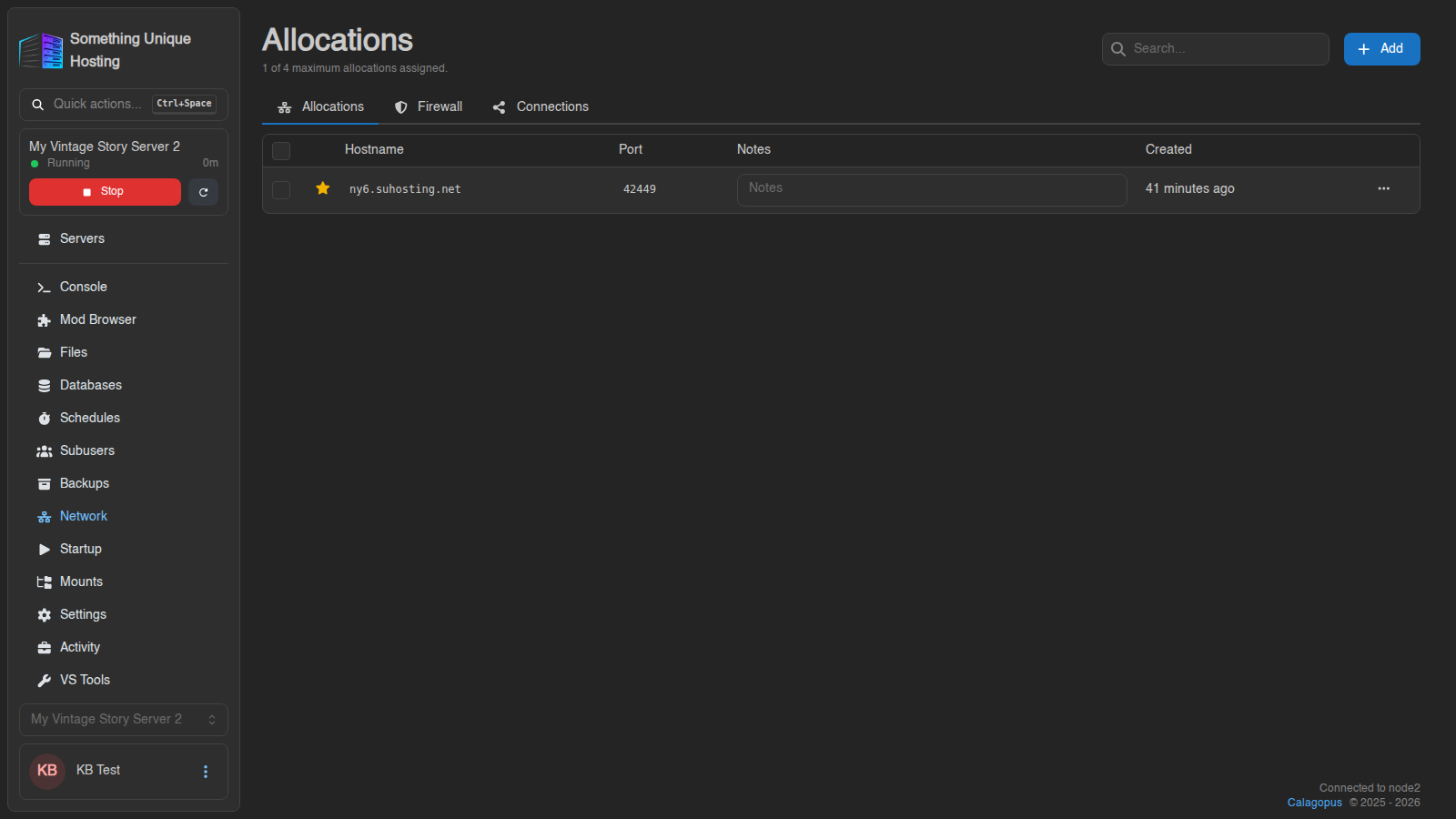
Your full server address is the Hostname and Port together, e.g.
ny6.suhosting.net:42449. The same address is shown on the Console.
Want a nicer address like mytribe.suhosting.net with no port to remember? See Giving your server a custom address.
Notes
Click into the Notes box on a row to label a port, e.g. "web map" or "voice chat". It saves automatically.
Need another port?
Some mods (web maps, voice chat, metrics) need an extra port. The top of the page shows how many your plan allows, e.g. "1 of 4 maximum allocations assigned." You can't add ports yourself, and the Add button will show an error. Open a support ticket and tell us what the port is for, and we'll add it for you.
Primary port
Firewall and Connections (advanced)
Two more tabs are there for advanced setups. Most servers never need them.
A wrong firewall rule can lock your players (or you) out. If people suddenly can't connect after you changed the firewall, delete the rules and click Save.