
Databases: MySQL and PostgreSQL for mods and plugins
What this is about
Most game servers keep everything in files, and Vintage Story is one of them: your world, players and mods all live in the server's files. Some games, mods and plugins work differently and want a database: a separate place to store things like player stats, economy balances, permissions, bans shared between several servers, or a web map. Their setup guide will ask you for a database host, port, name, username and password.
The Databases tab is where you get those. It creates a MySQL or PostgreSQL database for your server, shows you the connection details, and lets you look inside it without installing any extra tools.
You only need a database if a mod or plugin asks for one. A plain Vintage Story server never does. If nothing you run mentions MySQL, MariaDB or PostgreSQL, you can ignore this tab.
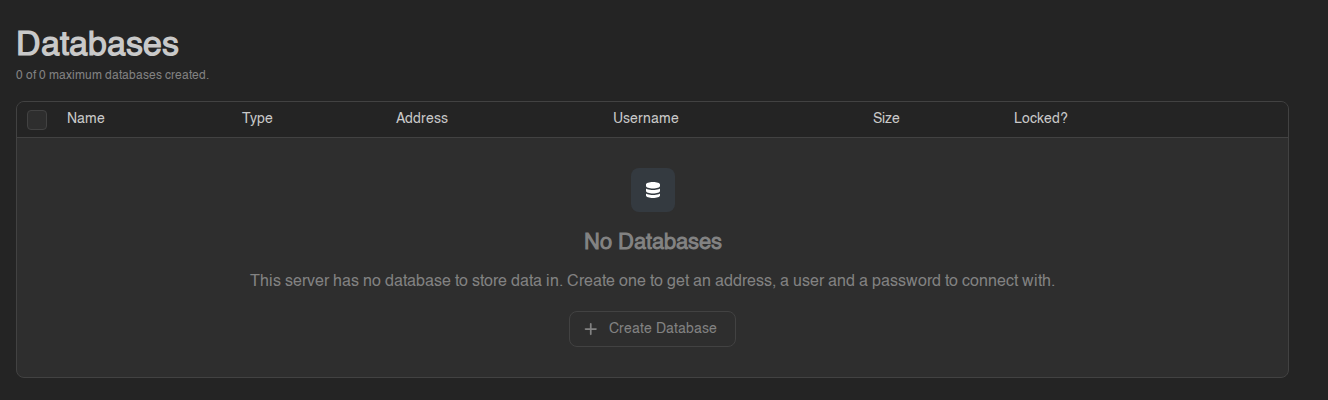
Your database limit
The line under the title reads something like "0 of 1 maximum databases created." That's how many databases your plan includes, and how many you have used.
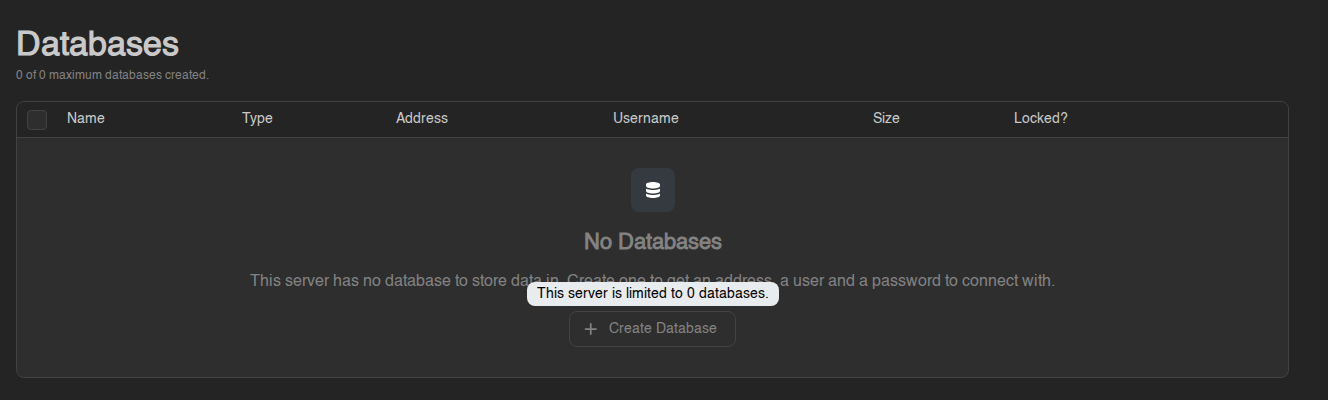
- "0 of 0" means your current plan has no databases. The tab shows No Databases and the Create Database button is greyed out. Hovering it says "This server is limited to 0 databases."
- When you have used all of them, the Create button is greyed out in the same way. Delete a database you no longer need to free a slot.
Databases are part of the plan you ordered on the billing site, so if you need one (or one more), change your plan there or open a ticket. The Billing book explains how.
If instead the tab says "No database host has been made available to it, so none can be created yet", your plan does include databases but nothing is set up for your server's location yet. Open a ticket and we'll sort it out.
Databases and Managed Databases
There are two kinds, and they share the same limit:
| Databases | Managed Databases | |
|---|---|---|
| What you get | One database on a database server we run | A small database server of your own (PostgreSQL, MariaDB, MongoDB or Redis) running next to your game server |
| Good for | Mods and plugins that just need somewhere to store data. This is what most people want. | Setups that need their own users, their own backups, or a database type other than MySQL/PostgreSQL |
| Where | The Databases tab | The Managed Databases sub-tab (it only appears when a managed database can be created for your server, or already exists) |
The rest of this article is about plain Databases. Managed Databases are summarised at the end.
Creating a database
- Open your server and click Databases in the left menu.
- Click Create (or Create Database when the list is empty).
- Enter a Database Name: 3 to 31 characters, letters, digits and underscores only. Something like
luckpermsorstatsis fine. - Pick a Database Host. Usually there's only one. A host marked Under Maintenance can't be chosen right now; try again later.
- Click Create. The message "Database created." confirms it.
The panel adds a short prefix with your server's ID to the name you typed, so
the real database is called something like s390de16e_luckperms. The
Username gets the same prefix. Always copy the names from the panel rather
than typing them from memory.
If you see "database with name already exists", pick a different name.
Finding the connection details
Each database is one row in the list:
| Column | Meaning |
|---|---|
| Name | The full database name, prefix included |
| Type | MySQL or PostgreSQL (tells you which driver or setting the mod needs) |
| Address | Host and port, written as host:port. Click it to copy. |
| Username | The user that can log in to this database |
| Size | How much space the data takes |
| Locked? | A green lock means the database is protected (see Locking below) |
For the password and a ready-made connection string, click the ⋯ button at the end of the row (or right-click the row) and choose Details. The Database connection details window shows:
- Database Name
- Host (as
host:port; if a mod asks for them separately, the part before the colon is the host and the number after it is the port) - Username
- Password
- JDBC Connection String: everything in one line, in the form
jdbc:mysql://username:password@host:port/database. Some mods and tools accept this directly.
Click in a field to select its value and copy it into your mod's config file. Then restart your server so the mod picks up the new settings.
Treat the password like any other password. Anyone with these details can read and change everything in the database. Don't paste them into Discord or a public config repository.
Rotating the password
If the password has leaked, or you'd rather not reuse one that's been shared:
- Open ⋯ → Details on the database.
- Click Rotate Password.
The panel generates a new password straight away and shows it in the same window. The old one stops working immediately, so update your mod's config and restart the server. Rotate Password is greyed out while the database is locked.
Looking inside: Explore Data
You don't need to install a database tool to check what a mod has stored. Click ⋯ → Explore Data on a database (MySQL and PostgreSQL only; MongoDB can't be explored from the panel). The explorer opens with the list of Tables on the left, each with a rough row count, and three tabs for the selected table:
- Rows: browse the data page by page with Previous and Next. Click a column heading to sort, use Filter to narrow it down (for example name contains Steve), double-click a cell to change it, then Save your changes or Discard them. New Row adds a row and ticking rows enables Delete.
- Structure: the table's columns and their types. This is for people who know what they are doing: Add Column, Rename and Delete change the table itself.
- Query: type an SQL statement and click Run. The Read only switch is on by default and "Rejects statements that change data or structure." Leave it on unless you really mean to change something. Row Limit caps how many rows come back (up to 1000); a note tells you if the result was cut off.
Everything you change in the explorer is written to the live database at once, and there is no undo. Many mods also don't like the data changing under them. Stop your server before editing, and when in doubt, only look.
Locking a database
⋯ → Edit opens a window with a single Locked switch. A locked database (green lock in the Locked? column) can't be deleted or recreated, and its password can't be rotated. It's a safety catch for the database your main plugins depend on. Unlock it again from the same window when you need to.
Starting over: Recreate
⋯ → Recreate wipes everything in the database and gives you an empty one with the same name, username and password, so your mod config keeps working. You have to type the Database Name to confirm. Use it when a mod's data is corrupted and you want a clean start without changing settings. There's no way back, so make sure you don't still need the data.
Deleting a database
- Click ⋯ → Delete on the database (or tick several rows and click Delete at the bottom).
- Type the Database Name to confirm and click Delete.
"Deleting a database is a permanent action, it cannot be undone." The data is gone and any mod still pointing at it will fail to start. Locked databases are skipped. Deleting frees up a slot in your limit.
Managed Databases in short
If the Managed Databases sub-tab appears for your server, you can also create a complete database server of your own. It shares the same "x of y maximum databases created" counter as the Databases list.
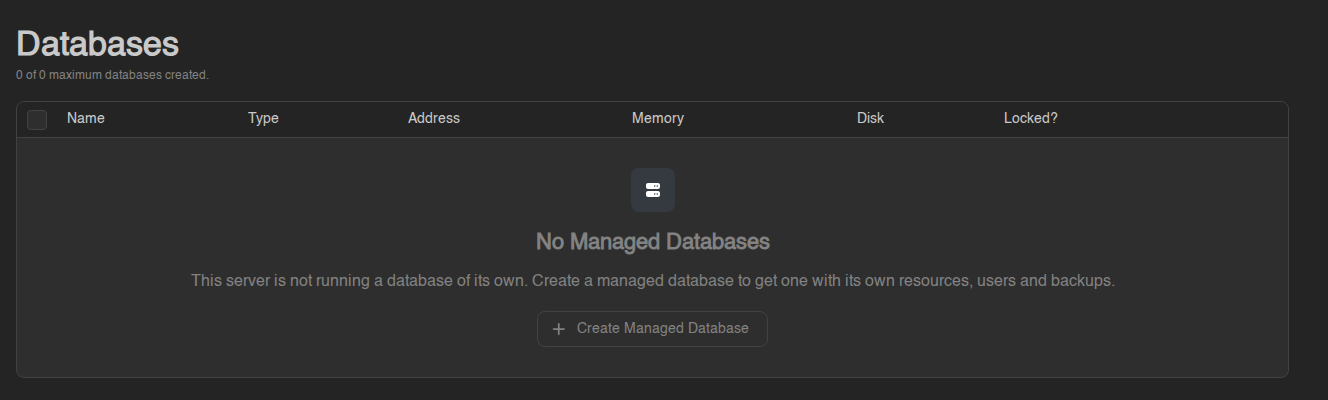
- Click Create / Create Managed Database.
- Enter a Database Name, choose a Template (the database type and version we offer) and click Create.
Click the new row to open it. The page shows its Address, uptime, CPU, memory and disk, buttons to Start, Restart and Stop it, Export and Import a dump, and four tabs:
- Databases: the databases inside it. Create one, and leave "Create a user for this database" on to get a login for it at the same time. Each one has its own Explore Data, Import, Export, Recreate and Delete.
- Users: logins and what each may do (Read Only, Read & Write or No Access per database). ⋯ → Details on a user opens Database Credentials with the Address, Username, Password, a JDBC Connection String and the Rotate Password button.
- Backups: backups of the database itself. These share your plan's backup limit with your server's normal backups.
- Logs: what the database server is printing, handy when it refuses to start.
A managed database counts towards the same database limit as a plain one. Its databases and users must be created while it is running.