
Backups: create, restore and download
What this is about
DraftA uploadbackup is a saved copy of your server's files that you can roll back to if
something goes wrong: a bad mod update, a griefed world, or a config change
that broke everything. This article covers the Backups tab: making backups,
restoring them, getting them onto your own computer, and keeping old ones
tidy automatically.
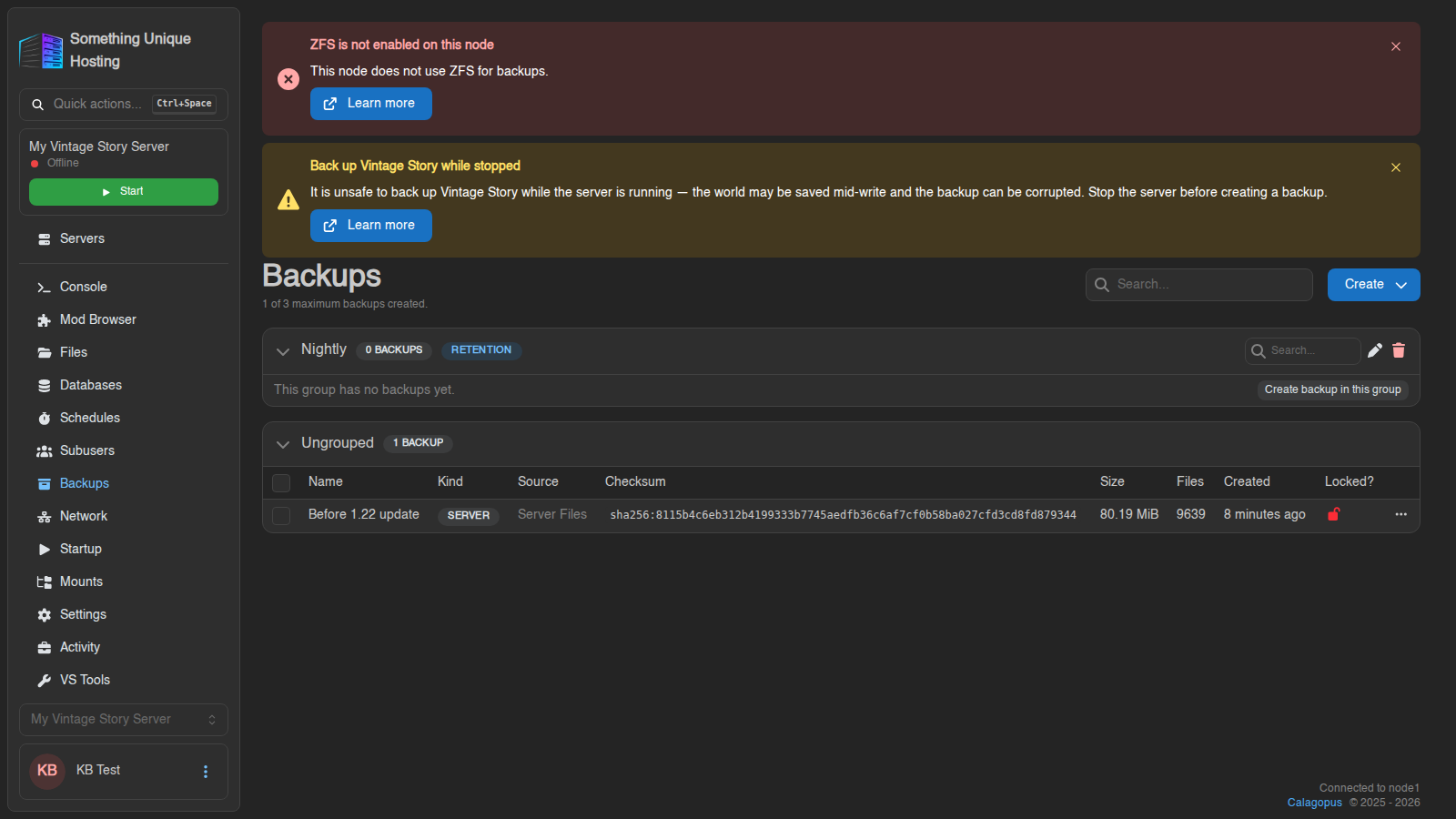
The banner at the top of the Backups tab tells you whether your node uses ZFS. That affects whether it's safe to back up while the server is running. See ZFS Backups, and for Vintage Story, Backing Up Vintage Story Safely.
Your backup limit
The top of the tab shows something like "2 of 5 maximum backups created." That's your plan's limit. When you hit it:
Locked backups never count as removable, so lock only the ones you really want to keep forever.
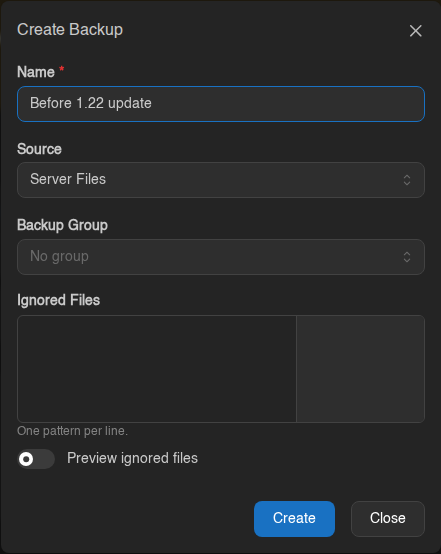
Creating a backup
logs/
*.log
cache/
The backup appears in the list and shows its progress. Large servers can take a few minutes.
On a non-ZFS node, stop your server first if it saves its world to a database (Vintage Story and many modded games do). Backing up while the game is writing a save can give you a backup that won't load.
Restoring a backup
Click the ⋯ button at the end of the backup's row (or right-click the row) and choose Restore. Decide on the options: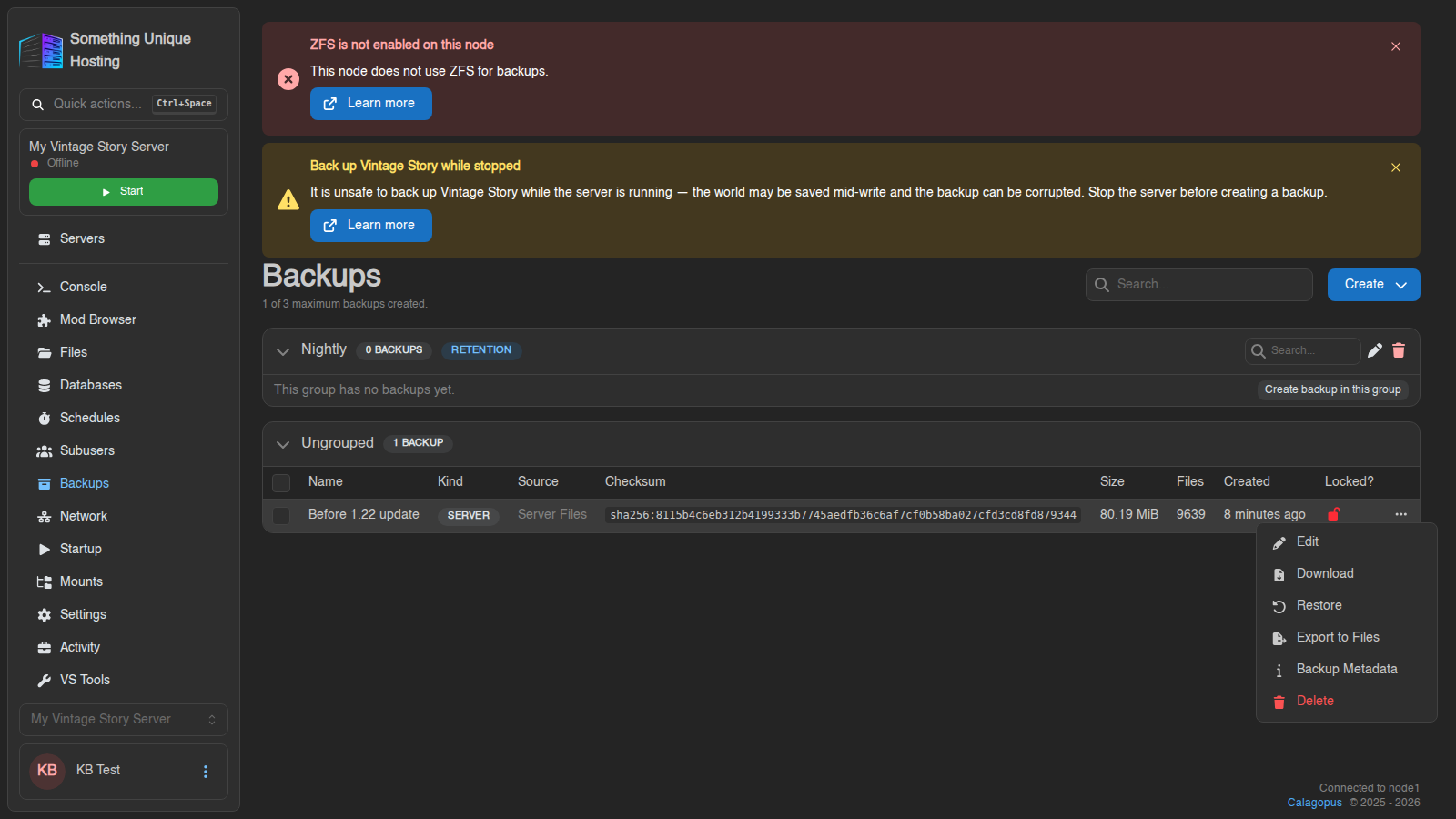
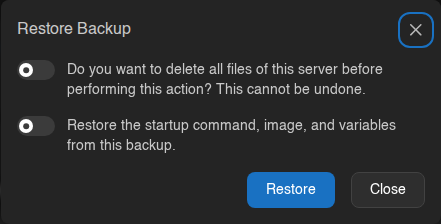
Rolling back after an update went wrong? Turn both options on. That gives you the server exactly as it was, including the version it was running.
Getting a single file back: Browse
Don't want to restore everything? On ZFS nodes, the backup menu has a Browse option. The backup opens in the file manager, read-only, so you can look around and grab just the files you need, like one config file or one player's data. Click Exit Backup to return to your live files.
On other nodes there's no Browse. Use Export to Files (below), open the archive in the file manager, and copy out what you need.
Downloading a backup to your computer
Click ⋯ → Download.
Keeping your own copy offsite is a good idea for anything you'd be heartbroken to lose.
Export to Files
⋯ → Export to Files saves the backup as an archive inside your server's files (choose the folder and file name). Handy if you want to copy a backup to another server over SFTP, or unpack part of it with the file manager.
Exported archives use your server's disk space, so delete them when you're done.
Locking a backup
⋯ → Edit and switch on Locked, then Save. A red open padlock in the Locked? column means unlocked. A locked backup:
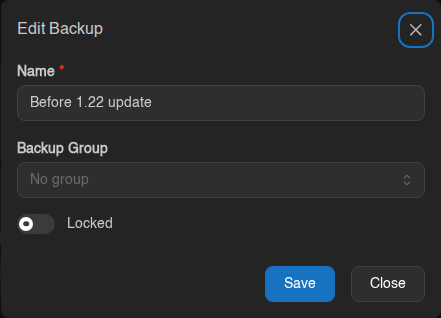
Use it for milestones: "World before the dragon fight", "Pre-wipe season 3".
Keeping backups tidy: groups and retention
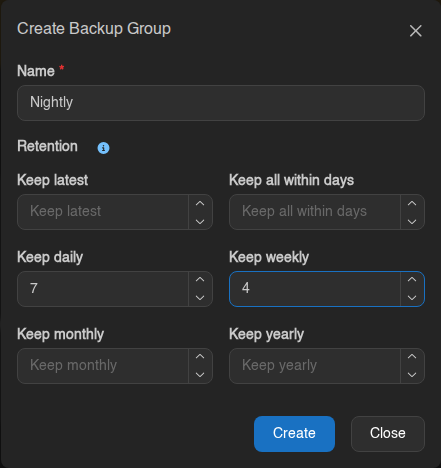
A backup group is a folder for backups with optional retention rules that delete old backups for you.
A backup is kept if any rule wants it. Everything else in the group is deleted on the next retention run. Leave a rule at 0 to switch it off. With no rules at all, the group is just a label and never deletes anything.
Example, nightly backups: Keep daily 7, Keep weekly 4 gives you one backup for each of the last week, plus one per week for a month. With a nightly schedule, that's about 10 backups at a time.
Each backup in a group shows when it's expected to be deleted, so there are no surprises.
Retention only removes backups. It doesn't create them. Pair a group with a schedule that runs Create Backup in that group. See Schedules.
Failed backups that aren't locked are cleaned up automatically after 24 hours.
Common questions
"Maximum number of backups reached": you're at your limit. Delete or unlock an old backup, or use a backup group with retention.
My backup failed. Usually the server ran out of disk space during the backup, or a file changed mid-copy. Try again with the server stopped. If it keeps failing, open a ticket with the backup's name and time.
Does a backup include my database? Only server files by default. If your server has a managed database, you can back that up separately by choosing it as the Source when creating the backup.