Changes apply after a server restart. Minecraft reads the icon and the MOTD when it starts. Save your changes, then Restart the server from the Console. Until then players keep seeing the old icon and message.
## Server List Preview The dark bar at the top of the card is drawn the same way the game draws the multiplayer screen, with the real Minecraft font: icon on the left, name on the first line, your MOTD on the two lines under it. It updates while you type, so you can try things before you save. Two things to know about the preview: - The name shown is your **Server Name** from the Rename Server card. In the game, players see whatever name *they* typed when they added your server. Only the icon and the MOTD come from your server. - Each MOTD line is cut off at the width of the entry, roughly 45 characters in the normal font. Keep your lines short. ## Server Icon The icon is a 64 by 64 pixel PNG file called `server-icon.png` in your server's main folder. Minecraft ignores icons of any other size, so the panel crops and scales whatever you give it to exactly 64 by 64 for you. 1. Click **Upload** (or click the square, or drag a picture onto it). Any common picture format works: PNG, JPG, GIF, WebP. 2. The **Crop Server Icon** window opens. Drag the picture to choose the part you want to keep and use the **Zoom** slider (1x to 8x) to zoom in. The **Preview** on the right shows the finished 64 by 64 icon at its real size. 3. Click **Save**. The icon is written to your server as `server-icon.png` and the preview updates. [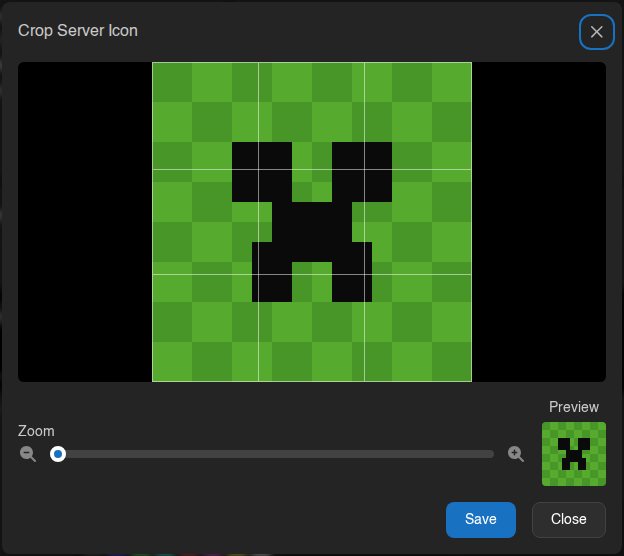](https://knowledgebase.suhosting.net/uploads/images/gallery/2026-11/mc-02-crop-modal.png) Tips for a good icon: - Simple shapes and big details work best. At 64 by 64 pixels, fine text turns into mush. - Transparent PNGs stay transparent. - You already have a finished 64 by 64 PNG? Upload it as is; the crop window will show the whole picture selected and the panel keeps it pixel for pixel. To go back to the default (the grey "unknown server" picture), click **Remove** next to the Upload button and confirm. This deletes `server-icon.png` from your server. ## MOTD The MOTD is the text under your server's name in the player's server list. It can be **up to two lines** and uses Minecraft's colour and formatting codes. The editor does the codes for you: 1. Type your text in the box. Press **Enter** once to start the second line (the editor won't let you add a third). 2. Select a word or a whole line and click a colour in the palette, or **B**, *I*, U, S for bold, italic, underline and strikethrough. The shuffle button is Minecraft's "obfuscated" style (constantly changing random characters). 3. The eraser button (**Reset formatting**) puts the selected text back to plain, and the star button (**Insert symbol**) drops in symbols such as ★ ❤ ⚔ ▶ that the Minecraft font can display. 4. Check the preview, then click **Save**. **Discard** throws away unsaved changes. [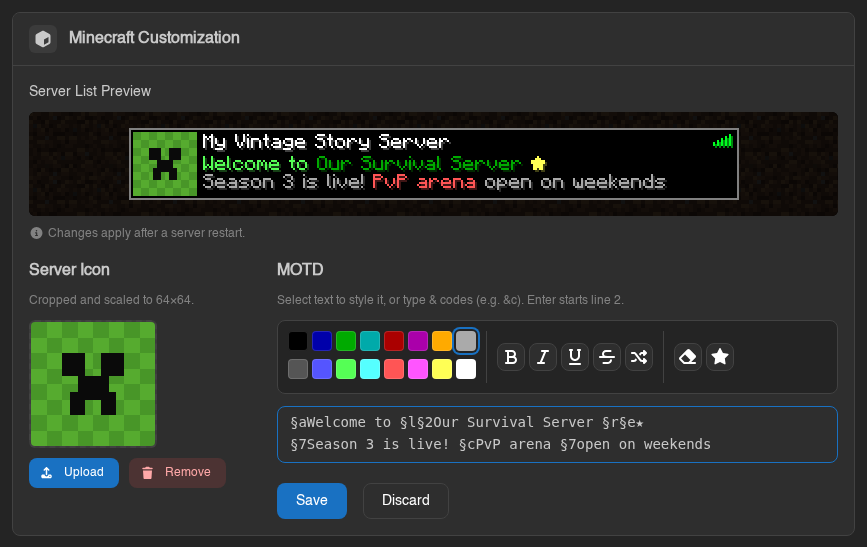](https://knowledgebase.suhosting.net/uploads/images/gallery/2026-11/mc-03-motd-editor.png) If you'd rather type the codes yourself, use `&` followed by the code, for example `&a` for green or `&l` for bold. The editor turns them into the `§` codes Minecraft expects as you type. Text without a colour code shows up grey in the server list, like the game's default "A Minecraft Server". | Code | Colour | Code | Colour | |---|---|---|---| | `&0` | Black | `&8` | Dark Gray | | `&1` | Dark Blue | `&9` | Blue | | `&2` | Dark Green | `&a` | Green | | `&3` | Dark Aqua | `&b` | Aqua | | `&4` | Dark Red | `&c` | Red | | `&5` | Dark Purple | `&d` | Light Purple | | `&6` | Gold | `&e` | Yellow | | `&7` | Gray | `&f` | White | Formatting: `&l` bold, `&o` italic, `&n` underline, `&m` strikethrough, `&k` obfuscated, `&r` reset everything.A colour code also switches bold, italic and the other styles off. Put the colour first and the style after it (&2&l, not &l&2). When you use the toolbar on selected text this is handled for you.