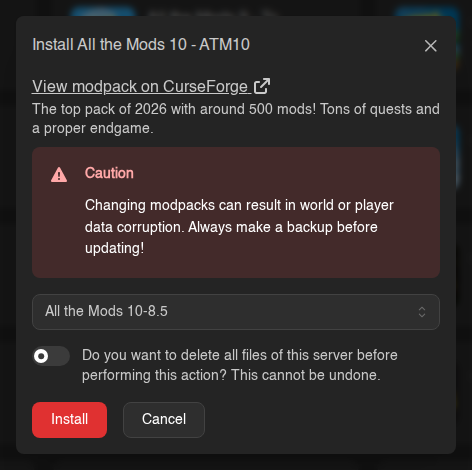
Installing a modpack replaces the server software you have now. Your old server jar, mods and libraries are removed and the pack's files take their place. Your world is kept unless you tick the "delete all files" switch, but a different pack (or even a newer version of the same pack) can corrupt a world made with another one. Take a backup first.
[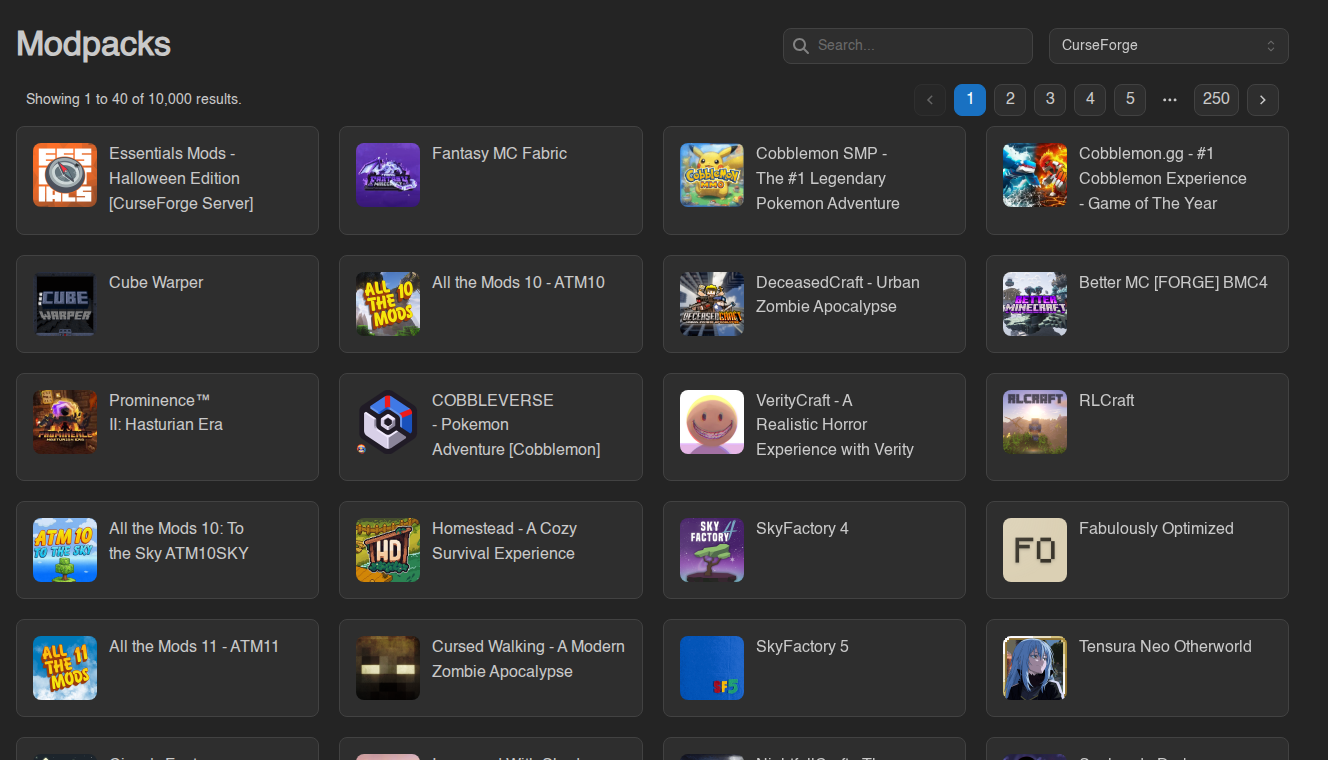](https://knowledgebase.suhosting.net/uploads/images/gallery/2026-11/mp-01-overview.png) ## Where the packs come from The dropdown at the top right picks which site to search. **CurseForge** is selected by default. | Source | Good for | |---|---| | **CurseForge** | The largest library. Most well-known packs (All the Mods, SkyFactory, RLCraft, Cobblemon packs) live here. | | **Modrinth** | Open modding site, many Fabric and Quilt packs. Only packs that work on a server are listed. | | **ATLauncher** | Packs from the ATLauncher launcher | | **Feed The Beast** | The official FTB packs (FTB Skies, FTB Evolution and so on) | | **Technic** | Packs from the Technic launcher (Tekkit and friends) | | **Voidswrath** | Packs from the Voids Wrath launcher | [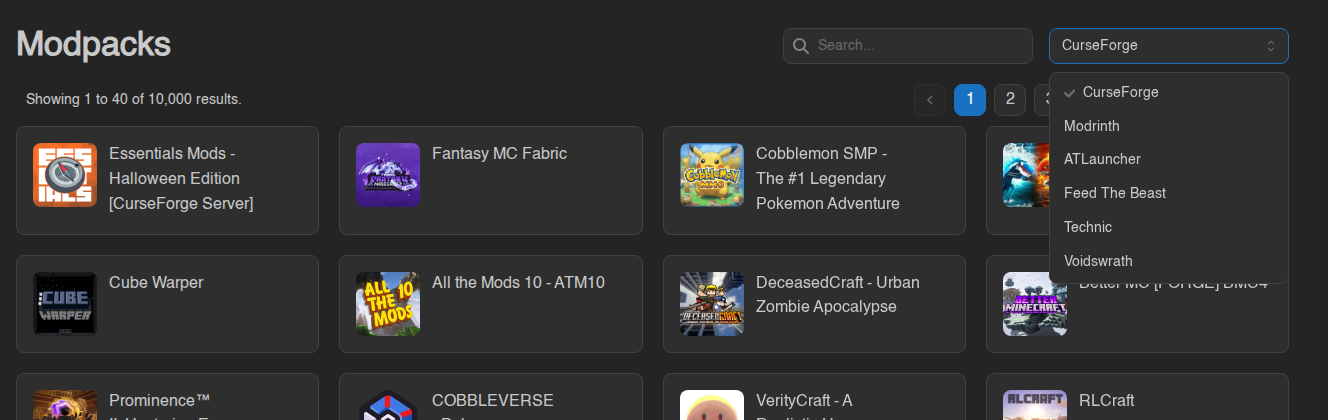](https://knowledgebase.suhosting.net/uploads/images/gallery/2026-11/mp-02-providers.png) Type a name into **Search...** and the list updates as you type. Results come in pages of 40; use the page numbers to go further. Each card shows the pack's icon and name. Click a card to see its description and versions. [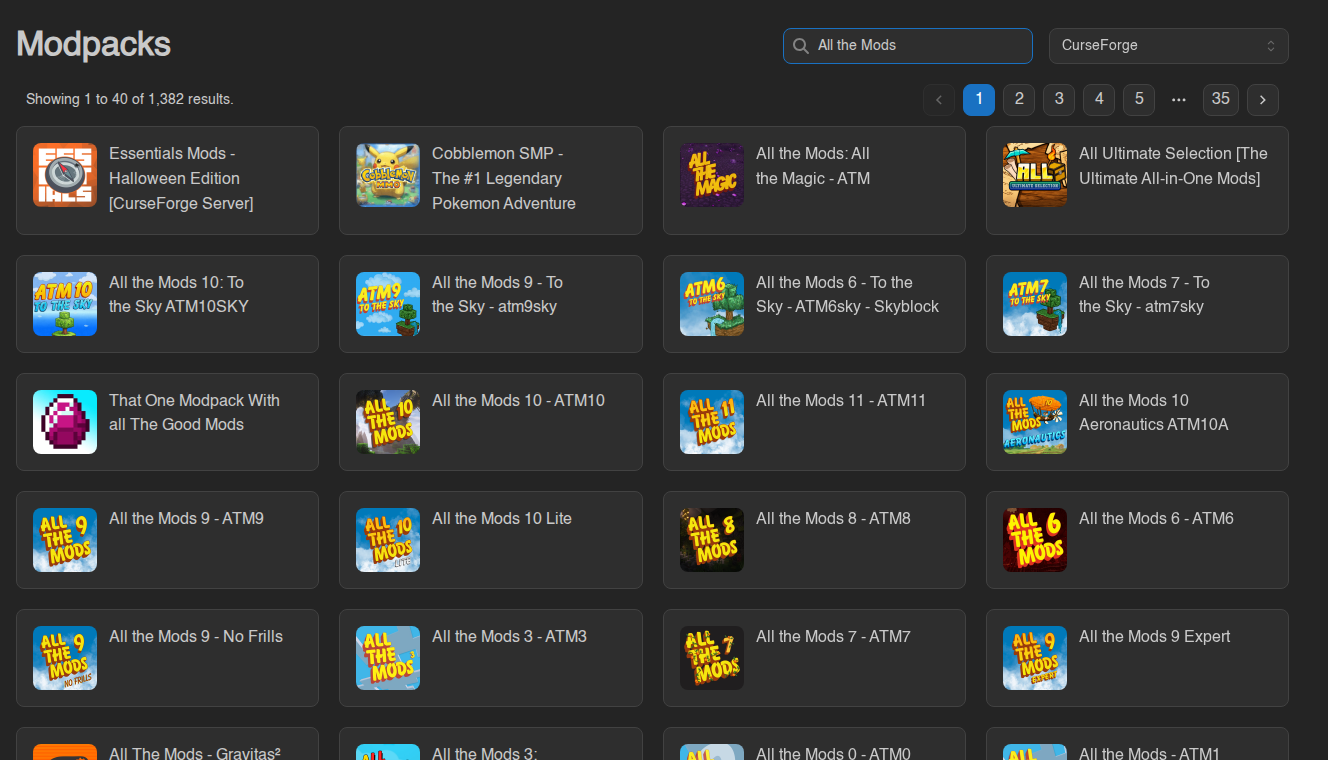](https://knowledgebase.suhosting.net/uploads/images/gallery/2026-11/mp-03-search.png)Can't find a pack? Check the dropdown. A pack is usually only on one of the sites, so try the one its creators use. If a search returns no results at all on every site, the site may be down or slow; try again in a minute.
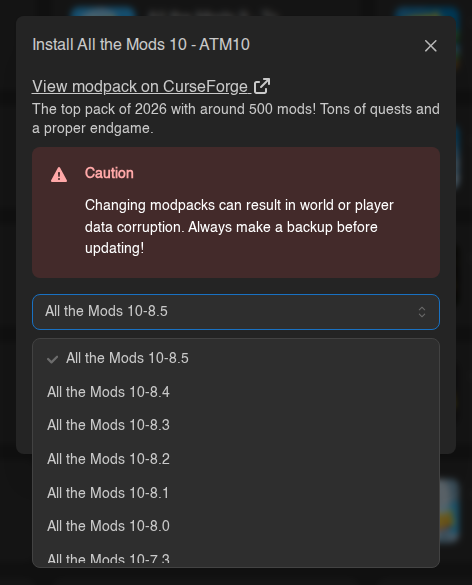
## Installing a modpack 1. **Stop your server** (Console tab) and tell your players. Installing stops the server anyway, but a clean stop saves your world properly first. 2. **Make a backup** on the Backups tab, especially if you already have a world you care about. 3. Open the **Modpacks** tab, pick the source, search for the pack and click its card. 4. In the **Install …** window: - **View modpack on CurseForge** (or whichever site) opens the pack's page in a new tab, where you can read the requirements and the recommended amount of RAM. - The **version dropdown** lists every release of the pack, newest first. The newest one is pre-selected. Pick the version your players will be using. The server and every player's client must run the **same pack version**. - **"Do you want to delete all files of this server before performing this action?"**: leave it **off** to keep your world, `server.properties`, whitelist and ops. Switch it **on** for a completely fresh server. **This deletes everything, including your world, and can't be undone.** 5. Click the red **Install** button. **Cancel** closes the window without changing anything.
 After you click **Install** the panel takes you to the Console. The server shows
**Installing** with a progress bar, and you can't start it until the install is
done. Big packs download hundreds of mods, so this can take several minutes.
When the console says **Installation has completed successfully.** you're ready
to go. If you need to abort, the **Cancel** button next to the progress bar
stops the install.
## What installing actually does
It helps to know what happens behind the scenes:
- Your server is **stopped** if it's running (it's force-stopped after 30 seconds if it doesn't react).
- If you ticked the "delete all files" switch, the whole server folder is emptied first.
- The old **server jar**, the **mods**, **coremods** and **libraries** folders and the Fabric/Forge launcher files are removed. Everything else (your world, configs, `server.properties`, `whitelist.json`, `ops.json`, backups) stays.
- The pack's server files are downloaded from the site you chose and put in place, together with the mod loader the pack needs.
- Your server type (egg) and your **Startup** settings stay as they are. After the install finishes, the panel looks up which **Java version** the pack's Minecraft version needs and switches the **Docker Image** on the Startup tab to it, so you don't have to.
Because your world and your settings stay, installing a *newer version of the
same pack* is the normal way to update it. The card at the top of the Modpacks
tab reminds you which pack you installed last, and when; click it to jump
straight to its version list.
Changing to a different pack on top of an existing world almost always breaks the world, because the mods that created its blocks and items are gone. For a new pack, either turn on the "delete all files" switch, or restore a backup from before you installed the first pack.
## Starting it for the first time 1. Go to the **Console** tab and click **Start**. 2. If this is a fresh server, the panel asks you to accept the **Minecraft EULA**. Accept it and the server starts. 3. The first start of a modpack is slow (often 2 to 5 minutes, longer for huge packs) because every mod sets itself up and the world is generated. Watch the console. It's done when you see **Done (…s)! For help, type "help"**. If the server stops with an out-of-memory error, or crashes before "Done", see *How much RAM does a modpack need?* below. ## Your players need the same modpack A modded server only accepts players who run the **same mods**. Each player installs the pack on their own computer with the launcher that matches the site you installed from: | You installed from | Players use | |---|---| | CurseForge | The **CurseForge app** (or Prism Launcher with the CurseForge pack) | | Modrinth | The **Modrinth app** | | ATLauncher | **ATLauncher** | | Feed The Beast | The **FTB app** | | Technic | The **Technic Launcher** | | Voidswrath | The **Voids Wrath launcher** | Make sure everyone picks the **same version** of the pack you chose in the install window. Then they add your server's address from the [Network tab](https://knowledgebase.suhosting.net/books/game-panel/page/network-your-servers-address-and-ports) in **Multiplayer** as usual. A player with the wrong version or missing mods gets a "mod rejections" or "incompatible" message when they try to join. ## How much RAM does a modpack need? Modpacks are much hungrier than a plain server. As a rule of thumb: | Pack size | Memory | |---|---| | Small (under 50 mods) | 4 GB | | Medium (50 to 150 mods) | 6 to 8 GB | | Large kitchen-sink packs (All the Mods, Prominence and similar, 250+ mods) | 8 to 12 GB or more | Most pack pages state a recommended amount; your server needs **at least** that. Your server uses the memory of your plan automatically (the startup command lets Java take up to 80% of it, and the rest is needed by the system), so there's nothing to tune in the panel. If the pack needs more than your plan has, upgrade it on the billing site, see [Upgrade/Downgrading Servers](https://knowledgebase.suhosting.net/books/billing/page/upgradedowngrading-servers). Your files and world stay as they are. ## Going back to a normal server Modpacks don't have an "uninstall" button. You have three ways back: - **Restore a backup** from before the install. On the Backups tab, restore it with **both** options turned on (delete all files first, and restore the startup settings). That gives you the server exactly as it was, including the old Java image. See [Backups: create, restore and download](https://knowledgebase.suhosting.net/books/game-panel/page/backups-create-restore-and-download). - **Reinstall a plain server.** On the **Settings** tab, use **Reinstall Server** with the "delete all files" switch on. The panel installs the plain server type you had before the pack (for example Paper), with a fresh world. Check the **Docker Image** on the Startup tab afterwards: a new Minecraft version needs the newest Java, and the modpack may have switched it to an older one. - **Switch to a different pack or server type.** Install another modpack with the "delete all files" switch on, or use the **Versions** tab to install a plain Vanilla/Paper/Fabric jar. Remove the leftover `mods` and `config` folders yourself in the file manager if you keep the old files. ## Common problems | Problem | What to do | |---|---| | **The install window shows no versions** | The site didn't answer. Close the window and open the pack again. | | **Install fails** (the panel shows *Conflicting Server State: This server failed to install*) | Usually the chosen pack version has no server files on that site. Click **Acknowledge Failure** to get your server back, then try another version. If that button isn't offered to you, open a support ticket and we'll unlock it. | | **Server crashes right after "Installing" finished** | Not enough memory (see above), or a mod in the pack is client-only. Read the crash report in `crash-reports/` with the file manager. | | **"Server is already installing or in an invalid state"** | Another install, backup restore or transfer is still running. Wait until it finishes. | | **Players can't join: "mod rejections" / "incompatible"** | Their pack version doesn't match the server's. Compare the version in the install window with their launcher. | If you're stuck, open a ticket on the billing site and tell us the pack, the version and what the console shows, see [Getting help: support tickets](https://knowledgebase.suhosting.net/books/billing/page/getting-help-support-tickets).