Subusers need the Files → update permission to install a version. Anyone who can read files can look at the list.
## Reading the page At the top you see what the panel found on your server right now: **Currently running Paper**, the **Installed version** and the **Installed build**. The panel works this out from the server file itself, so it's correct even if you changed things by hand. - A **green** edge means you're on the latest build of that version. - A **yellow** edge and a warning (*Your server is currently running an outdated version of Paper 1.21.11. The latest build is #132.*) means there's a newer build. Click **View Versions** to jump straight to the list for your server software. [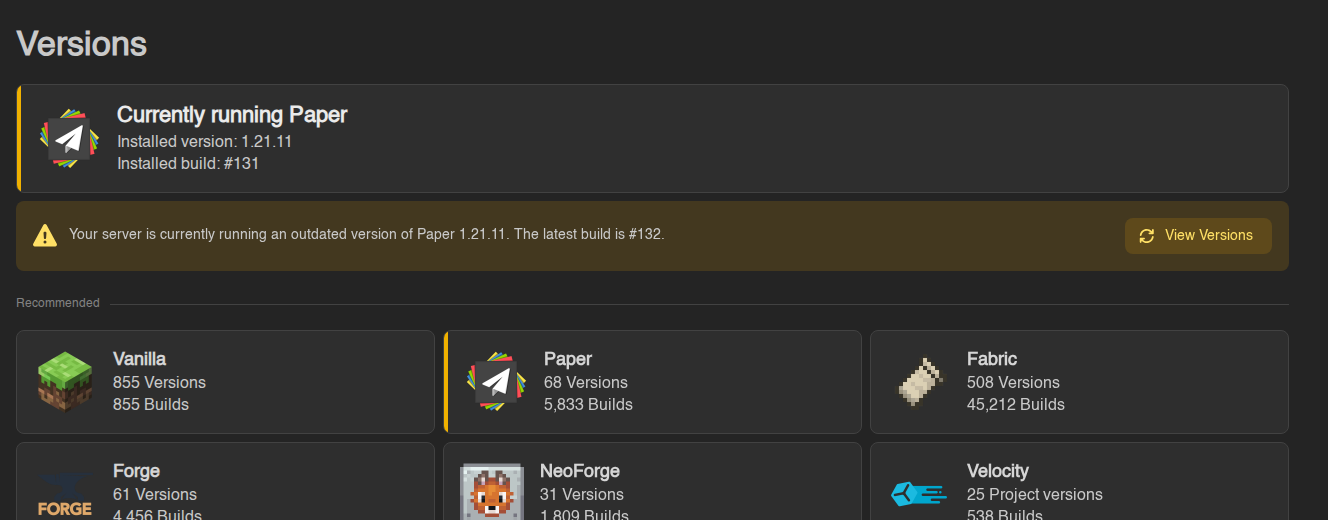](https://knowledgebase.suhosting.net/uploads/images/gallery/2026-11/ver-07-installed-outdated.png) Below that are the server types you can install, grouped into **Recommended**, **Established**, **Experimental**, **Miscellaneous** and **Limbos**. Each card shows how many Minecraft versions and builds are available. Two small marks to know: | Mark | Meaning | |---|---| | Yellow warning triangle | **Experimental** software. Expect bugs; keep backups close. | | Red skull | **Deprecated**. No longer maintained. Fine for an old world, not a good choice for a new one. |If the card at the top is missing, the panel couldn't match your server file to a known build (for example a jar you uploaded yourself or renamed). You can still install any version from the list.
## Installing a version 1. Click the server software you want, for example **Paper**. 2. You get the list of Minecraft versions it's available for, newest first. Use **Search** to find one quickly, or the page numbers at the top right. **Release** (blue) is a normal version. **Snapshot** (orange) is a pre-release, release candidate or snapshot, only for testing. The version you're on now has a coloured edge. **Back** returns to the list of server types. [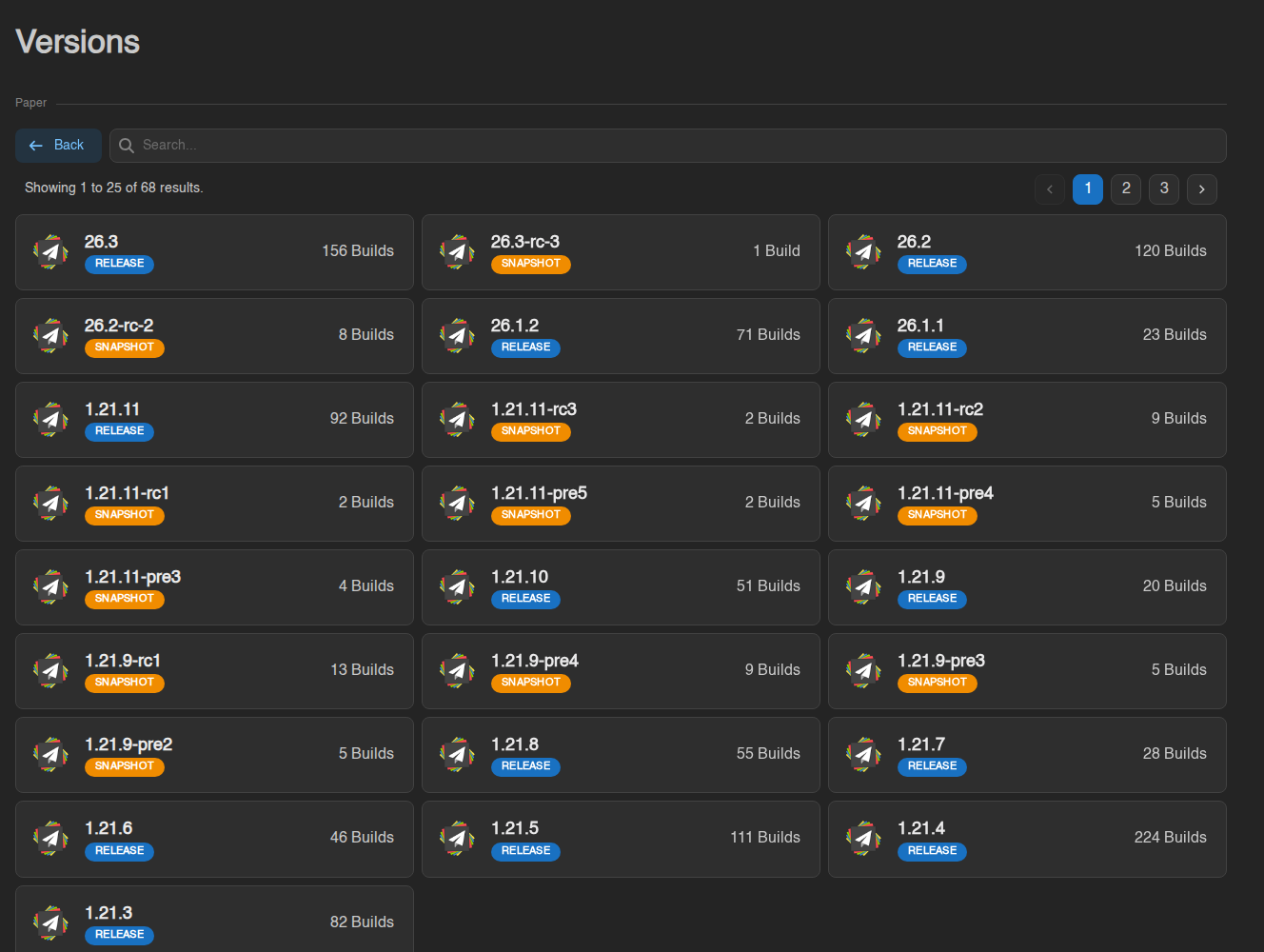](https://knowledgebase.suhosting.net/uploads/images/gallery/2026-11/ver-02-paper-list.png) 3. Click the version. A window called **Install Paper (1.21.11)** opens. [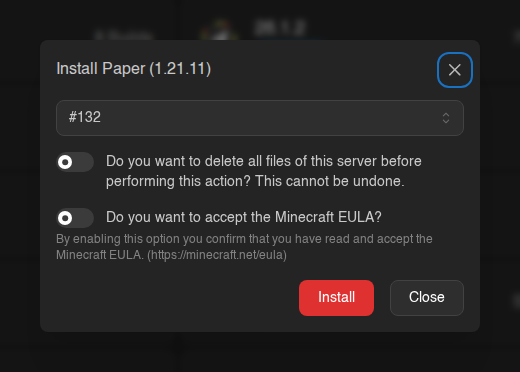](https://knowledgebase.suhosting.net/uploads/images/gallery/2026-11/ver-03-install-dialog.png) 4. Pick a **build**. The newest stable build is selected for you, and that's the right choice almost every time. Open the dropdown to pick an older build (useful when the newest one broke a plugin). Builds are grouped into **Stable** and **Experimental**; picking an experimental one shows a red warning asking you to back up first. **Vanilla** has only one build per version, so this dropdown isn't shown. Build names depend on the software: Paper counts #131, #132 and so on, while Forge and NeoForge show their own version numbers such as 66.1.5. 5. Leave **"Do you want to delete all files of this server before performing this action?"** switched **off**. On, it wipes everything, world and plugins included, before installing. It can't be undone. 6. **"Do you want to accept the Minecraft EULA?"**: switch it on if your server has never started before, or if you just deleted all files. It writes the `eula.txt` file a Minecraft server needs before it will start. If your server already runs, the EULA is already accepted and you can leave this off. 7. Click the red **Install** button. The download usually takes a few seconds; you get a *Version installed successfully* message and the card at the top updates. [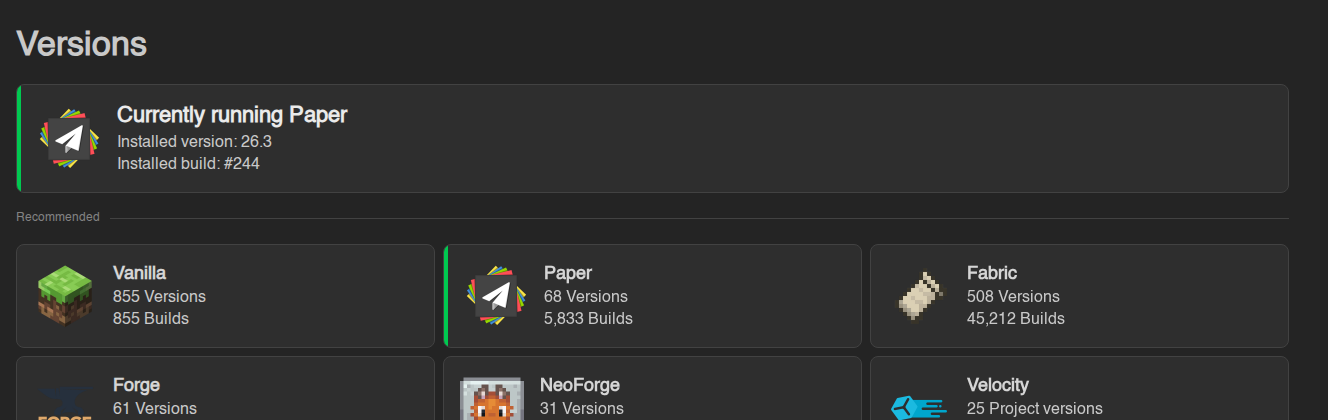](https://knowledgebase.suhosting.net/uploads/images/gallery/2026-11/ver-08-installed-latest.png) 8. **Start** the server from the Console and watch the log. The first start on a new version takes longer than usual because Minecraft upgrades your world. ## What Install actually changes - **The server file.** The old `server.jar` is replaced by the one you chose. For Forge and NeoForge the panel downloads a ready-made package (`server.jar` plus a `libraries` folder) and unpacks it. - **The `libraries` folder** is always removed first. That's a cache of helper files the server rebuilds on its next start. Nothing of yours lives in there. - **The Java version.** Every Minecraft version needs a particular Java (26.x needs Java 25, 1.21.x needs Java 21, 1.20.4 needs Java 17, 1.17 needs Java 16, 1.16 and older need Java 8). The panel switches your server to the matching Java automatically. You can see the result in the **Docker Image** box on the [Startup tab](https://knowledgebase.suhosting.net/books/game-panel/page/the-startup-tab-game-version-and-launch-options). There's no separate Java picker on the Versions tab; you don't need one. - **Everything else stays.** Your `world` folders, `plugins`, `mods`, `server.properties` and configs aren't touched (unless you switched on "delete all files"). - The change is written to the [Activity log](https://knowledgebase.suhosting.net/books/game-panel/page/the-activity-log-who-did-what).The Startup tab is not updated. The Minecraft Version and Build Number boxes on the Startup tab (normally latest) are only used when the server is reinstalled. If you later click Reinstall Server in Settings, the installer downloads whatever the Startup tab says and puts it in place of your chosen version. Your world survives a reinstall, but you'll have to pick your version here again, or set the Startup tab to match it first.
Velocity, BungeeCord, Waterfall and the Limbo servers are not game servers. They're proxies and waiting rooms for people running networks of several servers. Installing one on your game server replaces it with something players can't play on. Only pick them if you know you need them.
Switching software for good? Use Change Game on the billing site instead. The Versions tab can put Fabric or Forge files on a Paper server, but the billing site and the panel's Reinstall Server button still treat it as a Paper server, so a reinstall or a support change puts Paper back. Change Game (see Changing game) switches the whole server over properly, with the right Startup settings. Use this tab to try other software or to move between Paper and its forks; use Change Game to move to a different family (Fabric, Forge, NeoForge, Vanilla).
## Going back to an older version You can install an older version from the same list. The catch is your world: once it has been opened by a newer Minecraft, the older version won't load it (the server stops with an error about the world being too new). To really go back, install the older version here and then **restore the backup** you took before upgrading. Going back to an older *build* of the same version (say Paper 1.21.11 #131 after #132 gave you trouble) is harmless. Just pick it in the build dropdown. ## Something went wrong? - **"Version installed successfully" but the server won't start.** Open the Console and read the last lines. The usual causes are a plugin or mod made for another version (remove it from `plugins` or `mods` with the [file manager](https://knowledgebase.suhosting.net/books/game-panel/page/using-the-file-manager)), a world that is newer than the version you installed (restore your backup), or the EULA not accepted yet (switch the EULA option on and install again, or edit `eula.txt`). More in [My server won't start or keeps crashing](https://knowledgebase.suhosting.net/books/game-panel/page/my-server-wont-start-or-keeps-crashing). - **The list is empty or Install shows an error.** The version catalogue comes from an outside service (MCJars). Wait a minute and try again. If it keeps failing, [open a ticket](https://suhosting.net/tickets). - **Your version doesn't show up in the card at the top.** The panel needs a few seconds after installing; reload the page. If it still shows the old version, check the server was stopped during the install and try once more.