Stop the server before editing its config if the game rewrites the file when it shuts down. Vintage Story does this with serverconfig.json, so edits made while it's running are lost.
See a banner saying "Some uploads to this server never finished"? A partial file was left behind. Click Review Uploads to resume or delete it.
## The New menu [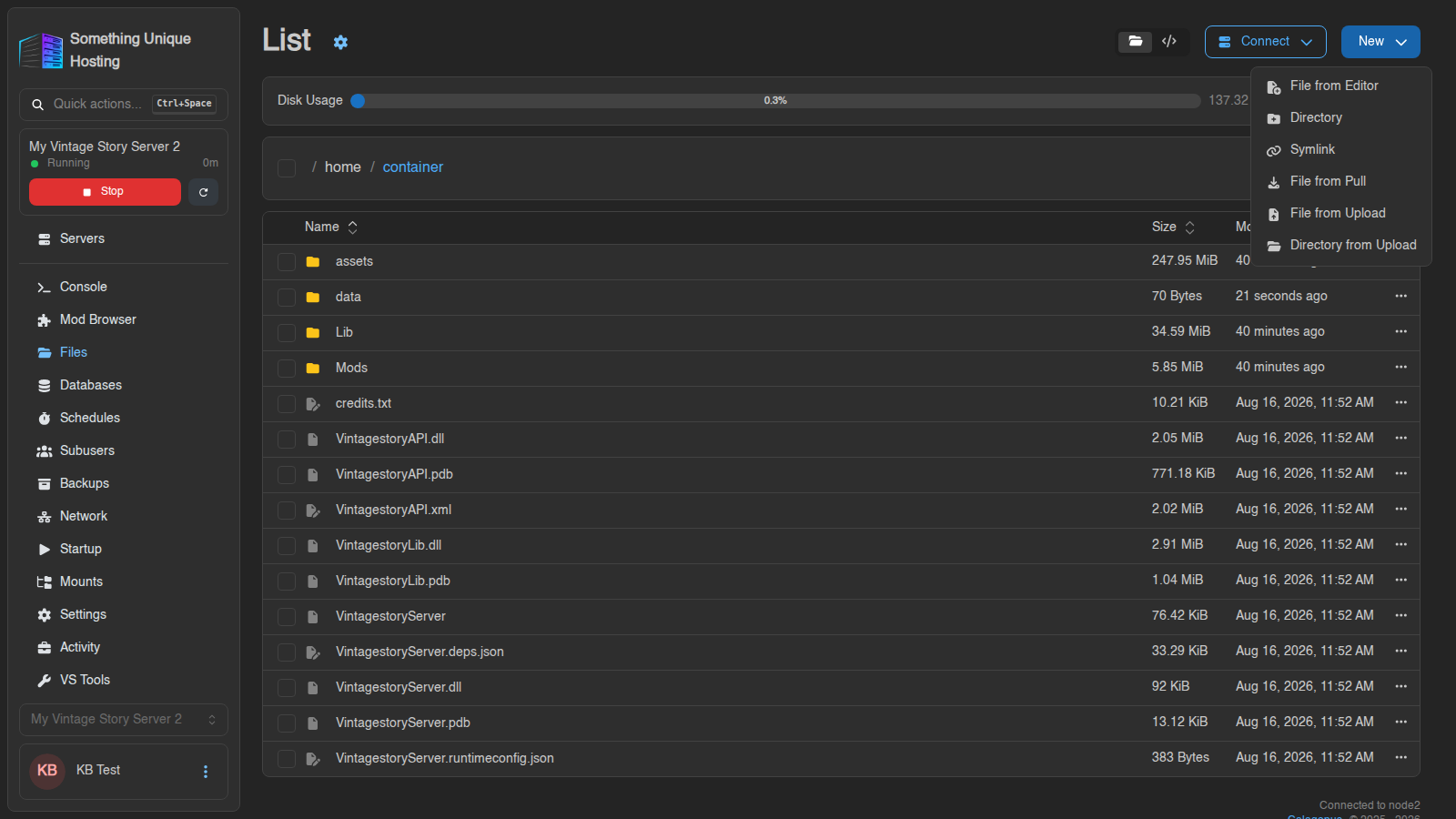](https://knowledgebase.suhosting.net/uploads/images/gallery/2026-10/gen-files-new-menu.png) | Option | What it does | |---|---| | **File from Editor** | Create a new, empty text file | | **Directory** | Create a folder | | **Symlink** | Create a shortcut to another file or folder | | **File from Pull** | Download a file straight onto your server from a web link. Paste the URL, click **Query** to fill in the name, then **Pull**. | | **File from Upload** / **Directory from Upload** | Upload from your computer | ## The ⋯ menu on each file Click **⋯** at the end of a row, or right-click it. [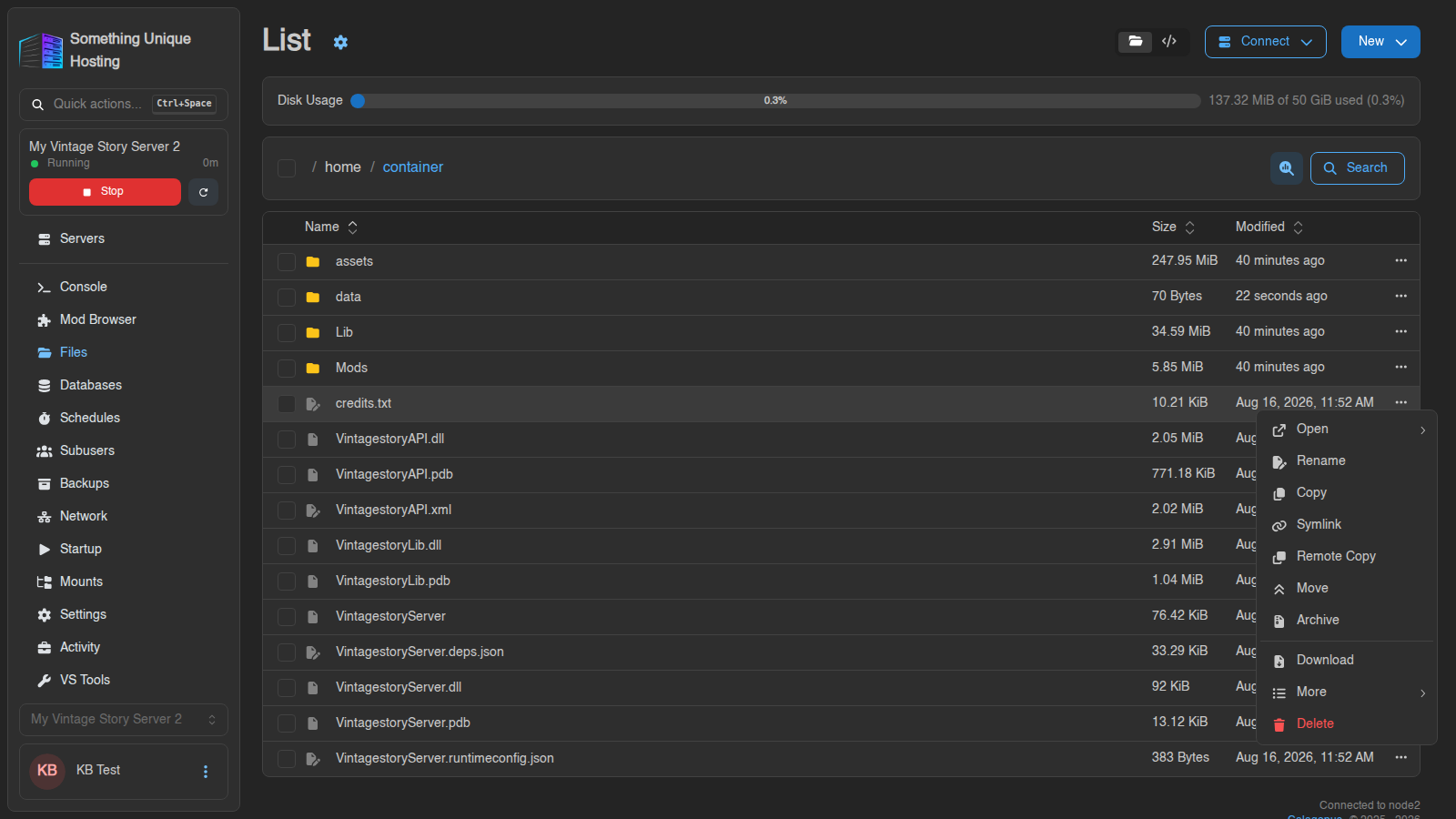](https://knowledgebase.suhosting.net/uploads/images/gallery/2026-10/gen-files-file-menu.png) | Option | What it does | |---|---| | **Open** | Open in the editor (or in a pop-up/new tab) | | **Rename** / **Move** / **Copy** | Exactly what they say | | **Remote Copy** | Copy to **another of your servers** | | **Archive** | Zip it up (or **Extract** if it's already an archive) | | **Download** | Save to your computer. Folders download as an archive, and you can pick the format. | | **More** | Details, fingerprint (checksum) and permissions | | **Delete** | Delete it | ## Working with many files at once Tick the boxes on the left (or the top box to select everything). A toolbar appears at the bottom with **Download**, **Remote Copy**, **Copy**, **Archive**, **Rename**, **Move** and **Delete**. - **Copy** and **Move** let you browse to the destination, then click **Copy here** / **Move here**. - **Rename** on several files can find-and-replace, add a prefix or suffix, change case, or number them.Deleted files can't be recovered from the file manager. Make a backup before big clean-ups.
## Zips and other archives - **Create:** select files, choose **Archive**, pick a name and format (`.zip` is the most compatible, `.tar.gz` is common on Linux), then click **Create**. - **Extract:** open the ⋯ menu on an archive and choose **Extract**, then pick the destination folder. Works with zip, 7z, rar, tar, gz and more. Both run in the background. Watch the progress indicator at the top. ## Searching Click **Search** in the path bar. You can search by name, or open **Advanced Filters** to search **inside files**, filter by size, or include and exclude paths (e.g. `*.json`, or skip `Cache/**`). ## Other ways in - **Connect → via SFTP** for a desktop program like WinSCP or FileZilla. See [Connecting with SFTP](https://knowledgebase.suhosting.net/books/game-panel/page/connecting-to-your-server-with-sftp). - **Connect → via VS Code** to open the files in Visual Studio Code.