# Schedules: automating your server
## What this is about
The **Schedules** tab lets your server do things on its own: restart every
night, take a backup before a restart, warn players before shutting down, or
send you a Discord message when it crashes.
Every schedule is made of three parts:
| Part | Question it answers | Example |
|---|---|---|
| **Triggers** | *When* should it run? | Every day at 4:00 AM |
| **Conditions** | *Should* it run right now? (optional) | Only if the server is running |
| **Actions** | *What* should it do? | Warn players, wait, restart |
Looking for the simple "start at noon, stop at 3pm" walkthrough? See Creating a time based schedule. This article goes further.
## Before you start: set your server's timezone
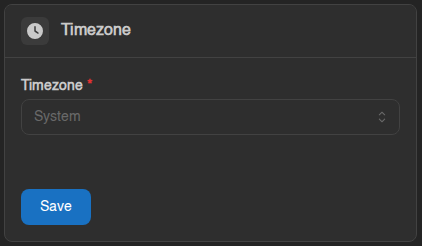
Time-based triggers use **your server's timezone**, not your computer's. New
servers are set to **System**, which follows the clock of the machine your
server runs on. Set it to your own timezone so "4:00 AM" means 4:00 AM for you:
go to **Settings → Timezone**, pick your timezone (the list is searchable) and
click **Save**.
The trigger editor reminds you which timezone it's using: *"Times use the server
timezone (…)"*.
[](https://knowledgebase.suhosting.net/uploads/images/gallery/2026-10/AcLset-02-timezone-card.png)
## Creating a schedule
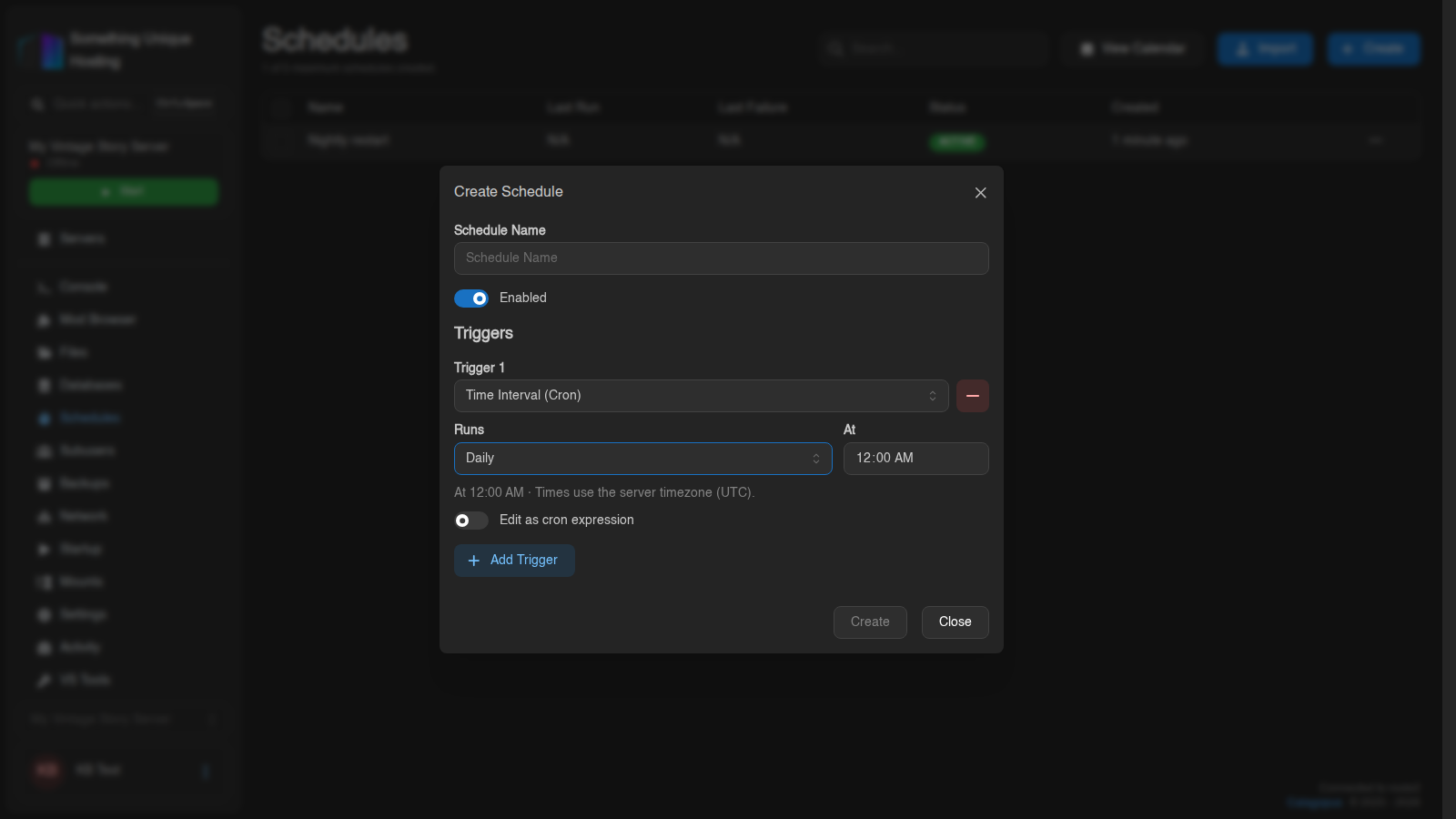
1. Go to the **Schedules** tab and click **Create**.
2. Give it a **Schedule Name** (e.g. *Nightly restart*).
3. Under **Triggers**, pick a trigger type (see below), e.g. *Time Interval (Cron)* with **Runs: Daily** **At: 4:00 AM**. Click **Add Trigger** if you want more than one.
Then click **Create**.
4. Click the new schedule to open it. You'll see three tabs: **Actions**, **Conditions** and **Triggers**.
5. On **Actions**, click **Create First Step** and build your steps.
Each step saves when you click **Create** or **Save** in its window. On the **Conditions** tab, click **Update** to save. The panel warns you if you try to leave with unsaved changes. To change the name or triggers later, click **Edit** at the top. Use **Run Now** at the top to test a
schedule straight away instead of waiting for its trigger.
[](https://knowledgebase.suhosting.net/uploads/images/gallery/2026-10/Wf2sched-06-create-daily.png)
## Triggers: when it runs
| Trigger | Runs when… |
|---|---|
| **Time Interval (Cron)** | A time or interval you pick is reached (every few minutes, hours, daily, weekly, monthly) |
| **Crash** | The server crashes |
| **Server State** | The server becomes Running, Offline, Starting or Stopping |
| **Power Action** | Someone presses Start, Stop, Restart or Kill |
| **Console Line** | A line in the console contains some text you choose |
| **Resource Usage** | CPU, memory or disk usage stays above/below a value for a number of seconds |
| **Backup Status** | A backup starts, completes or fails |
| **Schedule Completion** | Another schedule finishes (successfully or not) |
A schedule can have several triggers. It runs when **any** of them fires.
### Time triggers
Pick how often it **Runs** (*Every few minutes*, *Every few hours*, *Daily*,
*Weekly*, *Monthly*) and fill in the time. Click **View Calendar** to see the
upcoming runs and check it's doing what you expect.
Need something the picker can't do? Tick **Edit as cron expression**. The panel
uses **six** fields with **seconds first**:
```
second minute hour day-of-month month day-of-week
```
| Cron | Means |
|---|---|
| `0 0 4 * * *` | Every day at 4:00 AM |
| `0 0 */6 * * *` | Every 6 hours, on the hour |
| `0 30 3 * * 1` | Mondays at 3:30 AM |
| `0 0 4,16 * * *` | Every day at 4:00 AM and 4:00 PM |
Always set the seconds field to 0. A * there means "every second" and the schedule will run over and over.
## Conditions: should it run?
Conditions are checked **before** any actions run. If they're not met, the
schedule skips that run. Useful ones:
- **Server State**: e.g. only restart if the server is actually *Running*.
- **Resource Usage**: e.g. only run if CPU is below 50%.
- **Uptime**: e.g. only restart if the server has been up for more than an hour.
- **File Exists**: e.g. only run if a certain file is there.
Combine several with **AND (All must be true)**, **OR (Any must be true)** or
**NOT (Must not be true)**.
If you click **Run Now**, you can choose **Run now (check conditions first)** or
**Run now (ignore conditions)**.
## Actions: what it does
Steps run **top to bottom**, one at a time. Drag them to reorder. The most
useful ones:
| Step | What it does |
|---|---|
| **Send Command** | Types a command into the console (e.g. `say Restarting in 5 minutes`) |
| **Send Power Signal** | Start, Restart, Stop or Kill the server |
| **Sleep** | Waits. The duration is in **milliseconds**: 60000 = 1 minute |
| **Wait for Server State** | Waits until the server is e.g. *Offline* before continuing |
| **Wait for Console Line** | Waits until the console prints something (e.g. `Server started`) |
| **Create Backup** | Takes a backup of the server files |
| **Delete Backup** | Deletes the oldest/latest/a named backup |
| **HTTP Request** | Calls a URL, e.g. a Discord webhook |
| **If / Else If / Else / End If** | Only runs some steps when a condition is true |
| **Ensure** | Stops the schedule here unless a condition is true |
| **Exit** | Stops the schedule here |
There are also file steps (**Write File**, **Copy File**, **Delete Files**,
**Rename Files**, **Compress Files**, **Decompress File**, **Pull File**) and
startup steps (**Update Startup Variable**, **Update Docker Image**).
Each step has an **Ignore Failure** switch. Turn it on if the schedule should
carry on even when that step fails, e.g. a *Send Command* while the server
happens to be offline.
Milliseconds catch everyone out. 5 seconds = 5000, 1 minute = 60000, 5 minutes = 300000.
## Recipes
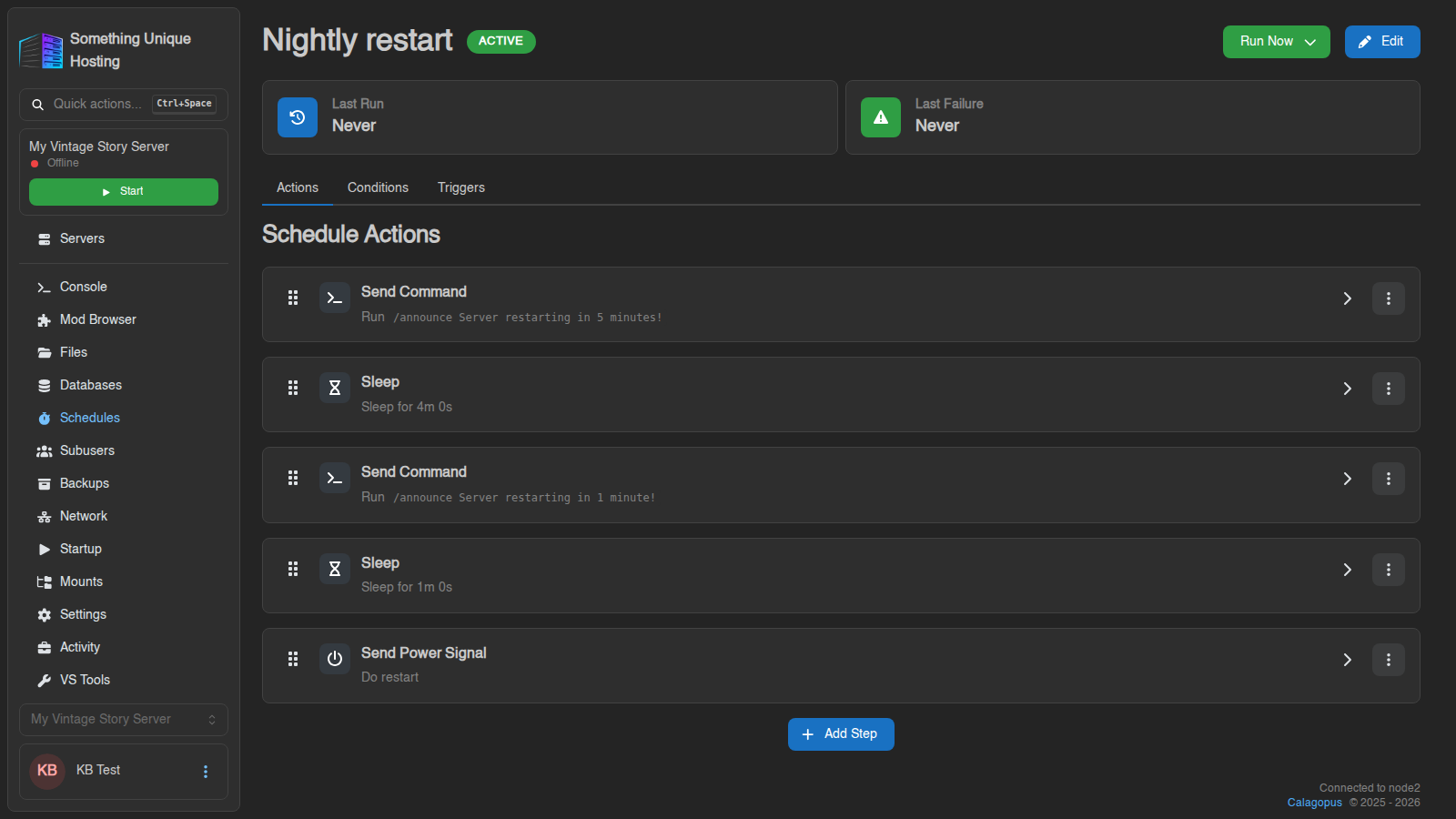
### 1. Nightly restart with warnings
**Trigger:** Time Interval, Daily at 04:00
**Condition:** Server State is *Running*
**Actions:**
1. **Send Command**: `say Server restarting in 5 minutes!`
2. **Sleep**: `240000` (4 minutes)
3. **Send Command**: `say Server restarting in 1 minute!`
4. **Sleep**: `60000`
5. **Send Power Signal**: *Restart*
The `say` command differs between games. Vintage Story uses `/announce `.
Minecraft uses `say `. Check your game's admin commands.
[](https://knowledgebase.suhosting.net/uploads/images/gallery/2026-10/KYDsched-02-actions.png)
### 2. Daily backup
**Trigger:** Time Interval, Daily at 05:00
**Actions:**
1. **Create Backup**: leave the name empty for an automatic name
That's all you need. Your server has a **backup limit** (shown at the top of the
Backups tab, e.g. *"3 of 3 maximum backups created"*). When a **scheduled**
backup runs and you're already at the limit, the panel **automatically deletes
your oldest unlocked backup** to make room. You always keep your most recent
backups, and the schedule never fails because you're full.
**Locked** backups are never deleted this way, so lock any you want to keep for
good. Want more control, like one backup per day for a week plus one per week
for a month? Use a **backup group with retention**. See [Backups](https://knowledgebase.suhosting.net/books/game-panel/page/backups-create-restore-and-download).
This only applies to backups made by a schedule. If you click Create Backup yourself while you're at the limit, the panel refuses with "maximum number of backups reached" rather than deleting anything.
Vintage Story on a non-ZFS node? Back up only while the server is stopped, or run /genbackup first. See Backing Up Vintage Story Safely. A safe version of this recipe: Stop → Wait for Server State Offline → Create Backup → Start.
### 3. Safe backup for Vintage Story (stop, back up, start)
**Trigger:** Time Interval, Daily at 05:00
**Actions:**
1. **Send Command**: `/announce Server going down for a backup in 1 minute`
2. **Sleep**: `60000`
3. **Send Power Signal**: *Stop*
4. **Wait for Server State**: *Offline*, timeout `120000`
5. **Create Backup**
6. **Send Power Signal**: *Start*
### 4. Get a Discord message when the server crashes
In Discord: **Server Settings → Integrations → Webhooks → New Webhook**, then
**Copy Webhook URL**.
**Trigger:** Crash
**Actions:**
1. **HTTP Request**
- Method: `POST`
- URL: your webhook URL
- Header: `Content-Type` = `application/json`
- Body: `{"content": "⚠️ My server just crashed!"}`
## Sharing schedules
From a schedule's menu you can **Export** it as a file, and drag that file
onto another server's Schedules tab to import it. **Duplicate** makes a copy
on the same server.
## Troubleshooting
- **It didn't run.** Check the schedule shows **ACTIVE** (click **Edit** and turn on **Enabled** if not), the timezone is right (Settings → Timezone), and **View Calendar** shows the next run where you expect it. The **Last Run** and **Last Failure** columns on the Schedules list tell you what happened.
- **It ran but nothing happened.** A condition may have skipped it, or a step failed and stopped the rest. Turn on **Ignore Failure** for steps that are allowed to fail.
- **It keeps running every second.** Your cron's first field isn't `0`.
- **A restore step keeps re-running.** Don't combine **Restore Backup** with *Server State* or *Power Action* triggers. The restore itself changes the server state and can trigger the schedule again.