Moving your server from another host (Importer)
What this is about
Coming from another hosting company? The Importer copies your files, such as your world, mods and configs, straight from your old server to your new one. You don't need to download everything to your computer and upload it again.
It works with any host that gives you SFTP or FTP access. Most do: look for "SFTP details" or "FTP details" in your old host's control panel.
Before you start
- Have your old host's SFTP/FTP details ready: host (address), port, username and password.
- Make sure your new server is the same game as the old one (and ideally the same game version). See Changing your game if you need to switch.
- Stop the old server so the files don't change while they're being copied.
The import force-stops (kills) your new server before it starts copying. That's fine for a fresh server, but don't import into a server people are playing on.
Importing
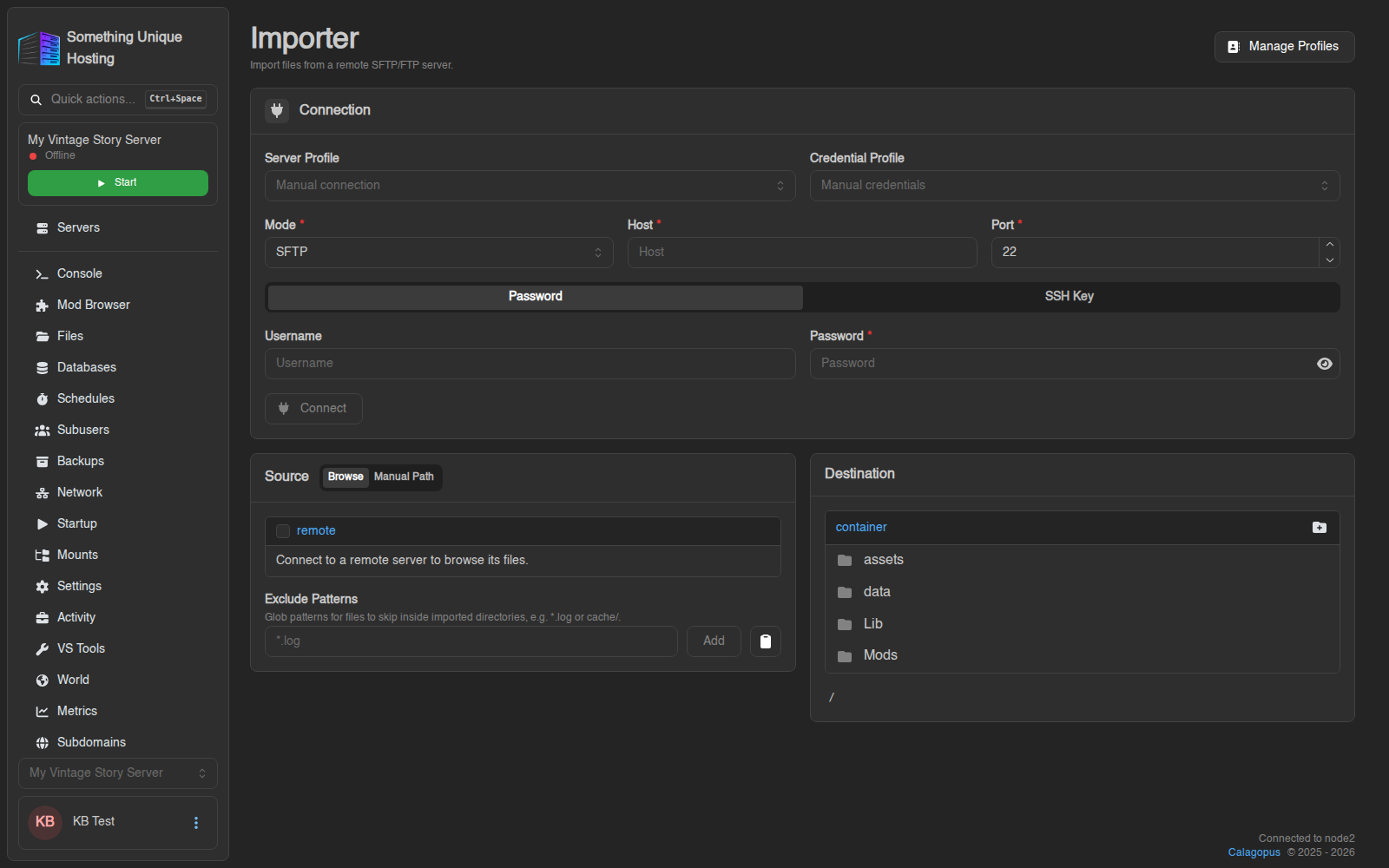
- Open your server and click Importer in the sidebar.
- In Connection, choose Mode (SFTP or FTP) and fill in Host, Port, Username and Password from your old host. (SFTP can also log in with a Private Key.) Then click Connect. You'll see "Connected to …".
- In Source, choose what to copy:
- Browse: tick the files and folders you want.
- Manual Path: type a folder path, and everything inside it is copied.
- Exclude Patterns: skip things you don't need, e.g.
*.logorcache/.
- In Destination, choose where the files go on your new server (usually
/, the top level). - Click Import. In the Confirm Import window, optionally switch on Wipe Server Files to start from a clean server, then confirm.
The server shows as installing while files copy. Follow the progress on the Console. When it's done you'll see "Import complete."
What gets copied (and what doesn't)
- ✅ All files and folders you selected: worlds, mods, configs, player data.
- ❌ Not databases, and not settings that live in the old host's panel (like startup options or the game version). Set those on the Startup tab.
If the files would go over your disk space, the import stops with "Import aborted, it would exceed the server disk limit." Remove old backups or logs on the old server and exclude them, or upgrade your plan.
Vintage Story tips
- Your world is in
data/Saves/and mods indata/Mods/(older hosts may useMods/at the top level). - Copy
data/serverconfig.jsontoo, so your world settings, whitelist mode and roles come with you. - Match the game version on the Startup tab to the old server before starting it. See How to update your server.
Saving connection details
If you import from the same place often, click Manage Profiles to save the connection (Server Profile) and login (Credential Profile) for next time. They're stored in your account under Importer Profiles.
Didn't work?
- "failed to connect to the remote server, double check your credentials": check the host, port and password. SFTP usually uses port 22 (or a custom port like 2022), and FTP uses 21.
- Your old host may block outside connections. Ask them, or download the files yourself and upload them with SFTP.