Need shared storage, a second disk or a folder shared between two of your servers? Open a support ticket and tell us what you want to achieve. Mounts are set up by staff, per server.
## When a mount is available If staff have made a mount available for your server, it shows as a row in the table: | Column | Meaning | |---|---| | **Name** and **Description** | What the mount is, as staff named it | | **Target** | The path inside your server where the mount appears | | **Mounted** | Green tick: the mount is attached and your server can see it. Red cross: available, but not attached | | **Read Only** | Green tick: your server can read the files but not change them | To attach a mount: 1. Click the green **+** at the end of the row. 2. Confirm **Attach** in the **Attach Mount** window. The panel shows "… has been mounted to your server". To detach it, click the red **–** on the row and confirm **Detach**. You can also tick several rows and use **Attach** or **Detach** in the bar that appears.Attaching or detaching changes what your server sees at its Target path. Do it while the server is stopped, then start it again. Detaching doesn't delete anything; the files stay where they live, your server just can't see them any more.
Some mounts are attached by staff permanently and don't show up in this list. If a folder appears in your [file manager](https://knowledgebase.suhosting.net/books/game-panel/page/using-the-file-manager) that you don't recognise, that's probably one of those. ## The Devices sub-tab **Devices** works the same way, but for hardware passthrough (for example a device under `/dev/...`) instead of a folder. The **Attached** column shows whether it's active and **Permissions** shows the access level staff gave it. Hardly any game server needs this. If your server's Devices tab shows **No items found**, that's expected. [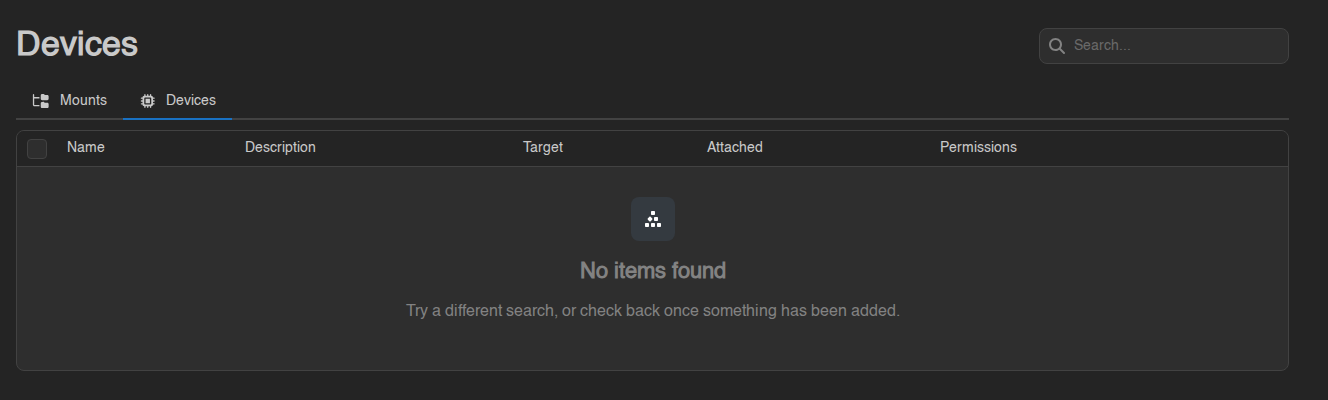](https://knowledgebase.suhosting.net/uploads/images/gallery/2026-11/mnt-02-devices-empty.png) ## Subusers If you [share your server](https://knowledgebase.suhosting.net/books/game-panel/page/sharing-your-server-with-friends-subusers), the **Mounts** permissions (**read**, **attach**, **detach**) and the matching **Devices** permissions decide whether a subuser can see this tab and attach or detach things. Without **read** permission, the Mounts tab is hidden for them.