The banner at the top of the Backups tab tells you whether your node uses ZFS. That affects whether it's safe to back up while the server is running. See ZFS Backups, and for Vintage Story, Backing Up Vintage Story Safely.
[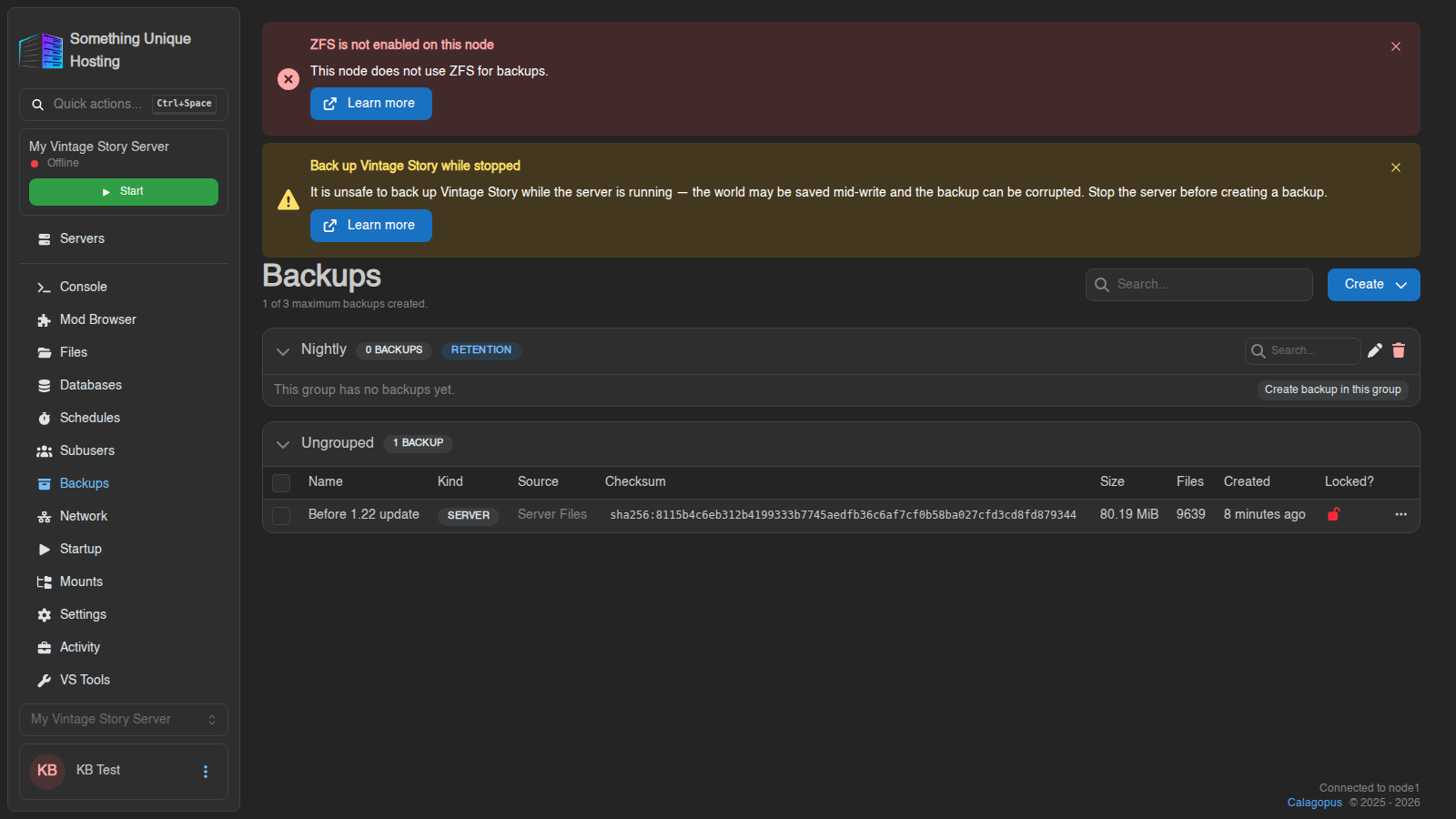](https://knowledgebase.suhosting.net/uploads/images/gallery/2026-10/bk-05-overview-with-backup.png) ## Your backup limit The top of the tab shows something like **"2 of 5 maximum backups created."** That's your plan's limit. When you hit it: - **Manual backups** are refused. Delete or unlock an old one first. - **Scheduled backups** automatically remove the **oldest unlocked** backup to make room. **Locked** backups never count as removable, so lock only the ones you really want to keep forever. ## Creating a backup 1. Go to the **Backups** tab, click **Create**, then **Create Backup**. 2. Give it a **Name** you'll recognise later (e.g. *Before 1.21 update*). Leave it empty for an automatic name. 3. Optional: **Ignored Files** lets you leave things out, one pattern per line. For example: ``` logs/ *.log cache/ ``` Click **Count Matches** to check what your patterns would skip. 4. Optional: choose a **Backup Group** (see *Keeping backups tidy* below). 5. Click **Create**. The backup appears in the list and shows its progress. Large servers can take a few minutes. [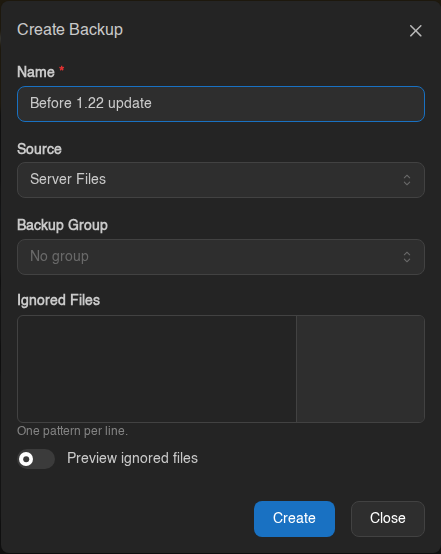](https://knowledgebase.suhosting.net/uploads/images/gallery/2026-10/bk-04-create-modal.png)On a non-ZFS node, stop your server first if it saves its world to a database (Vintage Story and many modded games do). Backing up while the game is writing a save can give you a backup that won't load.
## Restoring a backup 1. Click the **⋯** button at the end of the backup's row (or right-click the row) and choose **Restore**. 2. Decide on the options: - **"Do you want to delete all files of this server before performing this action?"**: wipes the server first, so you get an *exact* copy of the backup. Leave it **off** to restore the backup's files *on top of* what's there now; files added since the backup will remain. - **"Restore the startup command, image, and variables from this backup"**: also puts back the startup command, Docker image and variables (e.g. game version) from when the backup was taken. Turn this on if you're rolling back a game version update. 3. Confirm. The server is **stopped** during the restore. [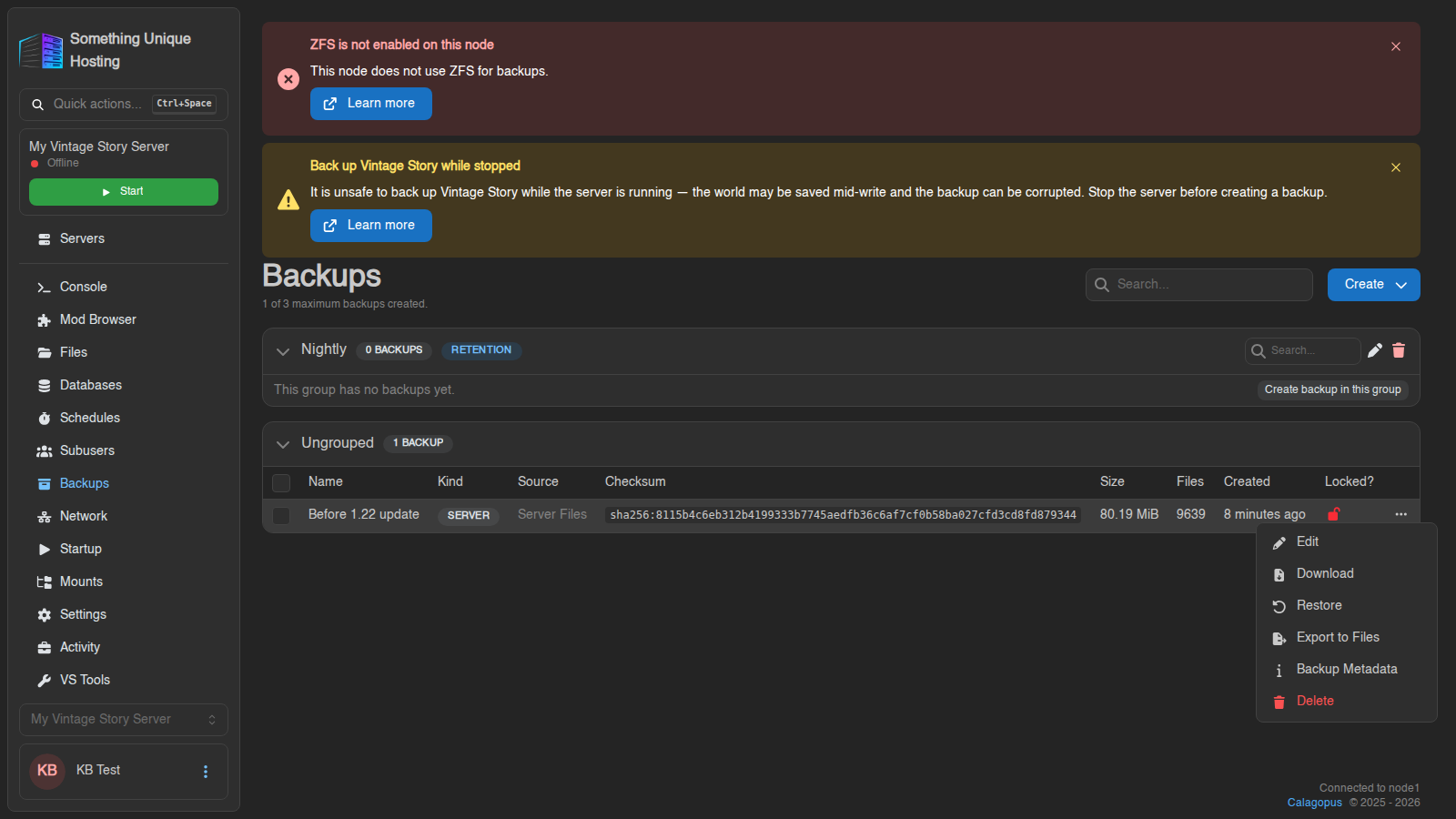](https://knowledgebase.suhosting.net/uploads/images/gallery/2026-10/bk-06-row-menu.png) [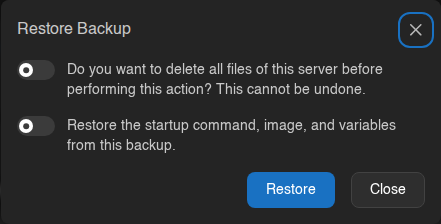](https://knowledgebase.suhosting.net/uploads/images/gallery/2026-10/bk-07-restore-modal.png)Rolling back after an update went wrong? Turn both options on. That gives you the server exactly as it was, including the version it was running.
## Getting a single file back: Browse (ZFS nodes) Don't want to roll back the whole server just to rescue one config file or one player's data? If your server is on a **ZFS** node (the Backups tab shows a green *"ZFS is enabled on this node"* banner), you can look inside a backup and copy out only what you need. [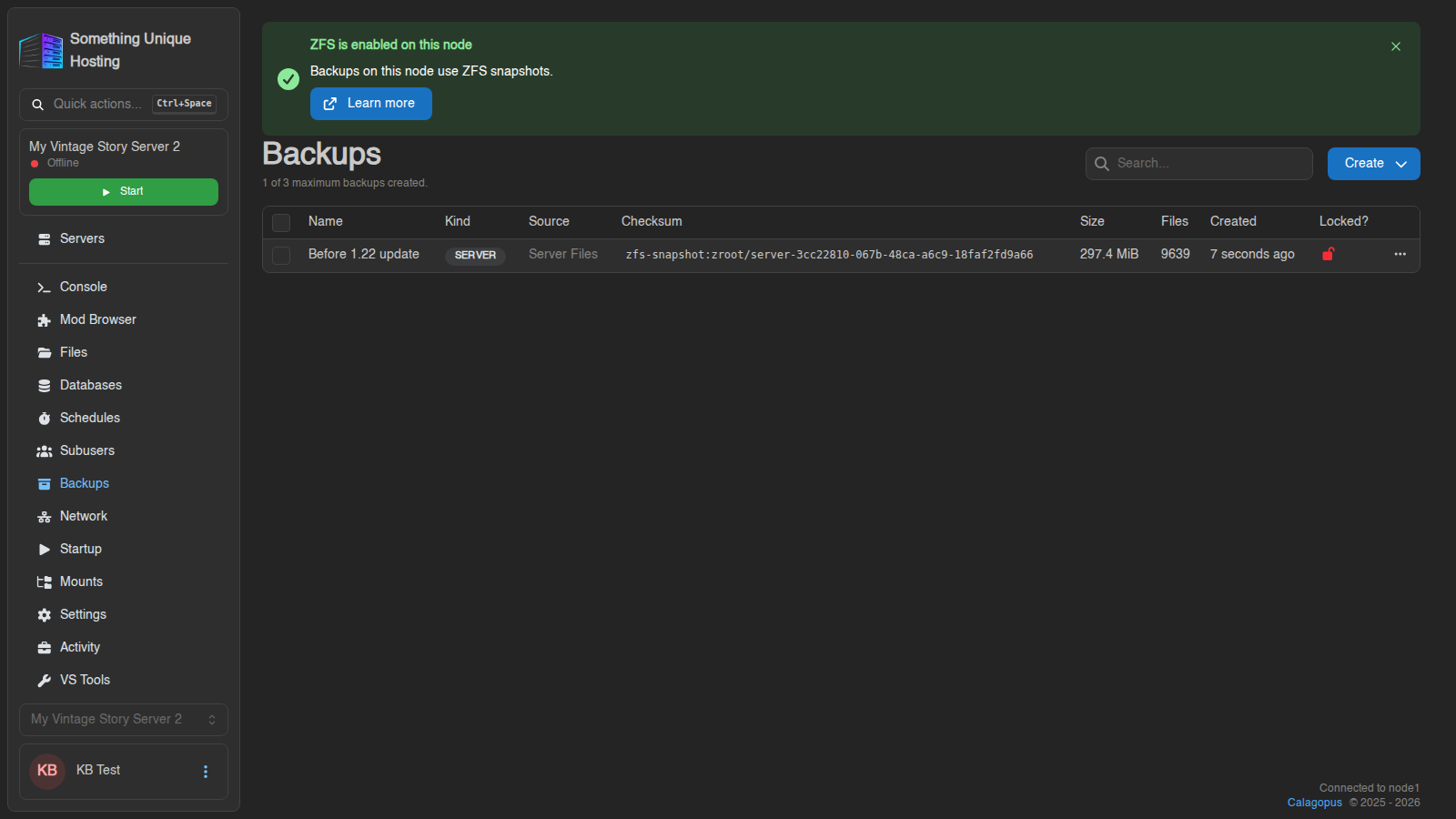](https://knowledgebase.suhosting.net/uploads/images/gallery/2026-10/gRfzfs-01-backups.png) 1. Click the **⋯** on the backup and choose **Browse**. [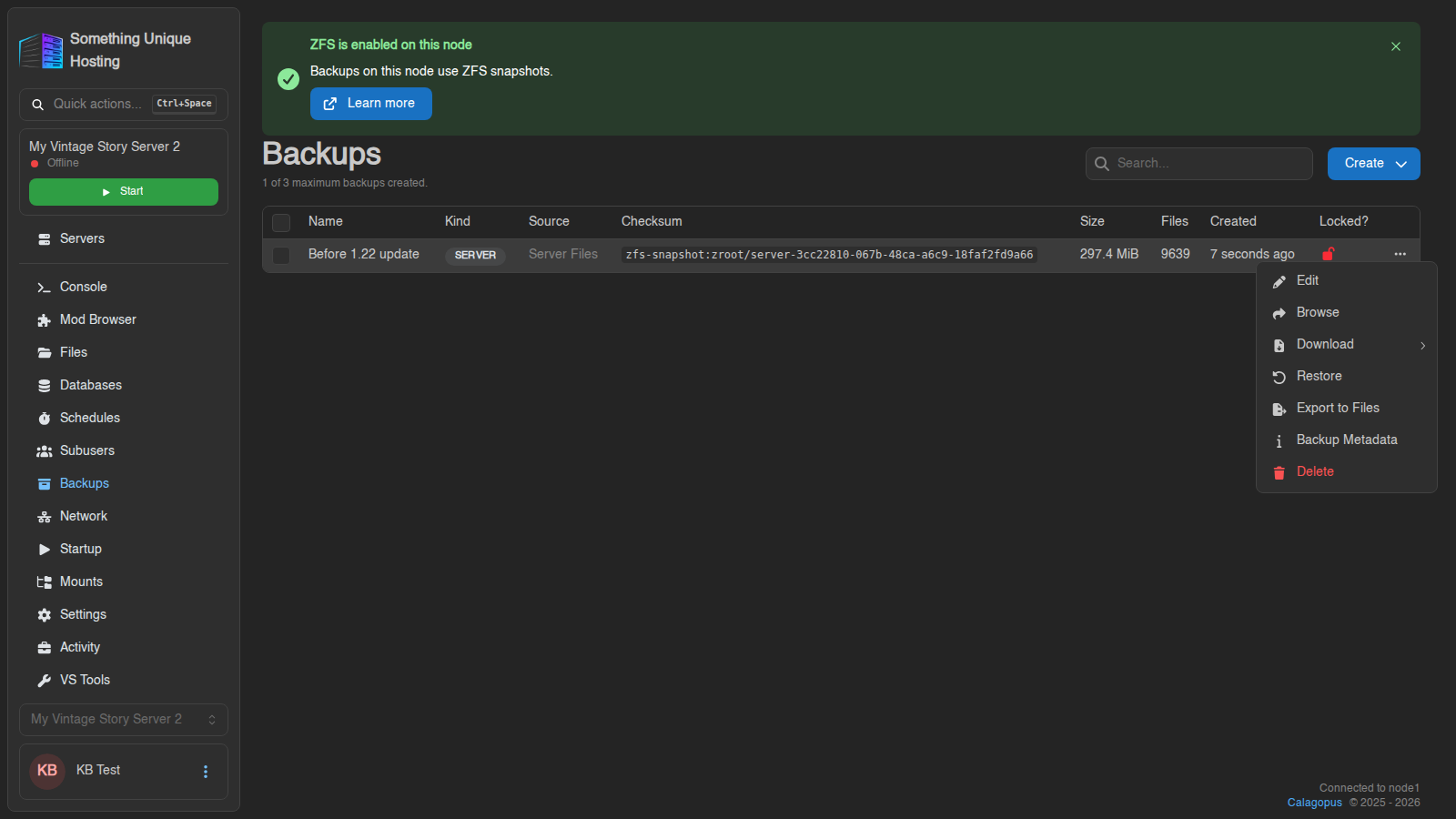](https://knowledgebase.suhosting.net/uploads/images/gallery/2026-10/a83zfs-02-row-menu.png) 2. The backup opens in the **file manager**. The path at the top shows **backups / *backup name***, and everything you see is **read-only**: nothing you do here changes the backup. [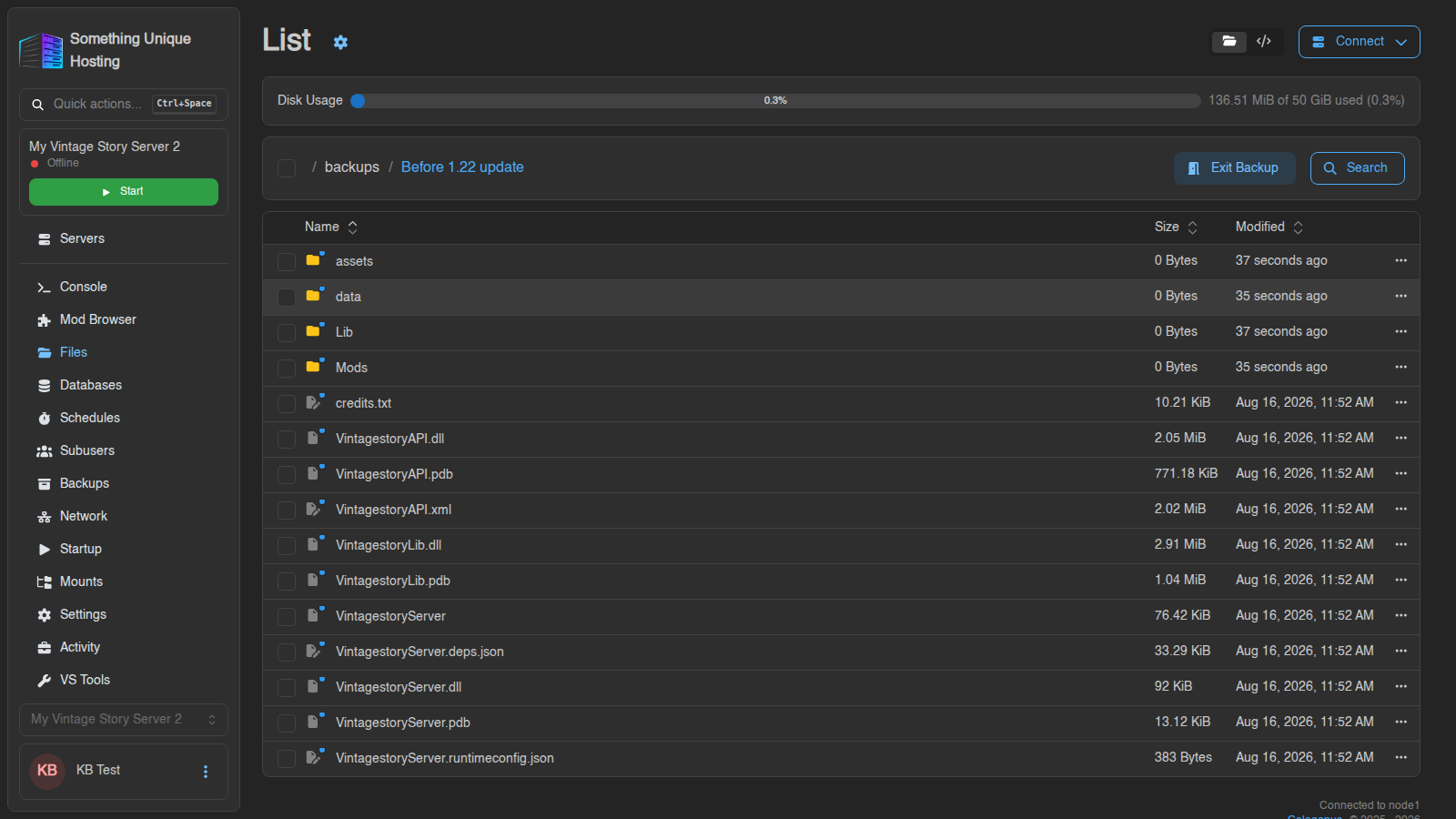](https://knowledgebase.suhosting.net/uploads/images/gallery/2026-10/3GNzfs-03-browse-root.png) 3. Find the file you want, click its **⋯** and pick: - **Copy** to put it back into your **live** server. Choose the folder, check the file name, and click **Copy**. If a file with that name already exists, the panel asks before overwriting it. - **Download** to save it to your computer. - **Open** to read it without copying it anywhere. [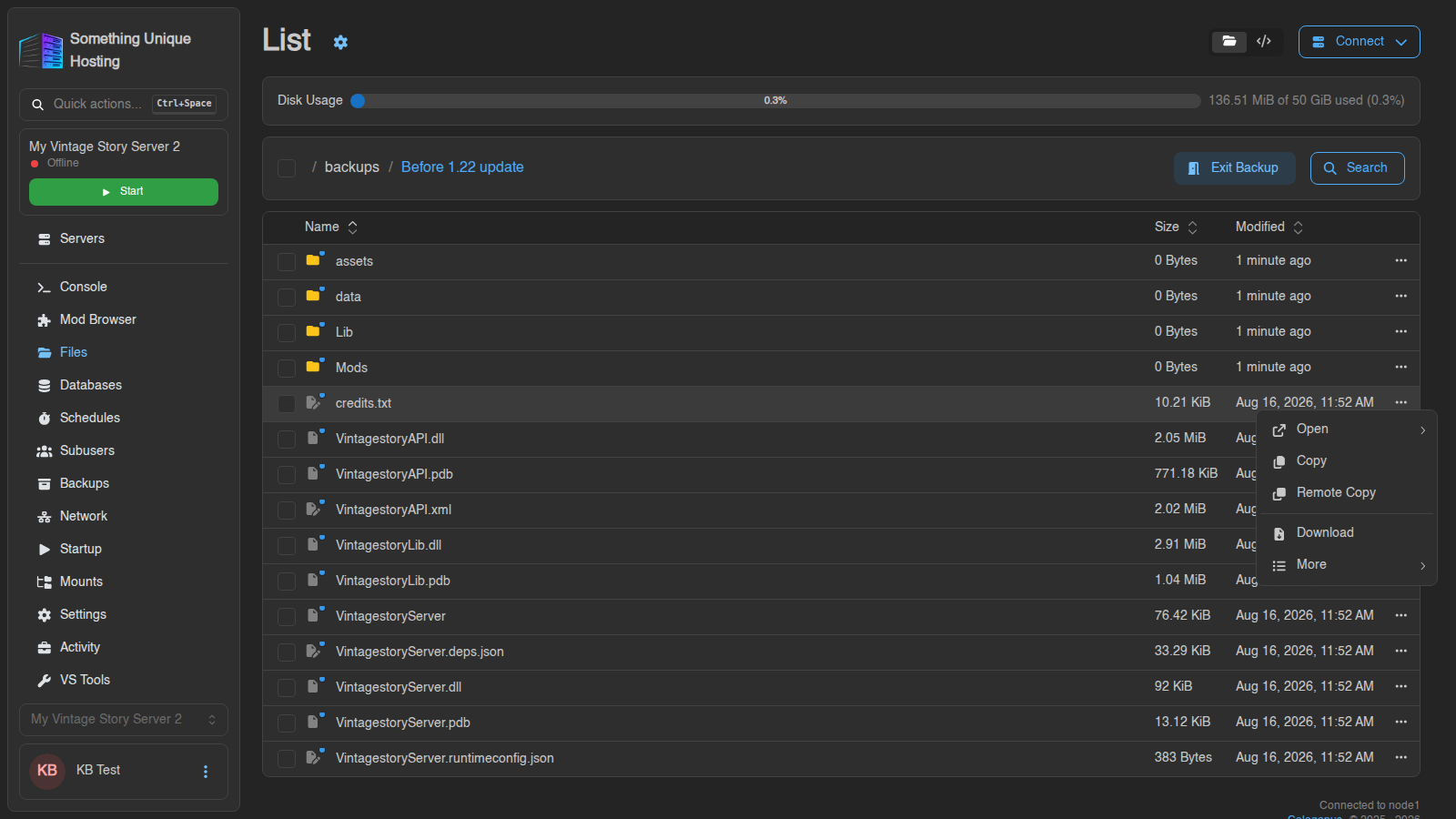](https://knowledgebase.suhosting.net/uploads/images/gallery/2026-10/O9mzfs-05-file-menu.png) [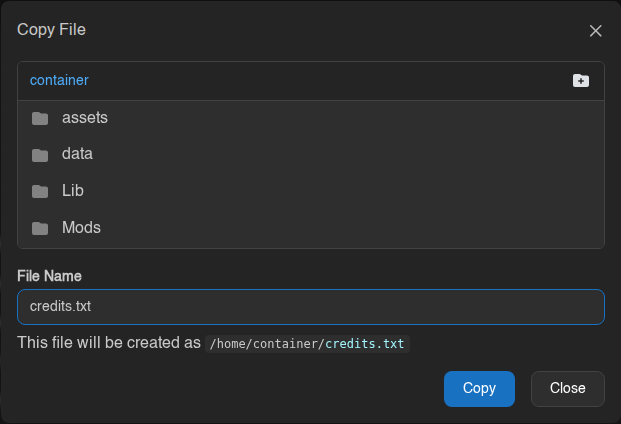](https://knowledgebase.suhosting.net/uploads/images/gallery/2026-10/rgJzfs-06-copy-dialog.png) 4. Click **Exit Backup** (top right) to go back to your live files.Copying a world or save file back while the server is running can corrupt it, or the game may overwrite it on its next save. Stop the server first, copy the file, then start it again.
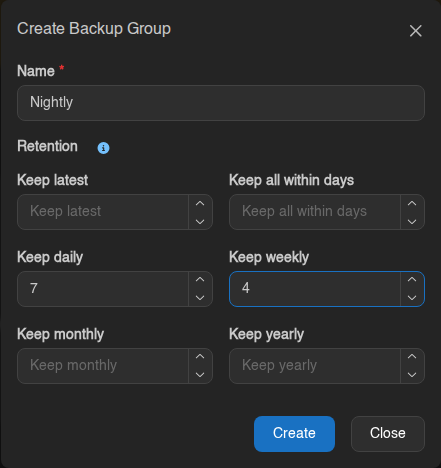
**Not on a ZFS node?** There's no **Browse** option. Use **Export to Files** (below), then open the archive in the file manager and copy out what you need. ## Downloading a backup to your computer Click **⋯ → Download**. Keeping your own copy offsite is a good idea for anything you'd be heartbroken to lose. ## Export to Files **⋯ → Export to Files** saves the backup as an archive **inside your server's files** (choose the folder and file name). Handy if you want to copy a backup to another server over SFTP, or unpack part of it with the file manager. Exported archives use your server's disk space, so delete them when you're done. ## Locking a backup **⋯ → Edit** and switch on **Locked**, then **Save**. A red open padlock in the **Locked?** column means unlocked. A locked backup: - can't be deleted until you unlock it - is never removed automatically by retention or by scheduled backups [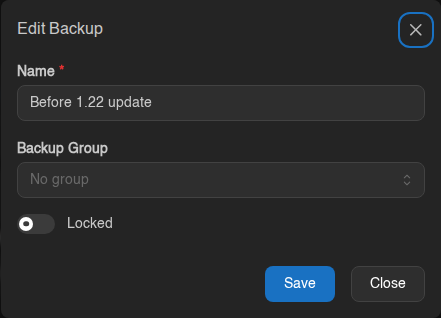](https://knowledgebase.suhosting.net/uploads/images/gallery/2026-10/bk-08-edit-modal.png) Use it for milestones: *"World before the dragon fight"*, *"Pre-wipe season 3"*. ## Keeping backups tidy: groups and retention A **backup group** is a folder for backups with optional **retention rules** that delete old backups for you. 1. Click **Create**, then **Create Backup Group**. 2. Name it (e.g. *Nightly*) and set the retention rules you want: | Rule | Keeps… | |---|---| | **Keep latest** | The newest N backups | | **Keep all within days** | Everything from the last N days | | **Keep daily** | The newest backup from each of the last N days | | **Keep weekly** | The newest backup from each of the last N weeks | | **Keep monthly** | The newest backup from each of the last N months | | **Keep yearly** | The newest backup from each of the last N years | A backup is kept if **any** rule wants it. Everything else in the group is deleted on the next retention run. Leave a rule at **0** to switch it off. With no rules at all, the group is just a label and never deletes anything. **Example, nightly backups:** *Keep daily 7*, *Keep weekly 4* gives you one backup for each of the last week, plus one per week for a month. With a nightly schedule, that's about 10 backups at a time. Each backup in a group shows when it's expected to be deleted, so there are no surprises.Retention only removes backups. It doesn't create them. Pair a group with a schedule that runs Create Backup in that group. See Schedules.
[](https://knowledgebase.suhosting.net/uploads/images/gallery/2026-10/bk-03-group-modal.png) Failed backups that aren't locked are cleaned up automatically after 24 hours. ## Common questions **"Maximum number of backups reached"**: you're at your limit, and manual backups never delete old ones for you. Delete an old backup first. Backups created by a **schedule** don't have this problem, because they replace your oldest unlocked backup automatically. **My backup failed.** Usually the server ran out of disk space during the backup, or a file changed mid-copy. Try again with the server stopped. If it keeps failing, open a ticket with the backup's name and time. **Does a backup include my database?** Only server files by default. If your server has a **managed database**, you can back that up separately by choosing it as the **Source** when creating the backup.