Your panel account
Your game panel login: password, two-factor authentication, passkeys, sessions, API keys and shortcuts. (For your billing account, see the Billing book.)
- Your account: password, email and preferences
- Two-factor authentication and security keys
- Sessions, API keys and SSH keys
- Command snippets and keyboard shortcuts
Your account: password, email and preferences
Getting to your account settings
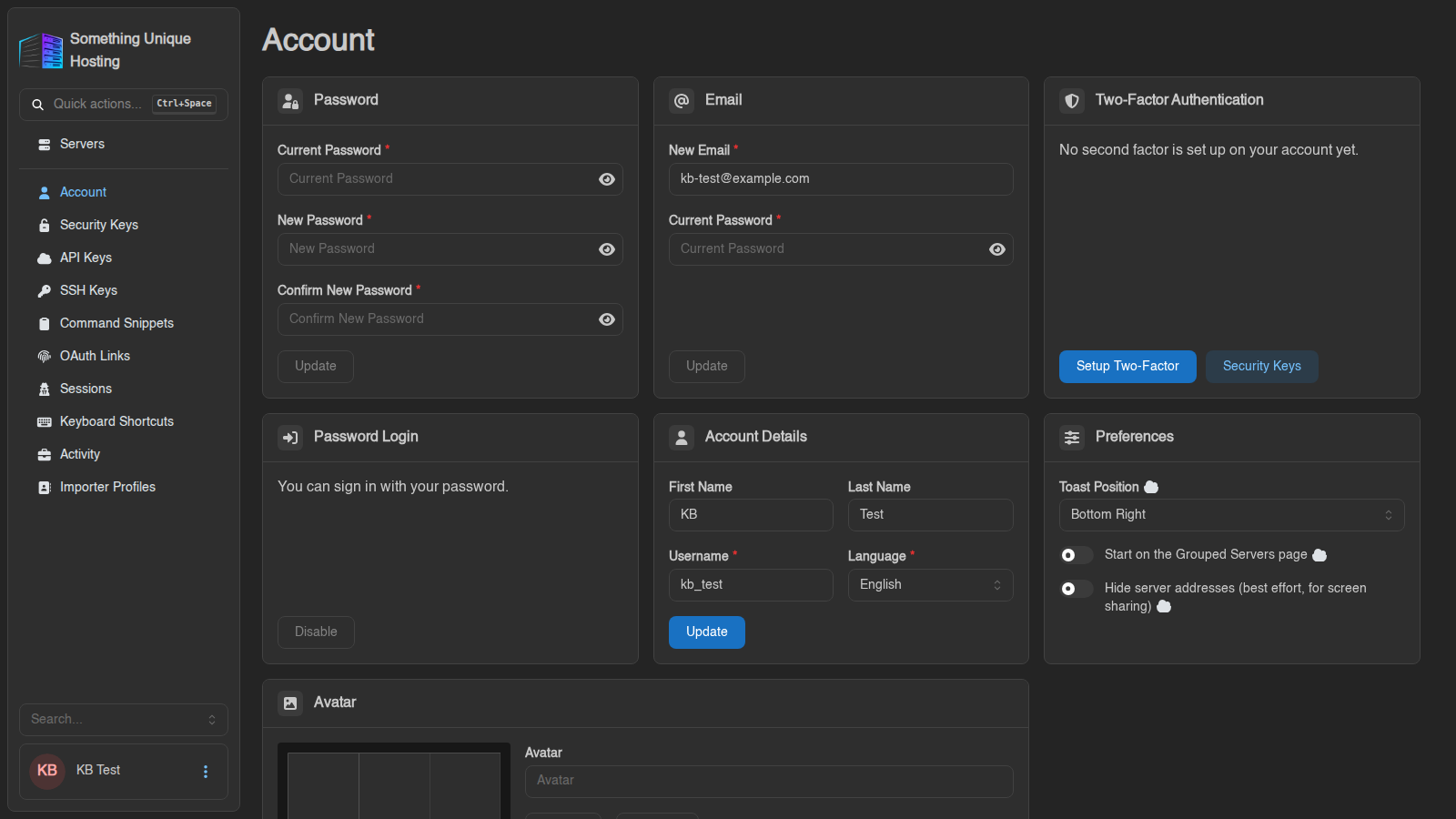
Click your name in the bottom-left corner of the panel. The Account page opens, with the other account pages listed in the sidebar (Security Keys, API Keys, SSH Keys and so on).
Signing in
Your game panel account is created automatically when you order a server. You can sign in with:
- Login with Paymenter: one click, using your billing account.
- Username or email and your panel password.
- Sign in with a Passkey, once you've added one. See Two-factor authentication and security keys.
Changing your password
In the Password card, enter your Current Password, then the New Password twice (at least 8 characters), and click Update.
The panel then asks whether to log out every other session. Say yes if you changed your password because you think someone else knows it.
Your panel password is also your SFTP password, so update your SFTP program too.
Forgot your password?
- On the login page, click Forgot Password (under the username box).
- Enter your email address and click Request Password Reset.
- Open the email and follow the link. Enter your new password twice and click Reset Password.
No email? Check your spam folder, and make sure you used the address on your account. Still stuck? Open a ticket.
Changing your email
In the Email card, enter the New Email and your Current Password, then click Update. If a confirmation is needed, the panel says "Confirmation link sent to …". Your address changes once you click the link in that email.
Account details
First Name, Last Name, Username and Language. Click Update to save.
Changing your Username also changes your SFTP username (username.serverid), so update your SFTP program afterwards.
Preferences
- Toast Position: where pop-up notifications appear on screen.
- Start on the Grouped Servers page: open your server groups instead of the full list after login.
- Hide server addresses: blurs IPs and ports. Handy when streaming or sharing your screen.
Avatar
Upload a picture in the Avatar card and click Update, or Remove to go back to your initials.
Other account pages
| Page | What it's for | Guide |
|---|---|---|
| Security Keys | Passkeys and hardware keys | Two-factor & security keys |
| API Keys / Sessions / SSH Keys | Apps, logged-in devices, SFTP keys | Sessions, API keys and SSH keys |
| Command Snippets / Keyboard Shortcuts | Time-savers | Command snippets and shortcuts |
| OAuth Links | Shows that your account is linked to Paymenter | |
| Activity | Everything done with your account: logins, changes, API use | |
| Importer Profiles | Saved connections for the Importer |
Two-factor authentication and security keys
What this is about
Your panel account controls your servers, worlds and backups, so it's worth protecting with more than a password. Two options are available:
- Two-factor authentication (2FA): after your password, you enter a 6-digit code from an app on your phone.
- Security keys / passkeys: sign in with your fingerprint, face, phone or a hardware key, with no password needed.
You can use either one, or both.
Setting up two-factor authentication
You'll need an authenticator app on your phone, such as Google Authenticator, Microsoft Authenticator, Authy or 2FAS.
- Click your name (bottom-left) to open Account.
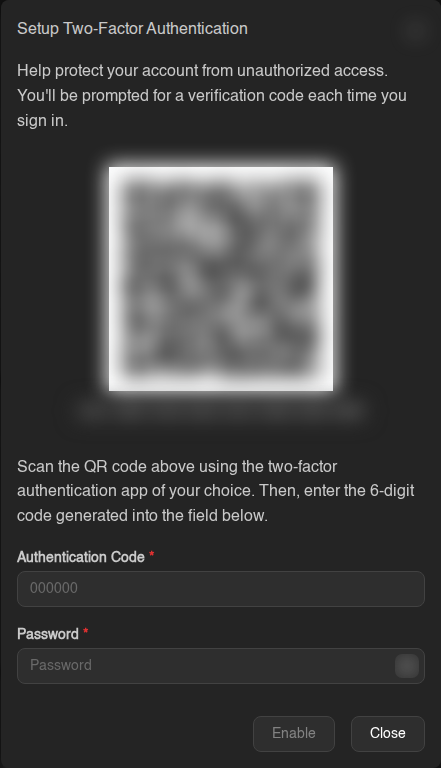
- In the Two-Factor Authentication card, click Setup Two-Factor.
- Scan the QR code with your app (or type in the code shown under it).
- Enter the 6-digit code from your app and your password, then click Enable.
Save your recovery codes!
You'll now be shown 10 recovery codes. Copy them and keep them somewhere safe: a password manager, or printed out. Each code works once and lets you in if you lose your phone.
You will only see these codes once. If you lose your phone and your recovery codes, you'll need to contact support to get back in.
Signing in with 2FA
After your password, enter the 6-digit code from your app and click Verify Code. Lost your phone? Click Use Recovery Code and enter one of your saved codes.
"Invalid code"? Codes depend on your phone's clock. Make sure its time is set automatically. The panel also warns you if your computer's clock is off.
Turning 2FA off (or moving to a new phone)
Click Disable Two-Factor, enter a code from your app (or a recovery code) and your password, then click Disable. To move to a new phone, disable it and set it up again on the new one.
Security keys and passkeys
A passkey lets you sign in with your device's fingerprint reader, face unlock, PIN, or a hardware key like a YubiKey. You don't type a password, and it can't be phished.
Adding one
- Go to Account → Security Keys and click Create.
- Give it a Name (e.g. "My laptop") and enter your password.
- Leave Allow signing in without a username on, so you can sign in with one click.
- Click Create and follow your browser or phone's prompt.
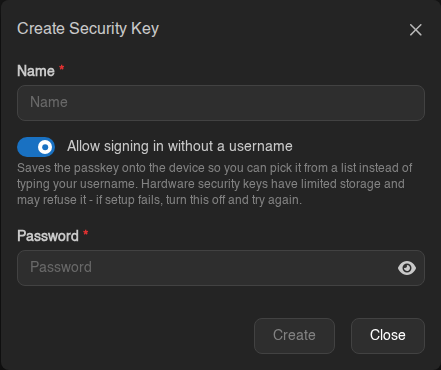
Using an older hardware key and setup fails? Turn Allow signing in without a username off and try again. Some keys have limited storage.
Signing in with a passkey
On the login page, click Sign in with a Passkey and follow the prompt. Or type your username and choose Use Passkey.
Turning off password login (optional)
Once you have a passkey, you can stop your password working entirely: in the Password Login card on the Account page, click Disable.
This also stops your password working for SFTP, so you'd need an SSH key for that. Make sure your passkey works before turning this off.
Lost access?
- Lost your 2FA phone: sign in with a recovery code, then set up 2FA again.
- No phone and no recovery codes: open a support ticket from your billing account. We'll verify it's you before removing 2FA.
Sessions, API keys and SSH keys
Sessions: where you're logged in
Account → Sessions lists every browser and device currently signed in to your account, with its IP address, browser and when it was last used. Your current one is marked under This Device?.
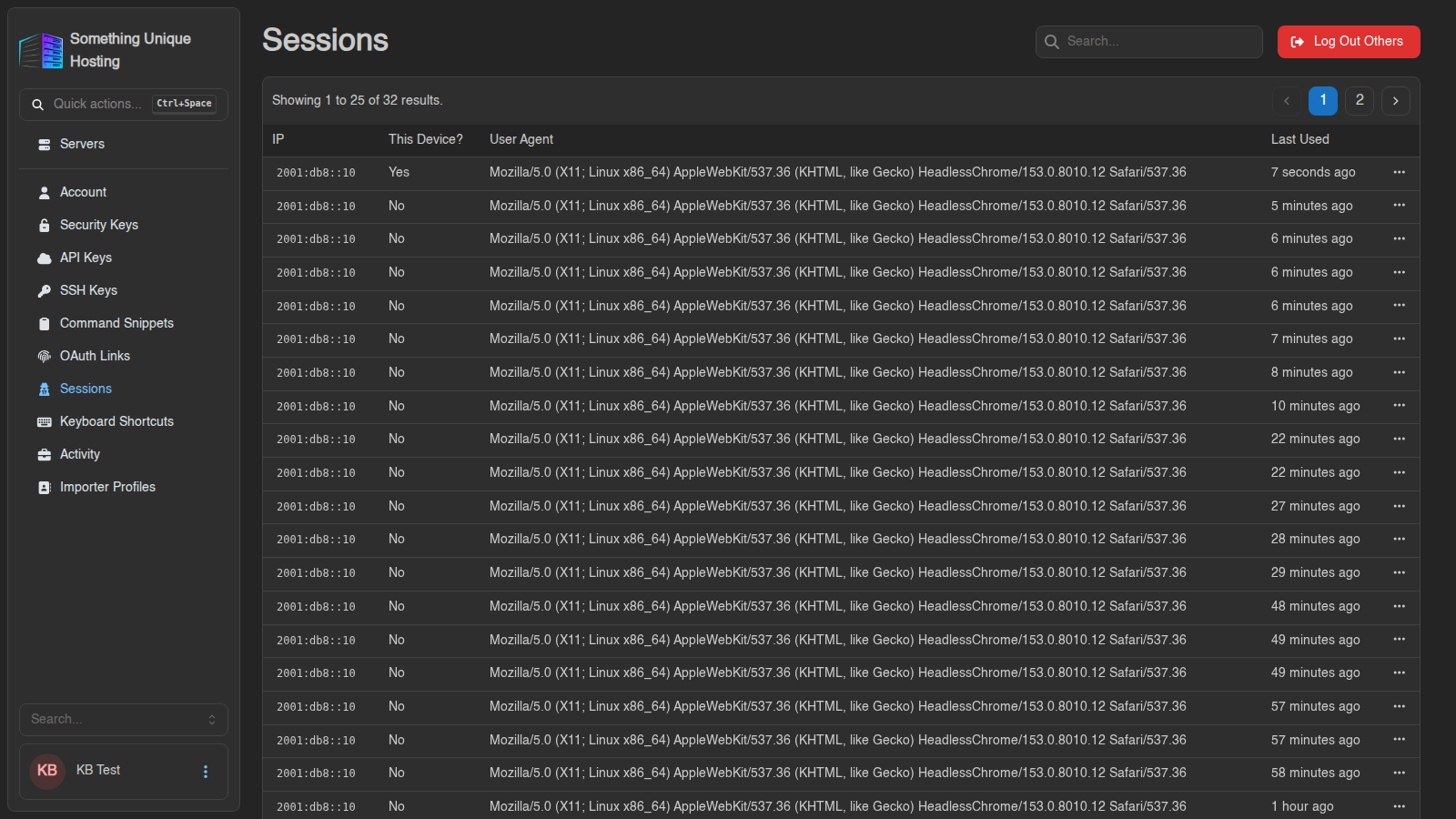
- Don't recognise one? Click ⋯ → Remove on it.
- Log Out Others signs out every device except the one you're using. Do this after changing your password, or if you've logged in on a shared computer.
See a session you don't recognise? Change your password, click Log Out Others, and turn on two-factor authentication.
API keys: letting apps control your server
An API key lets a script, bot or app (for example a Discord bot that restarts your server) use the panel on your behalf. Most people never need one.
- Go to Account → API Keys and click Create.
- Give it a Name, and optionally an Expires date.
- Under Server Permissions, tick only what the app needs, e.g. just power controls.
- Optionally restrict Allowed IPs to the address the app runs from.
- Click Save.
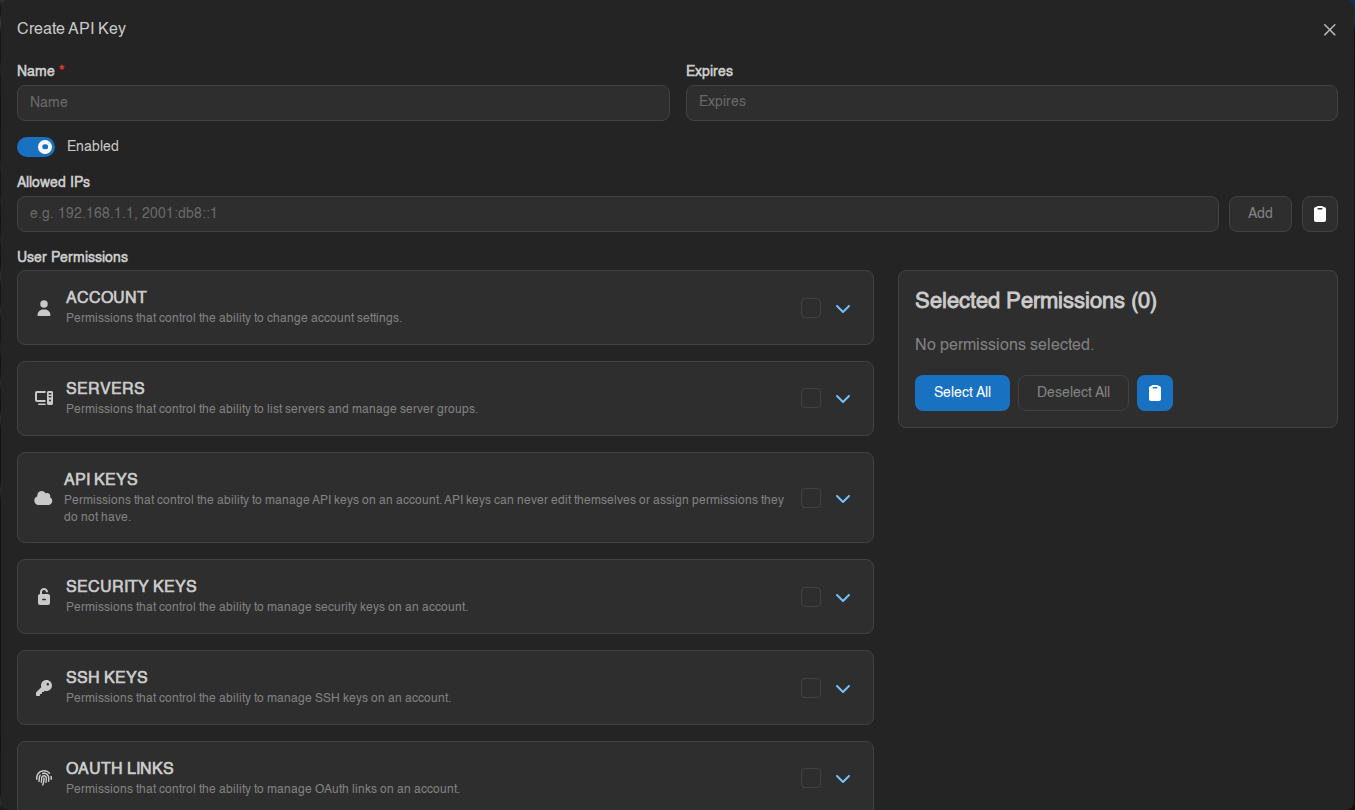
The key is shown only once. Copy it straight away. Anyone with the key can do whatever you allowed it to, so treat it like a password and never share it publicly.
SSH keys: logging in to SFTP without a password
An SSH key lets your SFTP program log in without typing your password.
- Go to Account → SSH Keys and click Create.
- Give it a name and paste your public key (the
.pubfile), or click Upload Key File. - Point your SFTP program at the matching private key.
Step-by-step for WinSCP and FileZilla: Connecting to your server with SFTP.
Command snippets and keyboard shortcuts
Command snippets
Tired of typing the same long console command? Save it as a snippet and insert it with a couple of keystrokes.
Creating a snippet
- Go to Account → Command Snippets and click Create.
- Give it a short Name, e.g.
announce-restart. - Type the Command, e.g.
/announce Server restarting in 5 minutes! - Eggs: pick which games it's for. Leave it empty to use it on every server.
- Click Create.
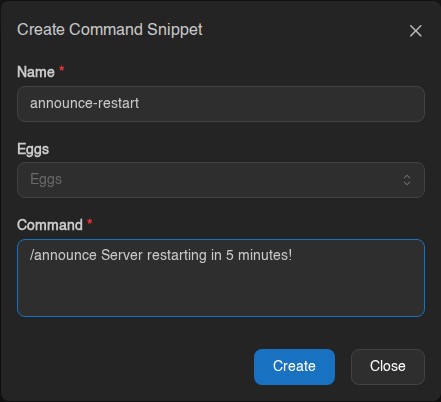
Using a snippet
On any server's Console, type ! followed by part of the name, e.g.
!ann. Pick the snippet from the list and the command is filled in. Check it,
then press Enter to send.
Handy Vintage Story snippets
| Name | Command |
|---|---|
announce-restart |
/announce Server restarting in 5 minutes! |
day |
/time set day |
save |
/autosavenow |
backup |
/genbackup |
whitelist |
/whitelist add (then type the name) |
Keyboard shortcuts
Account → Keyboard Shortcuts lists every shortcut. You can Rebind any of them, or turn them off.
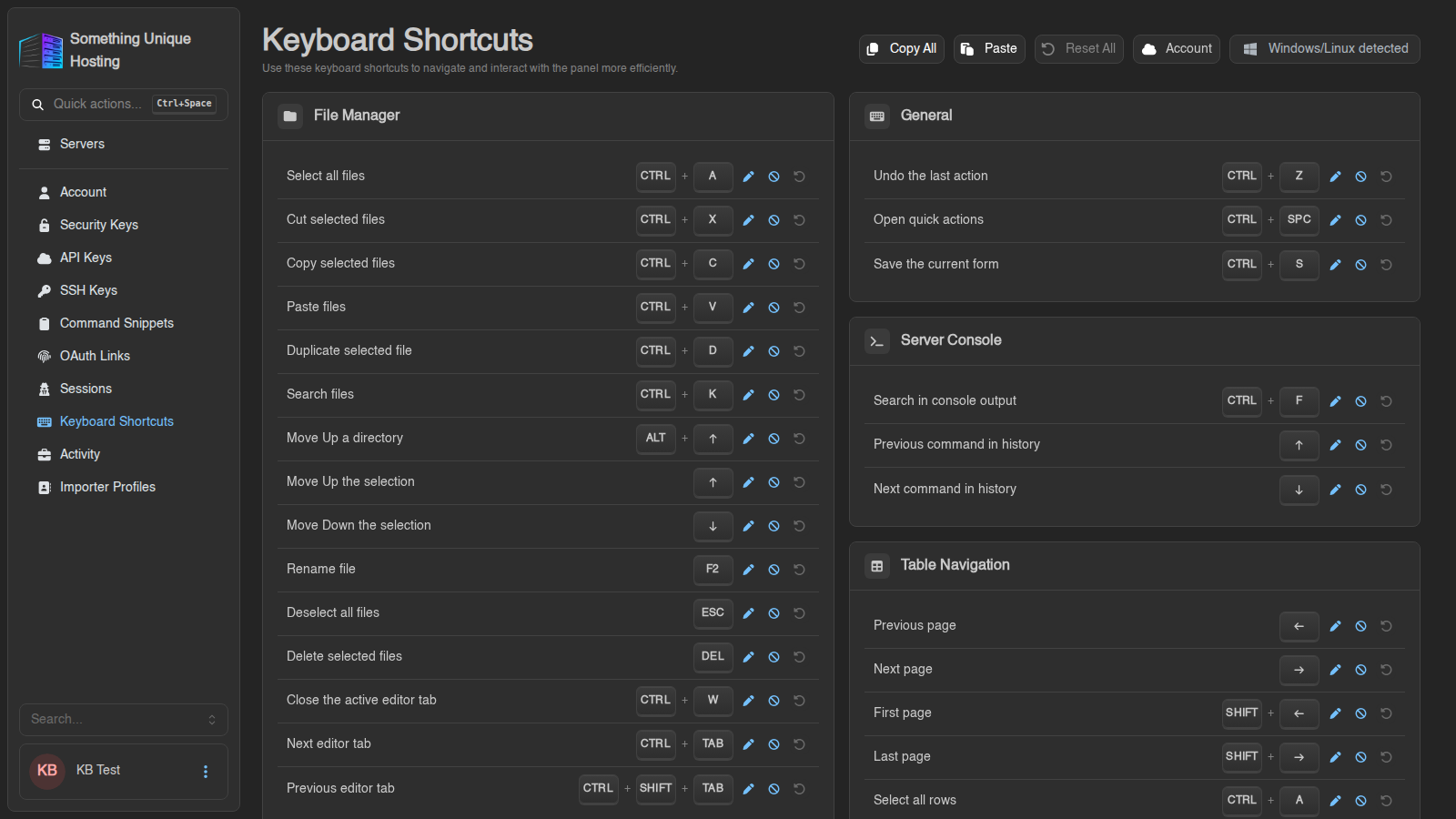
The most useful ones (Windows/Linux; use Cmd instead of Ctrl on Mac):
| Shortcut | Does |
|---|---|
| Ctrl+Space | Quick actions: jump to any page or action by typing |
| Ctrl+S | Save (files, settings) |
| Ctrl+K | Search files |
| F2 | Rename the selected file |
| Ctrl+F | Search the console log |
| ↑ / ↓ | Previous commands in the console |
| Hold S + click | Select several servers on the server list |
Shortcuts sync to your account. Use the menu at the top to keep changes on Only This Device instead.