Ordering a server
1. Pick your game
On suhosting.net, scroll to the games or use View All Games, then pick yours. You'll see the plans for that game. Click Configure Server on the one you want.
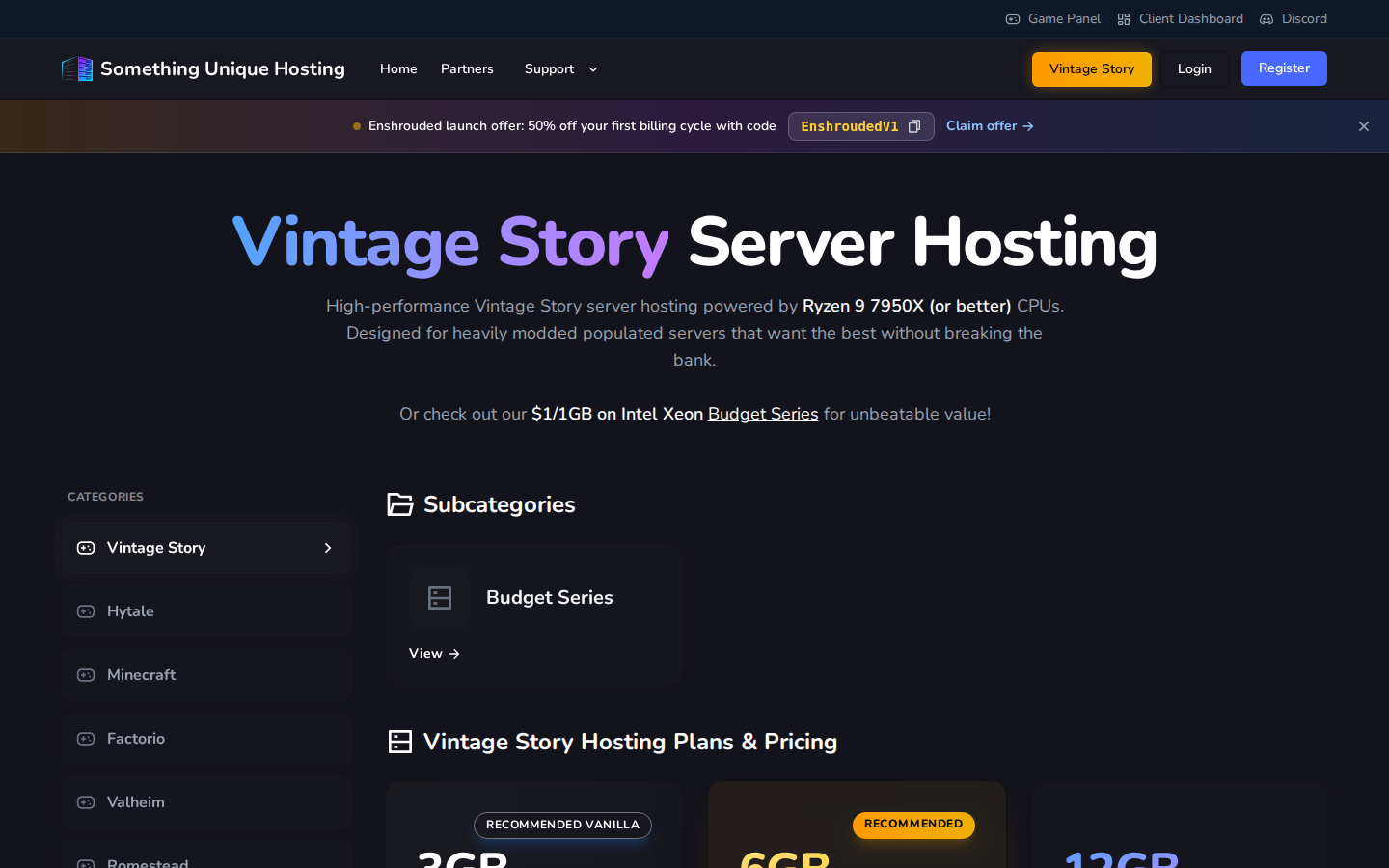
Not sure how much memory you need? Start small. You can upgrade any time and only pay the difference.
2. Configure it
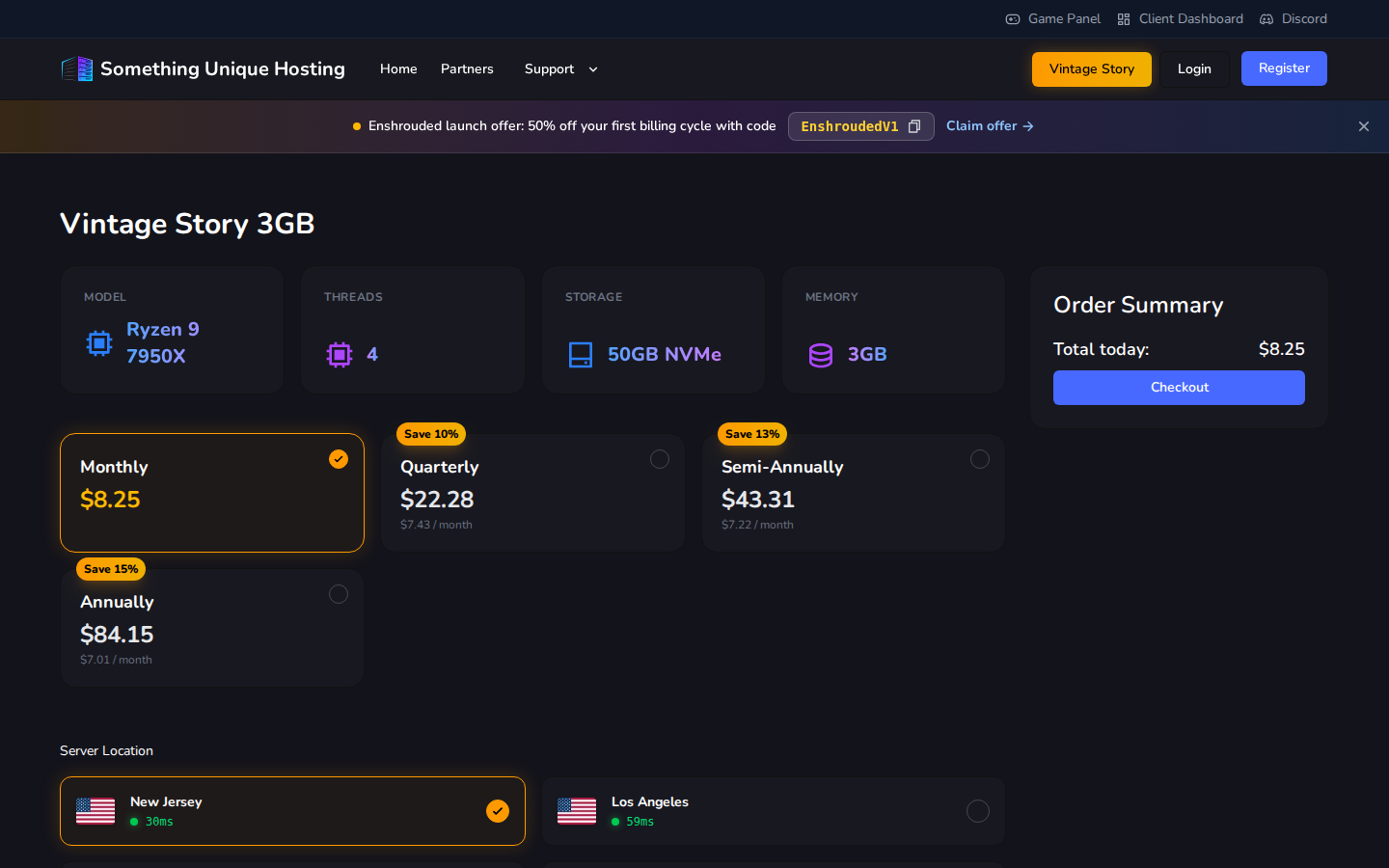
- Billing cycle: Monthly, Quarterly, Semi-Annually or Annually. Longer cycles are cheaper per month (the badge shows the saving).
- Server Location: choose the datacenter closest to you and your players. Each card shows your live ping to that location. Lower is better.
The Order Summary on the right shows what you'll pay today. Click Checkout.
3. Checkout
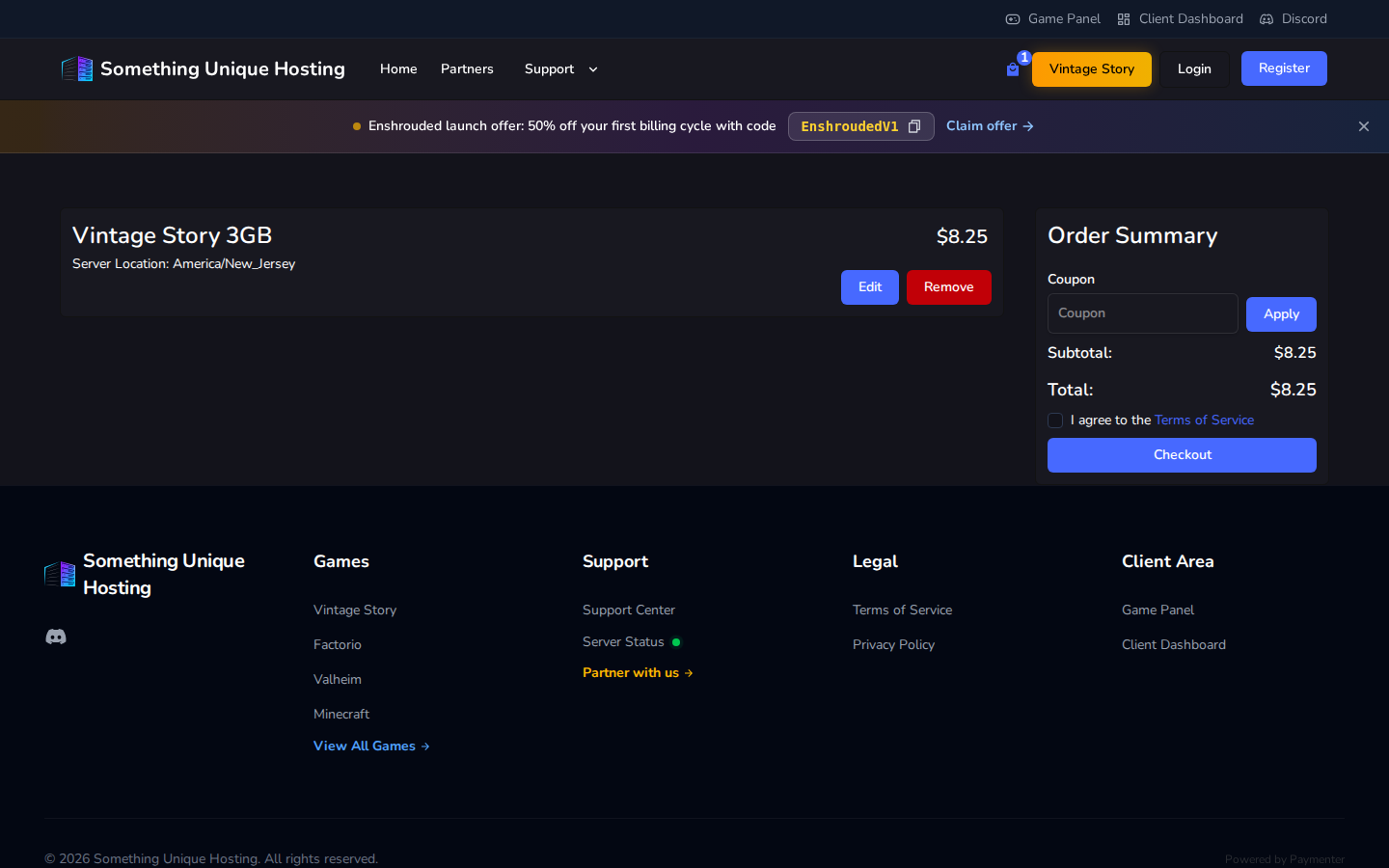
- Have a coupon code? Enter it under Coupon and click Apply. Only one coupon per order.
- Tick I agree to the Terms of Service.
- Click Checkout. If you're not signed in yet, you'll be asked to sign in or create an account.
- Pay the invoice with card (Stripe) or PayPal. See Paying invoices.
Unpaid orders are cancelled after 7 days. If you change your mind, just don't pay. Nothing else to do.
4. Start playing
As soon as payment goes through, your server is created automatically. It usually takes a minute or two.
- In the billing site, it appears under Services. Click Go to Server to jump to it.
- In the game panel, sign in with Login with Paymenter and your server is waiting.
Next: Start here: a tour of the game panel.
Coupons and promotions
Current offers appear in the banner at the top of the site. Click the code to copy it. Most coupons apply to your first invoice only, and renewals are at the normal price.
Budget Series servers aren't eligible for coupons or partner codes.